What is image style transfer?

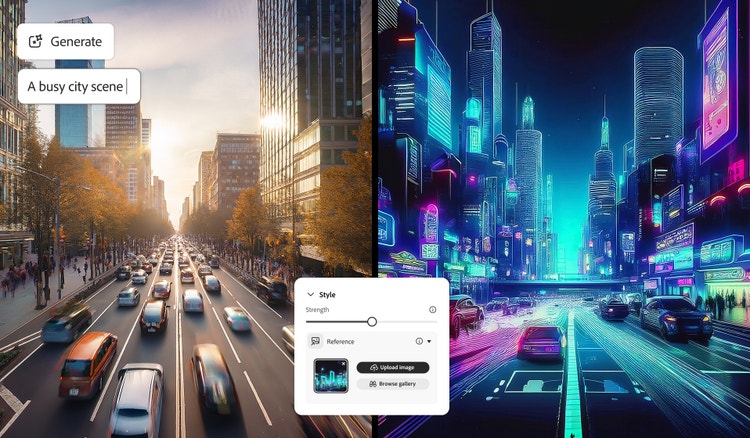
Image style transfer is a type of image to image AI that uses machine learning to apply the artistic style of one image to another. It allows you to transform the mood, texture, and colour palette of your visuals. For example, turning a photo into a painting, a sketch, or a textured artwork while keeping the original composition intact.

Powerful features of AI image style transfer.

Transfer image styles for cohesive content.

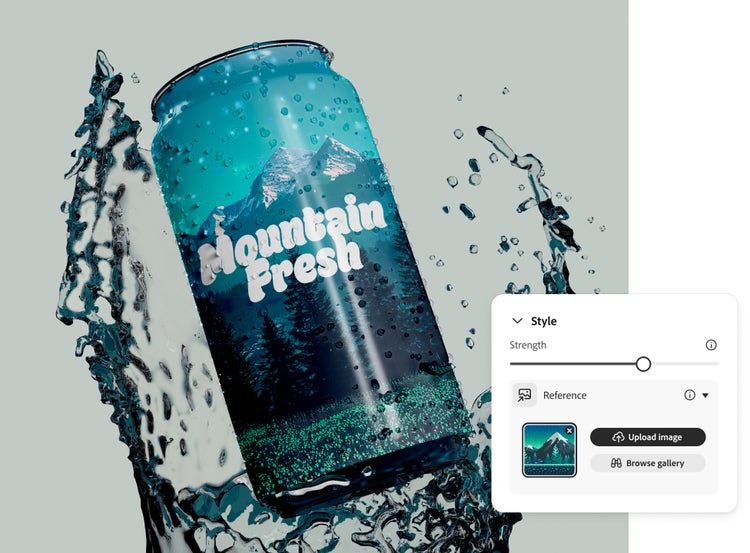
Use AI image style transfer to apply a consistent visual style across all your creations. Upload a reference image and generate new assets that match its look and feel. This is ideal for illustrations, product concepts, logos, and social posts. Maintain visual harmony across articles, ads, and brand content with just one reference style.

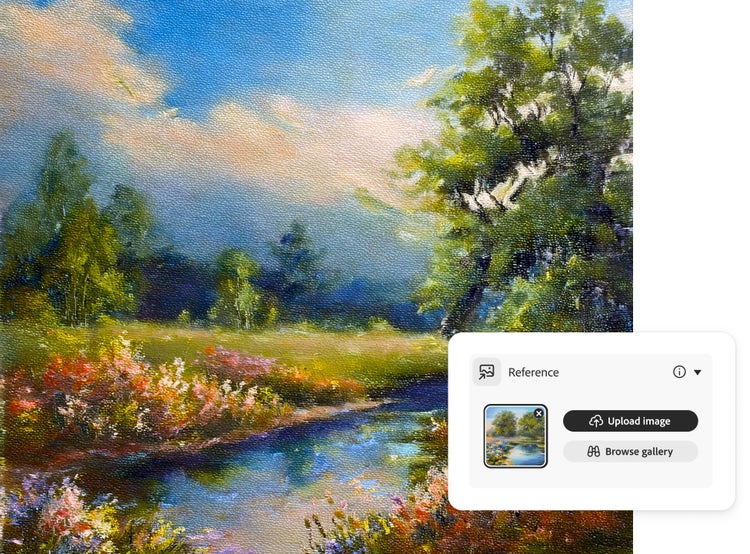
An AI generated image of a beautiful landscape scene that includes a river with flowers on the banks overlaid with the style reference UI showing how to upload an image.
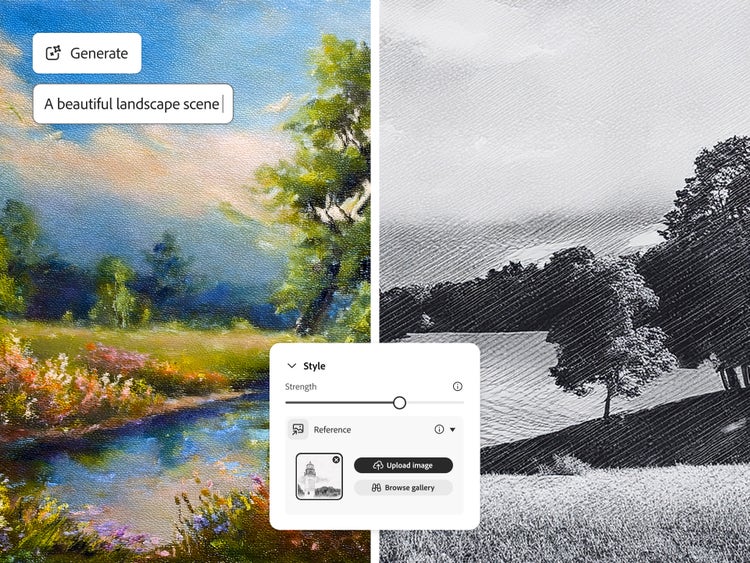
Side by side images of an AI generated landscape scene, one side shows the text to image prompt and centred is the style reference UI showing an image upload.

Update image styles and visuals faster.

Quickly refresh your visuals without redesigning from scratch. With AI image style transfer, you can update colours, textures, or overall aesthetics in minutes. Apply a new reference image to give individual pieces or entire campaigns a unified, up-to-date look.

How to stylise images with AI Generative Match.

Learn how to create more personalised, cohesive and on-brand visuals in less time with the AI image style transfer tool. By applying styles from a reference image, you can match your artwork to a specific look, whether it’s hand-drawn, realistic or completely abstract. With Generative Match in Firefly, it’s simple to change or update your creative direction without starting again.

Here’s how to apply a style transfer to your AI-generated images:

  • Open Firefly to use the image style transfer feature.
    Go to the Text to Image module in the Firefly web app. (If you’re not signed in, sign in to your Adobe account or create an account for free.) Hover over any image in the gallery and select View Samples.
  • Select a reference image to transfer styles from.
    In the control panel to the right of the image results, make sure Firefly Image 2 model is selected. In that same panel, scroll down to the Match section. Click the Reference Gallery to scroll through the images until you find a style you want to apply.

    To use your own image, drag and drop it into the control panel or click Upload Your Own Image and select it from the pop-up menu. (You must have the rights to any third-party images you upload.)
  • Click ‘Generate’ to apply style.
    Click Generate to apply the reference style. Firefly will produce a stlylised image that blends your original idea with the visual look of your selected reference.
  • Refine generated image.
    Use the Style Strength slider in the control panel to fine-tune how strongly the reference image influences your design using AI image style transfer. You can also adjust colour and tone, lighting and composition to further customise your results. For more detailed edits, click the Edit button in the top left of a stlylised image to open it in the Generative Fill workspace.
  • Save your work.
    Click the heart in the top right to save the image to your Favourites or click the More Options button to download it as a PNG or save it your libraries.
Once you’ve created a stlylised image with AI image style transfer, you can easily share it for feedback or inspiration. Use your new design to update other visuals, like logos, product shots or social graphics so everything fits the same aesthetic. Whether you're refreshing your brand or building out a full set of creative assets, applying consistent styles helps your content look more polished and professional.

AI Image Style Transfer for Every Creator

For content creators

Give your visuals a consistent, polished look across all your platforms. AI Image Style Transfer helps you apply a signature aesthetic to thumbnails, posts, and graphics — perfect for creators on Instagram, YouTube, and X who want a recognisable visual identity.

For entrepreneurs

Build a strong, consistent brand presence. Use AI Image Style Transfer to apply your brand’s colours, textures, and tone to marketing visuals, social ads, and product mockups, keeping everything cohesive and professional.

For aspiring artists

Experiment freely with styles and techniques. Transform your artwork into watercolour, sketch, or 3D render styles with AI Image Style Transfer and discover new creative directions for your portfolio or personal projects.

For photographers

Transform your photos with new looks while keeping composition intact. AI Image Style Transfer lets you experiment with colour grading, artistic styles, or lighting effects without losing the realism of your original image.

Try Generative Match.

Streamline editing with Firefly's image style transfer generator and make image variations based on the style of an existing image in seconds.

Get Started

Remix content from the community.

Discover Firefly prompts to remix and submit your own images to the gallery.

Image style transfer and Generative Match FAQs.

What is AI image style transfer?
AI image style transfer, also known as neural style transfer, is the use of an AI generator to create an image in the style of a reference image. For example, if you want to generate an image of a superhero in a comic book style, you can select the comic book style image from the Digital Illustration section of the Reference Image Gallery. Firefly uses deep neural networks to understand the style of the reference image and apply it to a prompt so you can achieve the look you’re going for quicker and with greater accuracy.
How do image style transfers work?
Image style transfers use trained neural networks, which learn the style features of the reference image (including colours, textures and brush strokes). The neural networks then apply those style features to the content of another image. In Firefly, Generative Match applies the style features to the new images it generates from text prompts.
How can I change the style of my photo?
It is easy to restyle your photo in Adobe Firefly. Upload your image, choose a style reference (like pencil sketch, oil painting, or neon art), and Firefly’s AI image style transfer will instantly apply that look to your photo.
Can I use my own artwork as a style reference?
You can upload your own artwork or image as a style reference in Adobe Firefly. The AI image style transfer tool analyses its colours, textures, and brush strokes to generate new visuals in a similar aesthetic — perfect for keeping your work consistent and uniquely yours.
Can I combine multiple styles in one image?
You can blend multiple styles by uploading images with different visual characteristics or refining your prompts. Adobe Firefly’s AI image style transfer interprets these details to create balanced, cohesive results that merge the best of each style.
Is AI image style transfer free to use?
Yes. The image style transfer AI feature in Generative Match is included in Adobe Firefly’s free plan, with limits based on your available generative credits. You can explore available Firefly plans to access more credits or advanced features.
Is AI image style transfer suitable for commercial use?
As part of Adobe’s effort to design Firefly to be commercially safe, we are training our initial commercial Firefly models on licensed content, such as Adobe Stock and public domain content where copyright has expired. If you upload third-party reference images, you must have the rights to use them.
Why should I stylise an image with AI?
Stylising an image with AI helps you quickly apply a specific look or mood to your visuals, like watercolour, pencil, 3D or neon, without manual editing. AI image style transfer saves time while giving you more creative control and consistency across your designs.
What can I use an AI image style transfer tool for?
You can use an AI image style transfer tool to generate cohesive assets for branding, social media, digital art, product concepts and more.
What is the best way to transfer image styles successfully?
For the best results with AI style transfer, choose a high-quality reference image that clearly shows the textures, colours or effects you want to apply. Adjust the Style Strength slider to control how closely the generated image follows the reference.

https://main--cc--adobecom.hlx.page/cc-shared/fragments/products/firefly/firefly-sketch-to-image-four-cards-up