
File must be JPEG, JPG, or PNG and up to 40MB
https://main--cc--adobecom.aem.live/cc-shared/assets/img/upload-white.svg Upload your photo

By uploading your image or video, you agree to the Adobe
Terms of Use and Privacy Policy
File must be JPEG, JPG, or PNG and up to 40MB
https://main--cc--adobecom.aem.live/cc-shared/assets/img/upload-white.svg Upload your photo
By uploading your image or video, you agree to the Adobe
Terms of Use and Privacy Policy
to try it today
File must be JPEG, JPG, or PNG and up to 40MB
https://main--cc--adobecom.aem.live/cc-shared/assets/img/upload-white.svg Upload your photo
By uploading your image or video, you agree to the Adobe
Terms of Use and Privacy Policy
- File size larger than 40 MB
- Unable to process the request
- We are unable to process this file type. Please try again.
- Only one file can be uploaded at a time.
- Image exceeds maximum dimensions (8,000 x 8,000 pixels). Please resize and try again.
- promoid=KQQQTW44&mv=other
How to edit a photo in Photoshop.
There are many tools and capabilities for everything from a light photo retouch to full-scale transformations into artistic, surreal photo art. But getting started with editing photos in Photoshop can be simple if you know where to begin.
Quick‑start checklist:
- Open your image via File > Open or drag‑and‑drop.
- Back up the original (save as PSD).
- Plan what you want to achieve: crop, colour fix or full‑scale compositing.
- Keep layers organised; name each layer clearly.

1. Import images and get started.
The first step to editing a photo is importing it into Photoshop. To do so, simply use the Open command in the menu and select your image file. If you’re moving files from Lightroom or Adobe Express, the photo editor preserves RAW data and colour profiles automatically.
2. Straighten your image.
Before you do anything else, make sure your photo isn’t crooked. If your image is slightly off kilter or has a crooked horizon, use the Straightening tool to level things out. Simply draw a line across the photo and the image will automatically straighten to match the line you’ve drawn.
Tip for smartphone shots: enable Photoshop’s Grid overlay (View > Show > Grid) to align streetscapes like Mumbai’s Marine Drive perfectly.


3. Crop your image.
If there are any distracting elements on the side of your image or your composition is just slightly off, crop it with the Crop tool. Make sure “Delete Cropped Pixels” in the Crop menu is turned off. That way, you can always adjust your crop later if you decide to zoom back out.
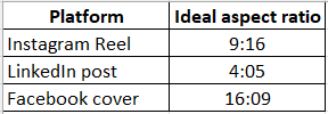
Tip: To edit photos for social media, here are the ideal aspect ratios to use.
4. Duplicate your image and make layers.
After you import an image, it can be helpful to duplicate it. Go to Image › Duplicate in the menu to make multiple copies of it. Each duplicate can serve as the basis for an individual layer. This non‑destructive approach is essential when you edit photos online via Cloud Documents, ensuring versions stay synced across devices. Working with layers is a crucial part of the Photoshop photo editing workflow.

Work with layers for ultimate flexibility.
Layers and layer masks are like translucent sheets that you lay over one another to create your image. By placing each photo editing adjustment on its own layer, you’ll gain greater control and flexibility, with the option to undo or fine-tune changes at any point. Then use layer masks to hide certain areas of your layers so your edits are focused only where you want.
- Easily undo changes.
Layers allow for non-destructive photo editing, which can be a major benefit to your workflow. Non-destructive edits are any edits that you can go back and undo or change after you make them. As long as you’re editing nondestructively, you can experiment with new tools and looks without losing your original image. - Make targeted edits.
By separating elements of an image into different layers, you can focus on that component on its own. Use fast selection tools to quickly grab one area of an image and then create a layer mask with it. If you have one layer for your sky, you can make adjustments that apply just to the sky, like extra brightness or a blur effect. If another layer is only your subject in the foreground, you can adjust how they look without affecting the background. - Combine layers with blend modes.
Use blend modes to control how one layer interacts with the layers beneath it. This is useful for adding creative effects, combining textures, or enhancing lighting in your photo edits. - Use Smart Objects for scalable editing.
Convert layers to Smart Objects so you can resize, transform, or apply filters without degrading image quality. This is perfect for complex photo editing workflows.
Transform images with painting tools and colour adjustments.
Photoshop includes countless ways to transform an image. Tools and adjustments are how you make those transformations happen. From retouching to recolouring to refining your work, Adobe's photo editor gives you the flexibility and control needed for every stage of your photo editing process.

Get to know all your tools.
Tools in Photoshop apply permanent effects to the pixels of your image. However, if you use tools on a duplicate layer, you can always undo your change. Tools like the Spot Healing Brush let you cover up blemishes or irregularities. You can paint on an image with the Brush tools as if they were physical paint brushes. Take some time to get to know them. Take some time to explore these options in the Photoshop photo editor, especially if you're getting started with photo editing.
Get to know all your adjustments.
Control the colour and tone of an image with Photoshop Adjustment Layers, a core feature in any advanced photo editor. Adjustments are not filters — but if you’re a beginner it can be useful to think of them like that. Adjustments apply changes to an image or part of an image.
In Photoshop’s photo editing workflow, adjustments generally fall into three major groups:
- Tone adjustments
- Colour changes
- Black-and-white conversions


Adjust the colour and lighting in an image.
Tonal adjustments in Photoshop let you modify things like hue, contrast, vibrance and saturation. Colour adjustments allow you to fine-tune the overall colour palette, making your photo editing more precise and expressive. You can also convert a colour image to black-and-white or mute selected tones for a more dramatic or artistic effect using this photo editor.
Remove an unwanted element of an image.
Sometimes an image is just about perfect, except for one thing. Luckily, Photoshop provides multiple photo editing tools to remove unwanted objects, from background clutter to photobombers. Whether you're using this image editor online or on desktop, it's easy to clean up an image with a few quick edits.
- Hide things quickly with the Spot Healing Brush.
The Spot Healing Brush tool is good for small retouching tasks in Photoshop, such as removing power lines, skin blemishes or background distractions. - Remove pixels more precisely with the Healing Brush.
For more precision, the Healing Brush lets you manually select source pixels and apply them to areas you want to fix, ideal for fine-detail photo editing. - Stamp out imperfections with the Clone Stamp.
The Clone Stamp also works well to cover up unnecessary background bits. You can clone part of an image (such as a section of sky) and use it to hide distractions, creating a seamless result.
Editing photos in Photoshop is a world of possibilities.
Create content for social media with Photoshop
Social media is a visual medium, and in India, platforms like Instagram, Facebook, and YouTube have become essential tools for creators, influencers, and entrepreneurs. Photoshop makes it easier to create content that stands out, with the flexibility and control needed for impactful visual storytelling.
Add eye-catching visuals and regional text
With advanced photo editing tools, you can enhance colours, sharpen details, and overlay text in your preferred language, whether it's English, Hindi, Tamil, Bengali or Marathi. Use the Brush tool, custom shapes and filters to create festive posts for occasions like Diwali, Holi, Independence Day, or regional celebrations like Onam and Baisakhi.
Work smarter with reusable templates
Save time by building templates for product listings, launches, event invites or brand promotions. Use features like Smart Objects and Layer Styles to update designs quickly while keeping your brand elements consistent. This is especially helpful for small business owners and content creators who need to post frequently.
Export high-quality visuals for any platform
Once you're done editing, export your images using the Export As feature. You can adjust resolution, file format and size to suit platforms like Instagram or YouTube. Using the right export settings ensures your content stays crisp and vibrant, even on mobile networks with varying speeds across India.
Dig deeper into colour and background edits.
Take your photo editing skills beyond the basics with these advanced Photoshop tutorials. Whether you're adjusting tones, changing colours or replacing backgrounds, these guides help you make the most of this powerful image editor.

Play with the hues in a photo.
Make your photo look more professional with colour editing techniques that alter the intensity of certain tones.

Change the setting of an image.
Separate people and objects from a background with the Quick Selection tool and put them in a whole different spot.
{{questions-we-have-answers}}
