
Photography
Create the impossible by superimposing images.
By overlaying images, you can combine photos into one creative composition. Learn how to superimpose and overlay images in Photoshop using layers and blending tools.


Photography
By overlaying images, you can combine photos into one creative composition. Learn how to superimpose and overlay images in Photoshop using layers and blending tools.
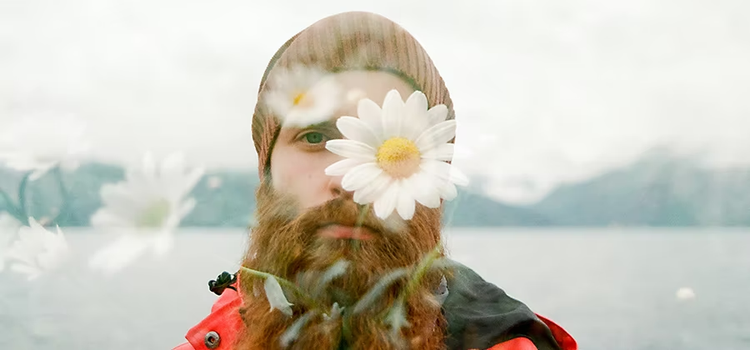
To superimpose an image means to add one image on top of another, combining them to create a new visual, often for artistic effect, to add information, or to blend two scenes into one composite image.
Superimpose and overlay are often used interchangeably, but overlay means adding a separate layer on top of an existing image, while superimpose means combining elements so they appear as one final, unified image.
Overlays are commonly used in digital editing because they are easy to adjust or remove, making them ideal for adding effects or details. Superimposition goes a step further by integrating elements into a single composition, helping create more immersive and visually cohesive results.
Follow this tutorial to superimpose images to replace the background of an image and make it appear to exist somewhere else.
1. Organise your images in Photoshop.
Open the two images you want to work with in Photoshop and organise the layers so the image you want on top is stacked above the background image. The order of layers matters when it comes to compositing and superimposing images. This layer setup is the foundation for placing subjects into new scenes or combining photos creatively.
2. Remove the background.
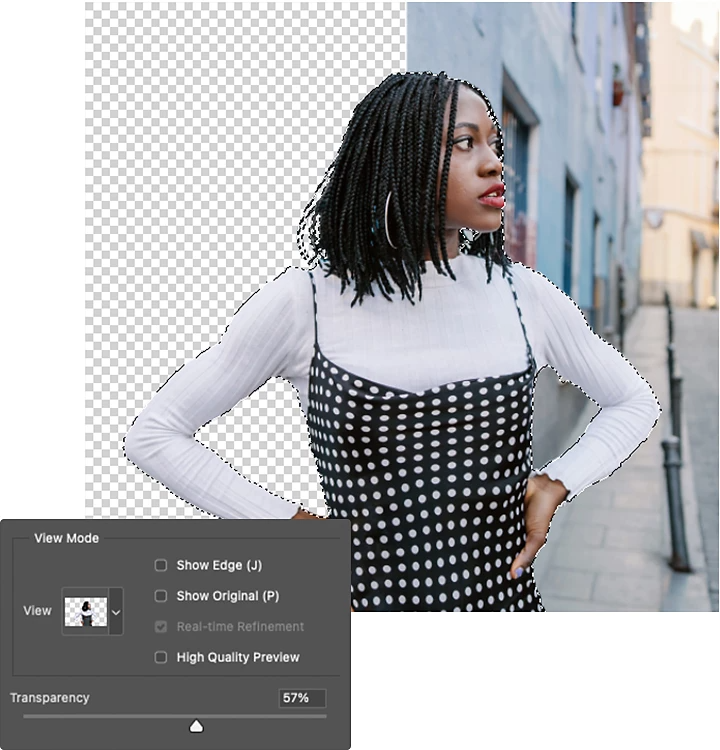
Click Remove Background to automatically remove the background of the top image and generate a new Layer Mask. This hides pixels without deleting them. “In Photoshop, you want to work nondestructively — in case you make a mistake, you can come back and restore the image,” says Ramirez. Refining masks at this stage helps edges look natural and supports a smoother blend between photos.
3. Adjust the mask.
Once Photoshop removes the background, you can tweak and adjust the image to make it look more realistic. Start by editing the edges of the Layer Mask using the Brush tool. By painting on the layer mask with black, white or different opacities of either, you can create subtle gradients between two images that gently blend them together. This careful refinement is key when you superimpose two images for natural-looking edges and realistic depth.
4. Blur the background to add depth.
In typical photos, objects in the background will be slightly out of focus, because the depth of field is shallow and the camera is focusing on the person or subject in the foreground. Recreate this depth of field and give your image a more cohesive look by adding dimension with Gaussian Blur. To add blur, select the background layer, then go to Filter › Blur › Gaussian Blur. From there, you can adjust the intensity of the blur to create a difference in depth. Adding blur can help superimposed images feel more cohesive, especially when you blend backgrounds with subjects from separate photos.
5. Use Smart Objects for flexible editing.
“A Smart Object is a container that holds one or more layers. This allows you to apply non-destructive adjustments, distortions, filters and transformations. In other words, you can always come back and make changes,” says Ramirez. By making your layers into a smart object, you can treat your combined layers as one image. This step also keeps edits flexible when you superimpose images, letting you adjust positioning or scale later without starting again.
6. Make the final adjustments.
By treating your multiple layers as one image, you can now adjust the contrast, temperature and saturation uniformly, giving the final image an even more cohesive appearance. From there, just export it as a PNG or JPG to easily post online or add to your portfolio. This helps finish the look when you superimpose two images and want both parts to share the same visual tone.
“Essentially, when you superimpose an image, you combine two images to create something new,” says Photoshop expert Jesús Ramirez. People often use this approach to blend photos together for realistic edits or to place subjects into entirely new scenes. Superimposing is a broad term and describes a wide variety of effects that a designer or photographer can use to merge, edit and composite images.
By superimposing elements onto an image, you can create an illusion or conceal something in the original image. So whether you’re layering an updated logo onto a product photo or you’re compositing images together to make a collage, overlaying images is an important photo editing technique to understand. It can enhance different types of pictures, from product shots to artistic portraits, and is widely used across many photography genres.
A unique way to overlay images is with a double exposure. A double exposure is a combination of two or more photos. Historically produced by creating two exposures on one piece of film, it’s easy to create double exposures digitally. In Photoshop, you can quickly adjust the opacity of each image and even apply exposure gradients to your second image. This gradient will subtly fade your image, giving it a soft, subtle edge. Many photographers use double exposures to create atmospheric portraits or to merge landscapes with silhouettes for artistic depth. These creative styles are popular across different types of pictures and genres of photography.
“Another way to superimpose an image onto another is by combining them using a blending mode in Photoshop,” says Ramirez. These blending modes determine different ways that layers interact with each other. A layer’s blend mode is set to Normal by default, meaning the layers don’t interact or blend with each other. They are especially helpful when you want to blend photos with different lighting or colour tones. By changing these modes and experimenting with layer masks, you can merge the images together and create a new look. This approach can produce subtle composites for portraits or bold results for creative artwork, depending on the mode you choose.
Another way to combine images is to cut and paste sections of photos together. With the Lasso tool or Magic Wand tool, you can quickly make selections and cut out objects from their backgrounds. From there, you can easily copy and paste them onto other images. This approach is often used to place people or objects into new locations or to build composite scenes, making it a practical technique for many photography styles. When you’re done pasting an object, resize and scale it to fit the scene or apply effects to help it blend into the background.

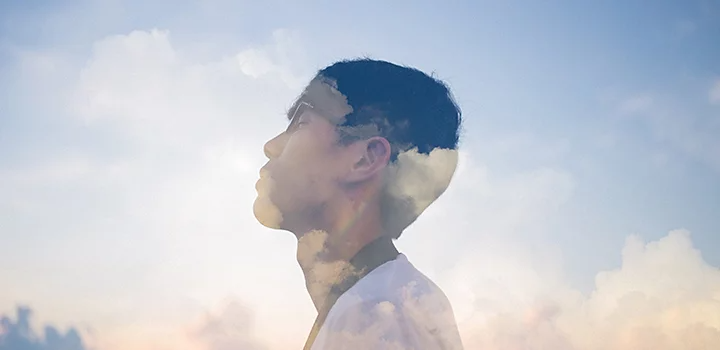
Superimposed photos open up a wide range of creative possibilities in Photoshop. Here are a few approaches people often explore when working with superimposed images:
These ideas help people superimpose images in ways that feel expressive and tailored to different photography styles and visual goals.
You can use superimposed images to change the view from your bedroom window, to edit something funny into a historical photo or to create evocative and thoughtful pieces of art. Many artists also superimpose two images to merge different styles or visual themes, allowing portraits and landscapes to interact in surprising ways. And with a photo editor like Photoshop, you can create on your iPhone, iPad or computer — whenever inspiration strikes. If you need a little help getting started, explore inspiration on Behance to see what your peers are up to. This flexibility makes the technique suitable for different types of pictures, from stylised artwork to everyday photography.
Based on your location, we think you may prefer the United States website, where you'll get regional content, offerings, and pricing.

