Adobe Photoshop
Explore the Photoshop photo editor.
Breathe new life into your images with the Adobe Photoshop photo editor. See how you can easily upload, edit, and download a new image in minutes with the help of AI editing.
Start free trial View plans and pricing
By using Photoshop Preview, you agree to the Adobe Terms of use and Privacy Policy.
- https://main--unity--adobecom.hlx.page/unity/assets/product-icons/photoshop.svg | Photoshop product icon https://main--unity--adobecom.hlx.page/unity/assets/icon-picker/startover.svg
- https://main--unity--adobecom.hlx.page/unity/assets/icon-picker/removebg.svg Remove Background
- https://main--unity--adobecom.hlx.page/unity/assets/icon-picker/changebg.svg Change Background
-
- https://main--unity--adobecom.hlx.page/unity/assets/icon-picker/huesat.svg Edit Hue/Sat
- Hue
- Saturation
- https://main--unity--adobecom.hlx.page/unity/assets/icon-picker/upload.svg Upload Image
- https://main--unity--adobecom.hlx.page/unity/assets/product-icons/photoshop.svg Continue In App
- File size larger than 40MB
- Unable to process the request
- We apologize, the image you uploaded doesn't comply with our Terms of Use. Please try again.
- We are unable to process this file type. Please try again.
Perfect your pictures and try our online photo editor tool.
With the Adobe photo editor, it’s easy to touch up images, apply filters, and turn photos into art. Streamline editing and enhance your creative vision with powerful Photoshop AI features like Auto-enhance, Smart Object Selection, and Generative Fill. Quickly crop, resize, or rotate your images for the perfect composition, then remove red-eye and blemishes and adjust curves, colors, and sharpness so your subjects look their best. The online photo editor supports most file formats and a file size of up to 2GB.
Crop out any imperfections.
Use the Crop tool to adjust your image's size and composition and eliminate unwanted elements. Easily remove distractions, straighten tilted horizons, or flip your photo to fit your vision. Generative Expand automatically fills empty areas when you expand your canvas for a seamless result. Choose from preset aspect ratios or customize for your project. With the Crop tool, your original image stays safe with non-destructive editing — so you can always undo changes.
Resize for your projects.
Adobe Photoshop lets you easily adjust your image to fit any project. Whether you’re designing a banner or creating the perfect profile picture, you can scale images up or down in just a few clicks. You can adjust by pixels, percentage, or print dimensions (inches or centimeters). When resampling, Photoshop can automatically choose the best resampling method, or you can select from AI-powered options like Preserve Details 2.0.
Manage touch-ups with ease.
Quickly remove blemishes or distracting elements from the background with powerful retouching tools. Use the AI-powered Spot Healing Brush for seamless corrections or the Healing Brush for more precise, sample-based adjustments. The Patch tool is ideal for texture matching more extensive corrections, while the Clone Stamp creates pixel-perfect cloning.
For more advanced edits, use Generative Fill for AI-powered object removal or use Face-Aware Liquify for facial feature adjustments and Neural Filters for AI-driven skin smoothing and style effects. Gain total control over your edits with up to a thousand customizable undo steps.
Apply filters with the Adobe Photoshop photo editor.
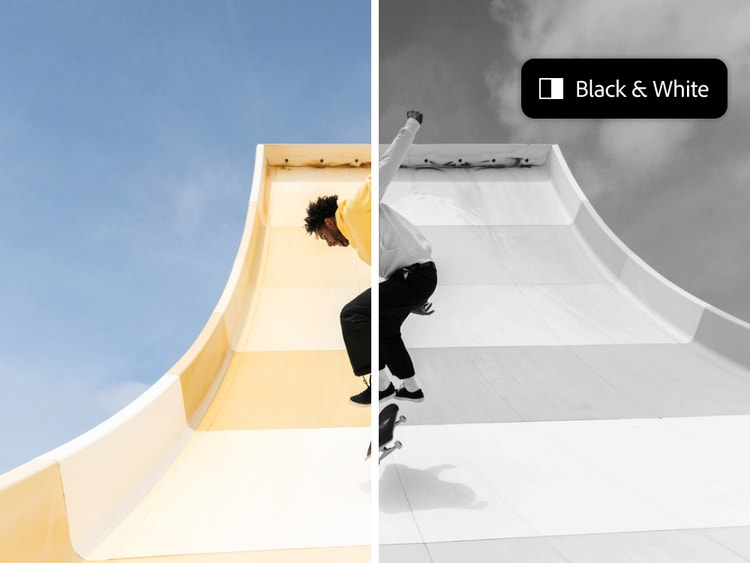
Give your photos a unique look with an array of included filters. Go from color to black and white, add a vintage touch with sepia tones, or experiment with artistic effects like watercolor and film grain in just a few clicks. Add depth with vignettes, soften with blur, or create a dramatic feel with lighting effects. Try Distortion tools like Twirl or Ripple for creative or surreal effects. With non-destructive edits and the ability to layer multiple filters, the creative possibilities are endless.
Take your images to the next level with Adobe Photoshop.
Whether you're creating collages, adding text, removing backgrounds, or adding watermarks, Photoshop delivers user-friendly professional tools to take your business to the next level.
As online photo editing becomes more accessible, professional photographers and designers should focus on what sets them apart—creativity, advanced skills, and expert knowledge.
Photoshop has advanced features such as layers and masks, vector shapes for scalable graphics, and powerful color correction tools. For animators, the timeline feature supports both frame-based and video animations, while the brush engine provides over 1000 brushes, plus the option for custom ones. It also seamlessly integrates with Adobe Creative Cloud for a smooth workflow with other Adobe apps.
FAQs:
What products are included in the Photoshop online photo editor?
The desktop version of Photoshop is the full-featured flagship product, offering advanced tools for photo manipulation, graphic design, 3D work, and digital painting. It includes a wide range of professional-grade features such as layers, masks, complex filters, advanced retouching tools, and much more. This version is highly customizable and is suited for professionals or advanced users who need in-depth control.
Photoshop on the web offers a lighter, more streamlined version of the desktop app. While it has many essential tools for editing, it lacks some of the advanced features available in the full desktop version. The web version is more focused on basic editing tasks like cropping, resizing, and simple retouching. It's designed for users who need quick and accessible editing without needing to install the desktop app.
Does the Photoshop photo editor leave a watermark?
What image file types can be uploaded and downloaded?
Photoshop supports a wide range of image file types for both uploading and exporting. Some of the most common supported formats include:
- JPEG (.jpg, .jpeg): Widely used for web and print, offers a balance between file size and image quality.
- PNG (.png): Best for images requiring transparency.
- TIFF (.tif, .tiff): High-quality format often used for professional photography.
- PSD (.psd): Photoshop's native file format that retains layers, masks, and other editable features.
- RAW formats: Supports a wide range of RAW file formats used by digital cameras (e.g., .cr2, .nef, .arw).
- GIF (.gif): Used primarily for animations or small web graphics.
- PDF (.pdf): You can export and edit images within PDFs in Photoshop.
- BMP (.bmp): Used for simple raster images.
- SVG (.svg): For scalable vector graphics, often used in web design.
These file types can generally be both uploaded for editing and exported from Photoshop. Some formats like PSD and TIFF preserve all the editing details, while others like JPEG and PNG are often used for final output.