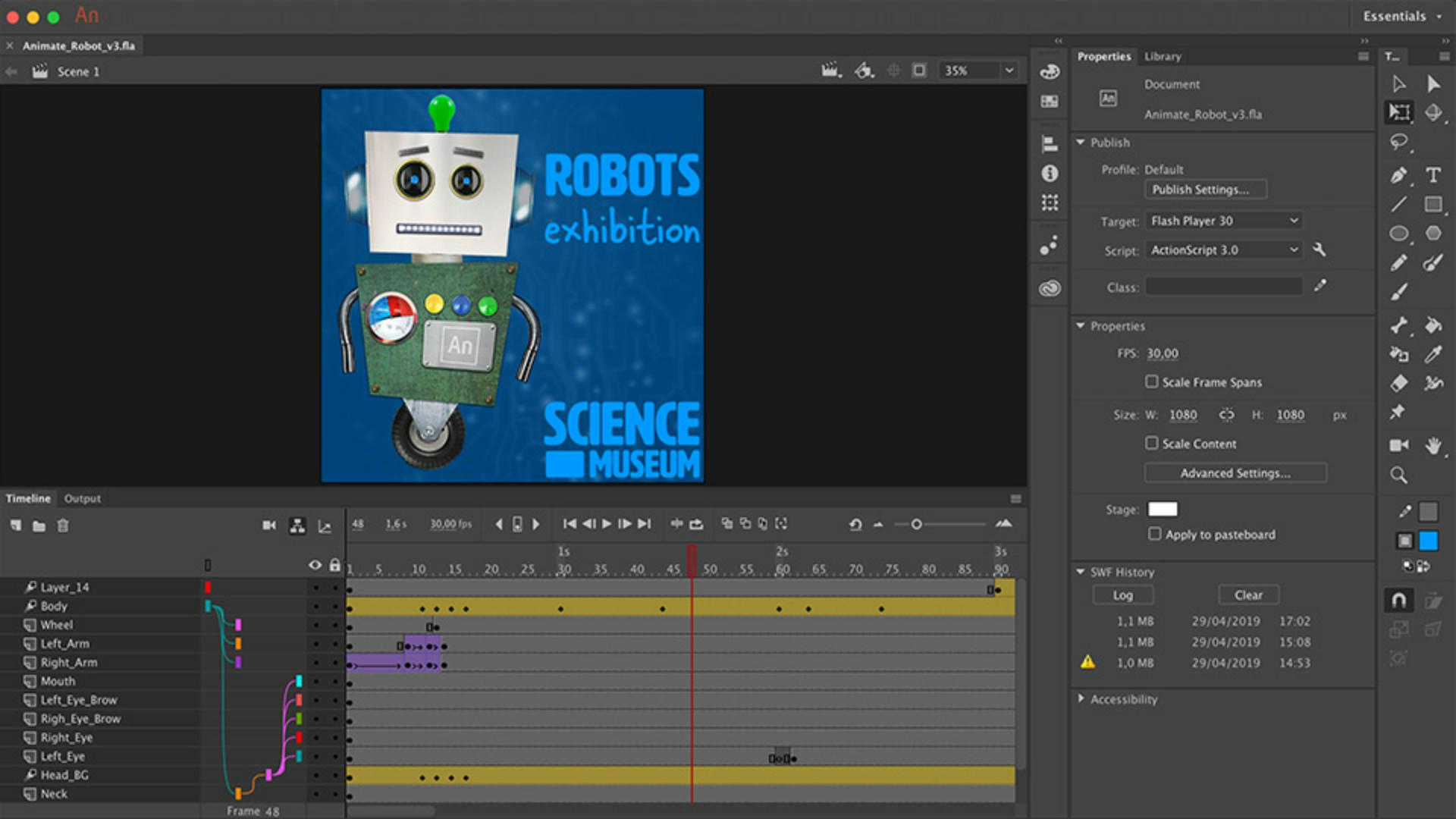
In the second video tutorial you'll learn how to link your layers together, in order to animate a character easily.
We have imported quite a lot of layers in this new Animate file.
Luckily, I've named my layers, so I know what content is placed on those layers.
By default space is a bit limited within a Timeline panel, we will pull the top end of the panel a bit upwards to balance the space between the Timeline and the Stage a bit better.
Understanding layer parenting and rigging
Let's enable the Show Parenting view within the Timeline panel.
Linking layers allows you to rig the character.
Just figure out what the most important part is of the character and that layer will be the parent of all layers.
Of course, children listen to their parents so the idea of linking the layers is that you create a hierarchy of layers - children - listening to their parents.
In this case, the body of the robot is the most important part,
Setting the main parent layer
it's also the easiest part to select and drag around.
An arm is a child of the body, let's select the arm, drag it towards the body layer, and let go.
Do the same for the other arm.
To test if this works, please drag around the body, and see if the arms will follow.
Undo to put it back to the original position.
Now link the Wheel and the Neck to the body,
Linking remaining parts and final checks
the Head to the Neck, and the Mouth, Eyes and Eyebrows to the Head.
Give it one final check to make sure that all layers are attached correctly.
With all these tasks done, you're ready to animate the character.
And that's what we'll talk about in the next video tutorial.
What you learned: How to create a hierarchy with the Parenting View
Understand the structure of parent and child.
Adjust the interface in order to see all the layers better.
Create a hierarchy by dragging the child layer towards the parent layer.
Test if the structure works by selecting a parent layer and move it around. The hierarchy is correct when all the other layers follow.
You can control how Adobe websites use cookies and similar technologies by making choices below. But note that if you disable cookies and similar technologies entirely, Adobe websites may not function properly.
Cookies are small text files stored by your web browser when you use websites. There are also other technologies that can be used for similar purposes like HTML5 Local Storage and local shared objects, web beacons, and embedded scripts. These technologies help us do things like remembering you and your preferences when you return to our sites, measure how you use the website, conduct market research, and gather information about the ads you see and interact with.
You can make choices in the menu below about what cookies and other technologies you want us to use on Adobe sites when you visit them from this browser. You can always change those choices later by clicking on the Cookie Preferences link at the bottom of the page.
If enabled:
We can improve your experience by tailoring the site and the content to things we think might be of interest
We can better keep track of your preferences — like what language you prefer to use
We will better understand your likely interests so we can provide you more relevant Adobe ads and content on non-Adobe websites and in non-Adobe apps
It will help us improve the performance of our website and those of our partners who use the Adobe Experience Cloud
If disabled:
We won’t be able to remember you from session to session so the experience may not be tailored to your interests
You’ll still have access to the content of the site but certain features that depend on cookies may not function
You’ll still see ads, they just may not be as relevant to you
General information
You can control how Adobe websites use cookies and similar technologies by making choices below. But note that if you disable cookies and similar technologies entirely, Adobe websites may not function properly.
Cookies are small text files stored by your web browser when you use websites. There are also other technologies that can be used for similar purposes like HTML5 Local Storage, web beacons, and embedded scripts. These technologies help us do things like remembering you and your preferences when you return to our sites, measure how you use the website, conduct market research, and gather information about the ads you see and interact with.
You can make choices in the menu below about what cookies and other technologies you want us to use on Adobe sites when you visit them from this browser. You can always change those choices later by clicking on the Cookie Preferences link at the bottom of the page.
If enabled:
We can improve your experience by tailoring the site and the content to things we think might be of interest
We can better keep track of your preferences — like what language you prefer to use
We will better understand your likely interests so we can provide you more relevant Adobe ads and content on non-Adobe websites and in non-Adobe apps
It will help us improve the performance of our website and those of our partners who use the Adobe Experience Cloud
If disabled:
We won’t be able to remember you from session to session so the experience may not be tailored to your interests
We’ll still count your use of our site and services
You’ll still have access to the content of the site but certain features that depend on cookies may not function
You’ll still see ads, they just may not be as relevant to you
Operate the site and core servicesOperate site and measure engagement
Always active
These cookies are required, and they are used to enable the site and related services core functionality. Without them the site could not operate, so they cannot be disabled.
These cookies enable the site and related services’ core functionality and collect statistics about user engagement, such as counting active use to help us understand trends. These cookies cannot be disabled.
Measure performance
These cookies are used to analyze site usage to measure and improve performance. Without them Adobe cannot know what content is most valued and how often unique visitors return to the site, making it hard to improve information we offer to you.
These cookies are used to analyze site usage to measure and improve performance. Without them Adobe cannot know what content is most valued, making it hard to improve information we offer to you.
Extend functionality
These cookies are used to enhance the functionality of Adobe sites such as remembering your settings and preferences to deliver a personalized experience; for example, your username, your repeated visits, preferred language, your country, or any other saved preference.
Personalize advertising
These cookies are used to enable Adobe and our partners to serve ads more relevant to your interests. Without them you will still see ads, but they might not be as relevant to you.
Personalize advertising
These cookies are used to enable Adobe and our partners to serve ads more relevant to your interests. Without them you will still see ads, but they might not be as relevant to you.