Introduction
Ready to take a trip back in time to add some retro flair to your designs?
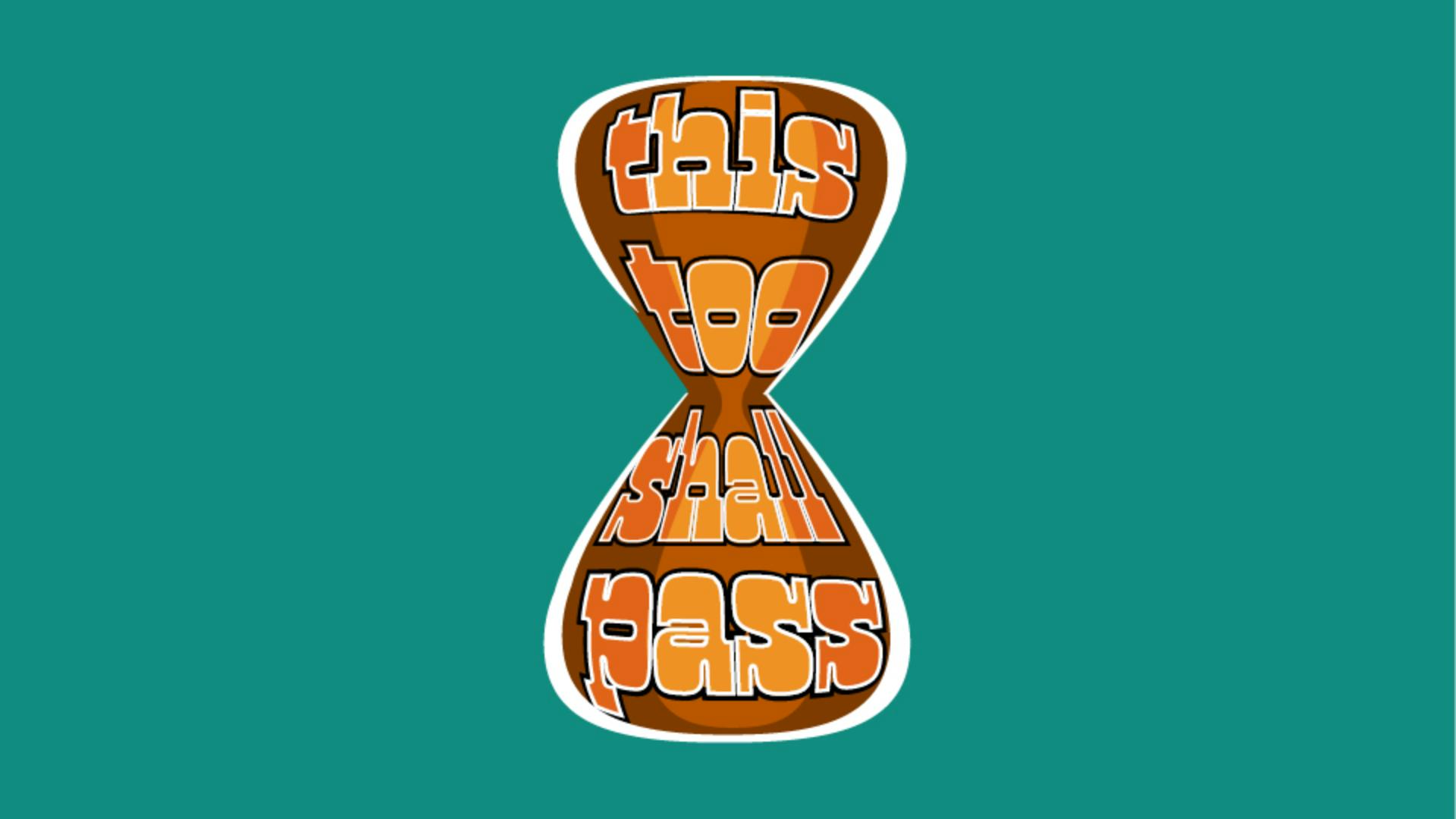
Today, we'll be using Adobe Illustrator's Appearance panel to create some retro inspired groovy text.
Hi, my name is Anika Aggarwal.
I'm a brand strategist and designer and run my own design studio Able Head based out in Toronto, Canada.
In the next few minutes, I will showcase how to create some retro inspired type lockups using the Appearance panel in Illustrator.
Let's set the mood with the perfect retro font.
Choosing retro fonts and color palettes
I have some of these fonts here that I think have a funky vibe that scream 70s disco along with the color palette.
You can also look for fonts using the features embedded in the Character panel in Illustrator and choose any of these fonts available here.
You can filter them based on Classification and Properties.
Building layered text with the appearance panel
Now let's kick things up a notch with the Appearance panel.
This panel allows you to add multiple strokes, fills, and even effects to your type.
Select your type and start by adding a stroke to it.
Change the Stroke Weight to make it visible on our text and maybe add another stroke to give it that extra funky outline.
Experiment with the Stroke Weight here to see what works for your design.
Now to give it that groovy vibe, I want to offset this part.
Creating groovy outlines and shadow effects
Click on Effects, go to Path, click on Offset Path... and change the Joins to Round.
Once you're happy with how this looks, click OK.
The word Characters represents the default formatting of the text.
In this case, a black fill and no stroke.
Drag the black stroke below Characters to put it behind the default formatting.
Add another fill in a different color with an offset path to give it a shadow effect.
All of this type is still editable.
You can replicate it and change the text.
Shaping text with envelope distort
Let's give it some shape with an Envelope Distort.
Make sure that this shape is on the topmost layer.
Select both the text and the shape, go to Object, Envelope Distort and Make with Top Object.
That looks super cool.
Play around with different options to find the perfect look, and you can even change the shape of the distort until you achieve the desired effect.
This is perfect for my social post.
And there you have it.
You can create groovy retro text in a few simple steps, but don't stop there.
Take what you've learned today and let your creativity run wild.
Experiment with fonts, colors and effects to create something uniquely yours.
Again, my name is Anika Aggarwal.
I look forward to seeing you in the next video.
Stay groovy.