Introduction
In this video you will learn how to manage presets in Lightroom.
You can follow along with any photo or you can download the sample file from the Adobe page for this tutorial.
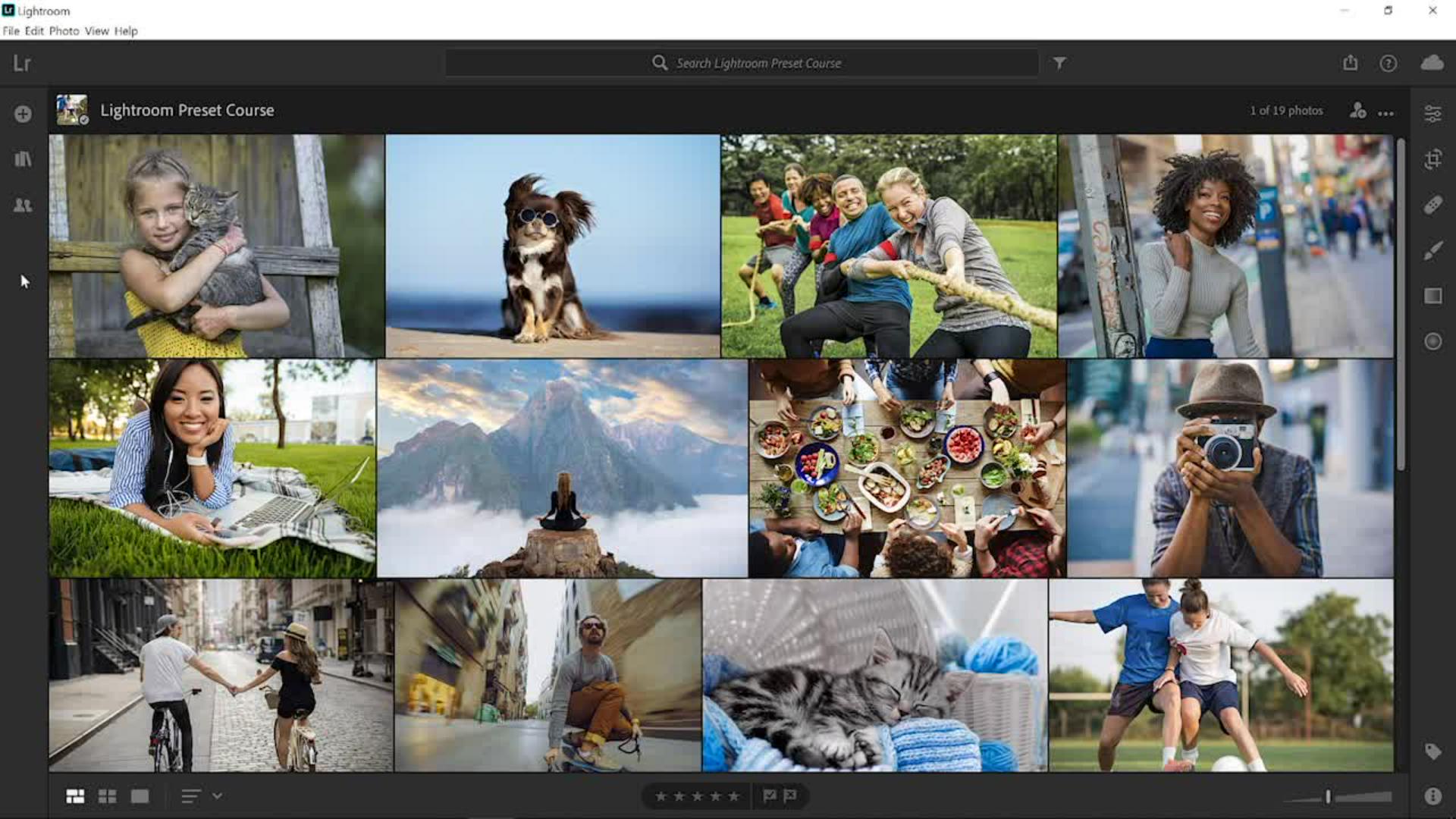
Once you import the sample photo into Lightroom you will see it in the photo grid.
Double click on it to open it.
Then, click on the Edit icon or press the E key on your keyboard to go into the Editing workspace.
Next, click on the Presets button to reveal a panel with all your presets.
As your collection of presets grows the Presets panel may get filled with many categories and many presets that you will have a hard time finding the presets that you need for your project.
You can enable and disable what presets to show to make it easy for you to find the presets that you want to use.
To manage the list of presets you can click on the … icon
Managing which preset groups are visible
and select Manage Presets.
From here you can enable or disable groups of presets.
For example, if you only wanted to work with black and white presets for this photo you can disable all other presets.
Then, click on the Back button.
Applying presets after filtering categories
Now the only preset category that you will see is the B&W category.
You can open and hover over those presets and apply the one that you like.
In this case I'm going to go with the B&W High Contrast preset.
Working with partially compatible presets
Another important thing to note is that by default Lightroom hides Partially Compatible Presets.
This means that Lightroom will not show you presets that are not fully compatible with your image.
One common reason the presets may not be compatible is that the preset references a profile that is not compatible with the current photo you are editing.
For example, a preset that uses a profile for RAW image will not be visible in the Presets panel when you are working with a JPEG photo.
You can choose to show those partially compatible presets by disabling this option.
Any partially compatible presets will then appear in the panel.
You can still apply these presets to incompatible photos but only the settings that are compatible will apply.
In this case I'm using a preset that I created using a profile that is not compatible with JPEG images, so that profile will not be applied but all the other settings in this preset will.
Restoring and re-enabling preset groups
Remember that you can always go back into the Manage Presets option and enable any group of presets that you may have disabled.
And once you click on the Back button those preset groups will show once again in the panel.
Now that you know how to manage presets, go ahead and give it a try in your installation of Lightroom.