Introduction
[Dave Ko]: Creating AI-generated video has never been easier than now with Premiere on mobile.
Hey, my name is Dave Ko, and today I'm going to show you how to go from a blank project to a fully produced AI-generated video with complete sound design all on your iPhone.
Generate video from a text prompt
Start by tapping the Text to video button.
This will open up a new project and get you set up.
Take your time to set your parameters here.
There're a lot of options for Aspect ratio, Resolution, Duration.
Pick one that best suits the type of content you want to create.
Then we get to pick our AI model and there're some solid options here.
First, there's Adobe's Firefly model, which is commercially safe.
And you can also pick one of the partner models if you want.
Since they're all trained a little bit differently, they will yield slightly different results.
This is a great opportunity to play with the different models to get what you want.
Here's where it gets fun - the prompt.
This is the most important part, so don't sleep on it.
The more specific and descriptive you are, the better your output is going to look.
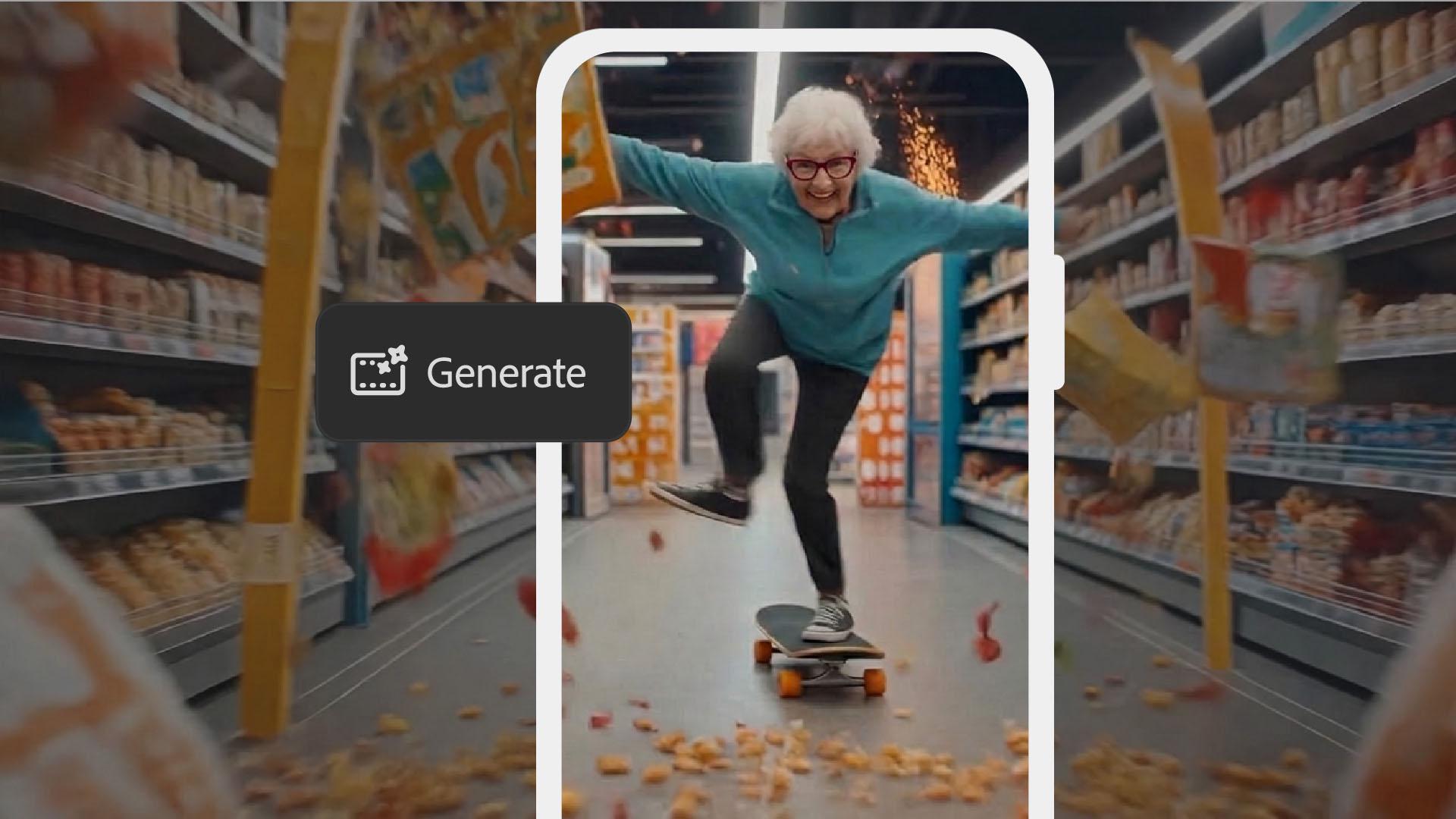
Here's what I used: "An elderly grandma does a series of skateboard tricks while skating down the middle of a cereal shopping aisle, cereal boxes flying off the shelves, confetti cannons going off in the background, a fun celebratory feeling, with cinematic camera movement and glossy vibrant color grading."
Go crazy with the details.
It really pays off.
Then hit Generate and let the AI cook.
Once your clip drops, add it to the Timeline.
Now let's make it actually hit.
Tap Music and audio,
Add and generate sound effects
then Sound effects, and search for exactly what the scene needs.
Let's search for skateboarding sounds first.
We'll type "Skateboarding" in the Search Bar at the top.
Sample the list of skateboarding sound effects [skateboarding] and then when you find one that works, [skateboarding] you tap on the + button which will add it to the Timeline. [skateboarding] For the confetti cannon blast we'll generate it using Firefly's AI.
Tap Music and audio, then tap Generate sound effect, type in your prompt - I used: "Soft poof explosion of a confetti cannon" - then tap Generate.
Play back the samples and select the one you like the most by tapping Add to timeline, which is the button at the bottom.
You should see it on your Timeline with the other clips.
Trim, time, and mix your audio
To edit these clips, you drag the beginning or end of the clips to trim them.
You can also tap and hold the clip to drag it around the Timeline, and line them up with the video for the best timing.
You may have to trim some of the front end of the clips to drag them closer to the beginning of the video.
Otherwise, you'll feel like they're stuck.
You can also zoom in and out of the Timeline to see more detail by pinching with two fingers or pulling them apart.
And finally, I like to drag the ends of any sound clips that go longer than the video, so the video ends there.
After playing them back all together, you can dial in the audio mix for each sound clip.
With the clip selected, scroll the Tools which are at the very bottom until you see Volume.
Tap Volume and then, using the slider, adjust the volume for each sound clip.
Then drag the video to the beginning and hit Play and take it all in.
Stack a series of clips like this and you've got yourself a short film or your next viral piece of content.
The only limit is your imagination.
I genuinely hope this inspired you to start creating the ideas that have been stuck in your head.
Share them with the rest of the world.
I'm Dave Ko, and I can't wait to see what you produce. [confetti cannon blast] [skateboarding]