PHOTOSHOP FEATURES
How to blend colours using blend tools in Adobe Photoshop.
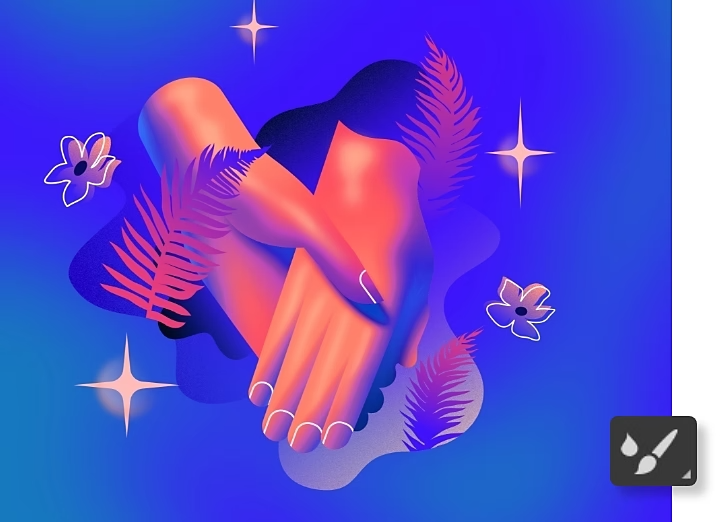
With the Smudge tool, the Mixer Brush and blending modes, you can combine colours on any project in Photoshop.
Get free app | Get free app Photoshop View plans and pricing | View plans and pricing Photoshop
Blend colours in specific areas or across the whole canvas.
Photoshop has so many tools and brushes that you can always get the exact look you’re going for. Start with these to blend colours in specific areas of your images.
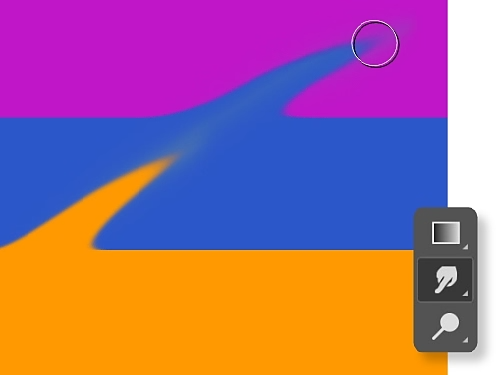
Finger paint with the Smudge tool.
Blend foreground and background or just mix up two different colours with the Smudge tool. It’s just like smearing one paint colour over another with your finger.
Meld pixels with the Mixer Brush.
With the Mixer Brush tool, you can mix colours as you would on a canvas. You can also combine colours on a brush and vary paint wetness across a brushstroke.
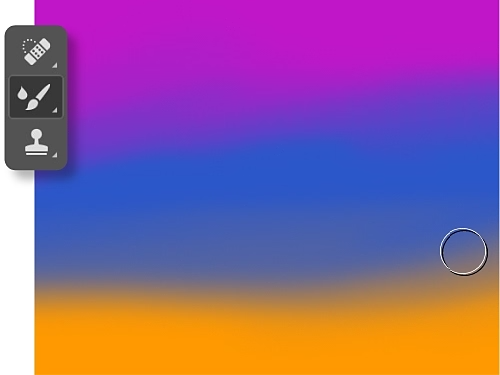
How to blend colour with the Smudge tool.
Follow these steps to get smudge effects.
- Select the Smudge tool.
Click the Smudge tool from the toolbar. If you can't find it, click and hold the Blur tool to show its related tools and then select the Smudge tool. You can also click Windows › Brushes and search for it in the Brushes panel. - Choose your brush.
Pick a brush tip and blend mode option in the options bar. - Sample all layers.
Click Sample All Layers in the options bar to smudge using colours from all visible layers. To use colours from the active layer only, deselect that option. - Use the foreground colour.
Click Finger Painting in the options bar to smudge using the foreground colour at the beginning of each stroke. Deselect Finger Painting to use the colour under the pointer at the beginning of each stroke. - Smudge.
Click and drag over the area where you want to smudge the pixels.
How to blend colour with the Mixer Brush tool.
The Mixer Brush has a reservoir and a pickup for storing paint. The reservoir holds the colour painted onto the canvas while the pickup takes paint from the canvas only and its contents are continuously mixed with canvas colours. Follow these steps to get started.
- Select the Mixer Brush tool.
If you don’t see it in the toolbar, click and hold the standard Brush tool to reveal the Mixer Brush. - Load paint.
To load paint into the reservoir, Alt-click (Windows) or Option-click (macOS) the canvas. The brush tip will reflect any colour variation in the sampled area. For a brush tip of uniform colour, select Load Solid Colours Only from the Current Brush Load pop-up menu in the Options bar. Another option is to simply select a foreground colour. - Pick a brush.
Choose from the Brush Presets panel. - Set the Brush options.
In the Options bar, select your preferences. Choose how much you want to load the brush with paint. Control how much paint the brush picks up from the canvas by increasing or decreasing paint wetness. You can also pick how much of the paint you’d like loaded in the reservoir and how much you want your canvas paint to mix with your reservoir paint. - Paint.
Drag the Brush in the image to paint or draw a straight line by clicking a starting point in the image, holding down Shift and clicking an ending point. You can also use the Brush as an airbrush by holding down the mouse button without dragging.
How to blend colour with blending modes.
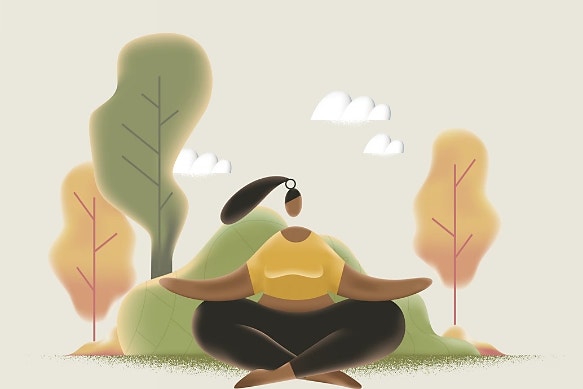
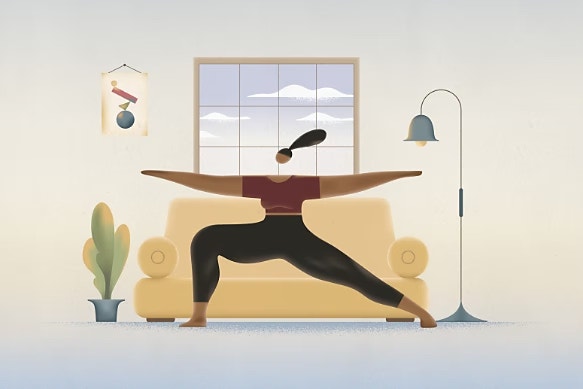
Photoshop blend modes or blending modes, are mathematical equations that determine how pixels from a top layer (or blend layer) mix with the pixels in a background layer (or base layer). For example, if you place a yellow blend layer over a red base layer and lower the opacity of the yellow layer to 50%, in Normal blending mode the image will appear orange.
You can use blending modes to achieve the exact colour scheme you want or to make instant adjustments to brightness and contrast. Apply them to a whole layer or create a layer mask and use the Brush tool to apply them more selectively. Playing with the blend modes is the best way to understand how they work.
- Create a new layer.
Create a new fill layer by selecting Layer › New Fill Layer and choosing Solid Colour, Gradient or Pattern. Then name the layer and pick your colour, draw your gradient line, choose your pattern from the Tree, Grass and Water pattern options or use another image. - Explore the blending mode options.
The default blending mode is Normal, but you can switch it by clicking the blend mode window near the top of the Layers panel. Expand the menu and scroll through to see how different options look. - Adjust Opacity.
If a blending mode is doing too little or too much to alter the image, move the Opacity slider left to decrease or right to increase the effect. The Opacity percentage (how transparent or opaque the layer appears) is noted next to the blend mode window at the top of the Layers panel.
What are the different blend modes in Photoshop?
The blending modes are divided into six sections in the drop-down menu near the top of the Layers panel. Explore each one to gauge its effect on your image.
- Play with opacity or dreamy dissolves with these blending modes: Normal and Dissolve
- Make your image darker: Darken, Multiply, Colour Burn and Linear Burn
- Make your image lighter: Lighten, Screen, Colour Dodge, Linear Dodge (Add)
- Play with contrast: Overlay, Soft Light, Hard Light, Vivid Light, Linear Light, Pin Light, Hard Mix
- Subtract colour: Difference, Exclusion, Subtract, Divide
- Add colour: Hue, Saturation, Colour, Luminosity
Try these step-by-step Photoshop tutorials.
Learn other ways to change colours or make even bigger transformations.
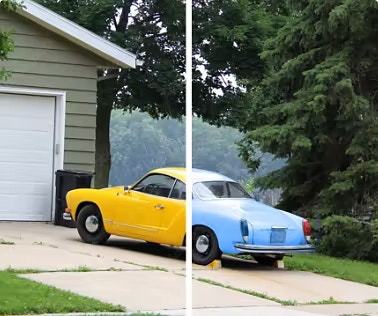
Change colour in a photo.
Explore several ways to swap colours, including adding adjustment layers or fill layers or painting new hues with the Brush tool.
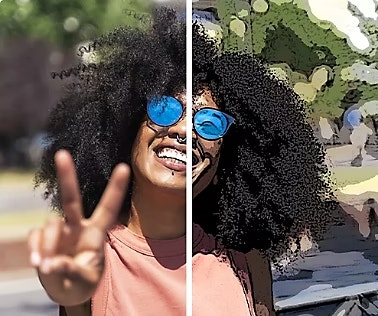
Convert photos into cartoon drawings.
Turn any picture into a cartoon in a few simple steps with Photoshop photo effects.
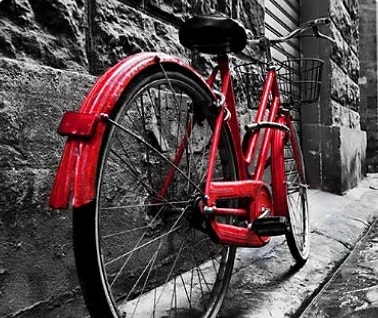
Bring colour to black-and-white photos.
Find out how to add colour across an entire photo or just colourise a single element to make it stand out.
Learn how to colourise a photo | Learn how to colourise a photo
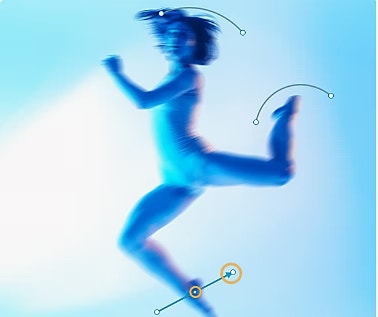
Create a motion blur effect.
Add dynamism and create the appearance of movement with Blur tools in Photoshop.