| 1 |
Open the results page in Dreamweaver UltraDev. |
| 2 |
In the Data Bindings panel (Window > Data Bindings), click the plus (+) button and choose Recordset (Query). |
|
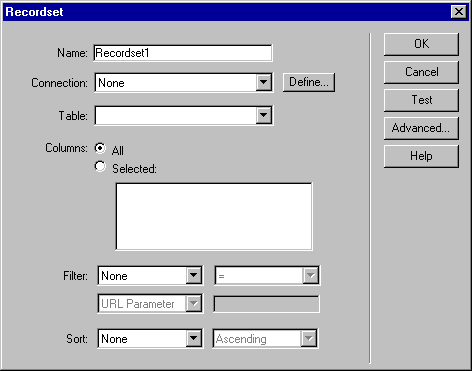
The Recordset dialog box appears.
 |
|
If the advanced Recordset dialog box appears, click the Simple button to open the simple Recordset dialog box. |
| 3 |
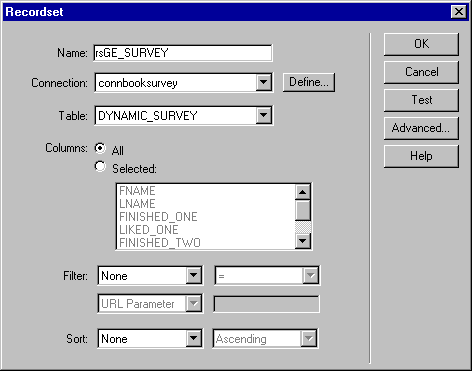
Name the recordset and specify where the data you want to update is located using the Connection and Table pop-up menus.
 |
| 4 |
Click the All option. (It should be selected by default.) |
|
If your table contains more columns than you want to include in a particular recordset, click the Selected option and select only those columns you want to include. Control-click (Windows) or Command-click (Macintosh) to select several columns. |
| 5 |
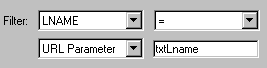
Configure the Filter area so that the values of a table column match the search parameter passed by the search page. |
 |
Choose a table column from the Filter pop-up menu. This search page asks for a book club member's last name, so the chosen table column is LNAME. This ensures that the results page will only include the record that matches the search parameter (the member's last name). |
|
From the pop-up menu beside the first menu, choose the equal sign. (It should be the default.) |
|
From the third pop-up menu, choose the source of the search parameter. Because this search page uses the GET method, the chosen source is URL Parameter. The search value will be passed to the results page in the form of a URL parameter. |
|
In the last text box, enter the name of the form object used to collect the search parameter on the search page. If your search form uses a text field to conduct the search, this is the name of the text field. |
|
You can get the name of the search text field by switching back to your search page and viewing the text field's Property inspector (Window > Properties). |
|
Here is the search form text field's Property inspector. |