Merge, split, and organize existing documents by arranging, extracting, inserting, rotating, and replacing pages.
Acrobat provides time-saving tools that allow you tomerge
or split documents to deliver information to your teammates or clients in the best way possible. Batch processing options give you the control to not only organize your documents but to share them with a professional file structure within minutes.
Combine multiple documents into one PDF
Working with multiple documents is one of Acrobat’s superpowers. You can combine, or merge, almost any file type into one PDF. You could open each file and Save As PDF, but that can become time-consuming. Here are two Pro Tips
to help you combine multiple documents into a single PDF faster.
Combine files within Acrobat
Open Acrobat.
Choose File > Create > Combine Multiple Files into a single PDF.
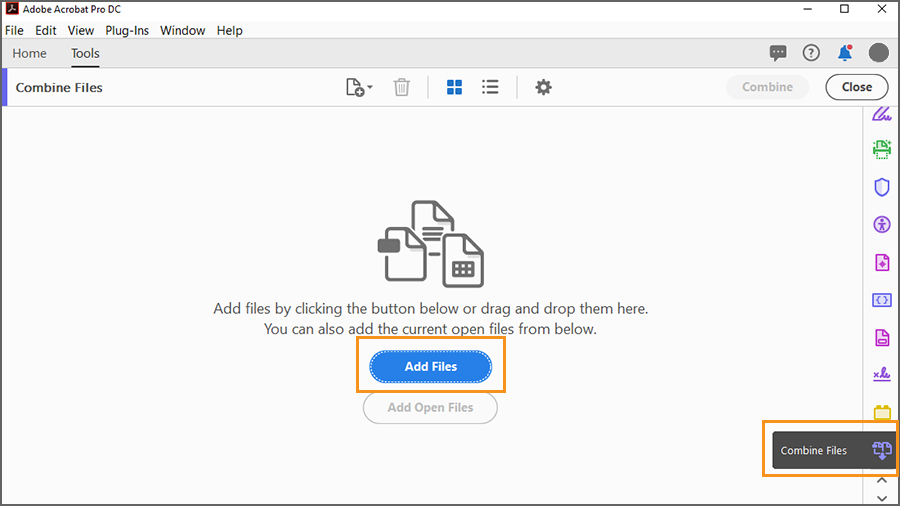
If the file is already open, then choose Combine Files from the right menu.
Click Add Files or Add Open Files, or drag files into the Add Files window. You can choose a variety of documents at once, such as Microsoft PowerPoint presentations, images, emails, and more.
Click Combine
to merge all of the files into one PDF.
Combine files from your desktop
Shift-click all the required documents on your desktop.
On a PC, right-click and choose Combine Files in Acrobat. On a Mac, Ctrl-click and choose Quick Actions > Create PDF.
Arrange merged PDF documents before assembly
For ease of viewing, you can expand multi-page documents to reorder or delete individual pages by clicking the Expand
icon that appears at the top right of the file thumbnail when you hover your cursor over it. When you click the Expand icon, thumbnails of each page in the file let you review which pages will be added to the combined PDF.
How to split your PDF document
While combining documents is managed from the Combine Files tool, splitting documents can be managed from the Organize Pages tool. In addition to splitting your files, you will find several options to customize the assembly of your document.
Start with an open document, or choose Tools >Organize Pages.
Click the Split button.
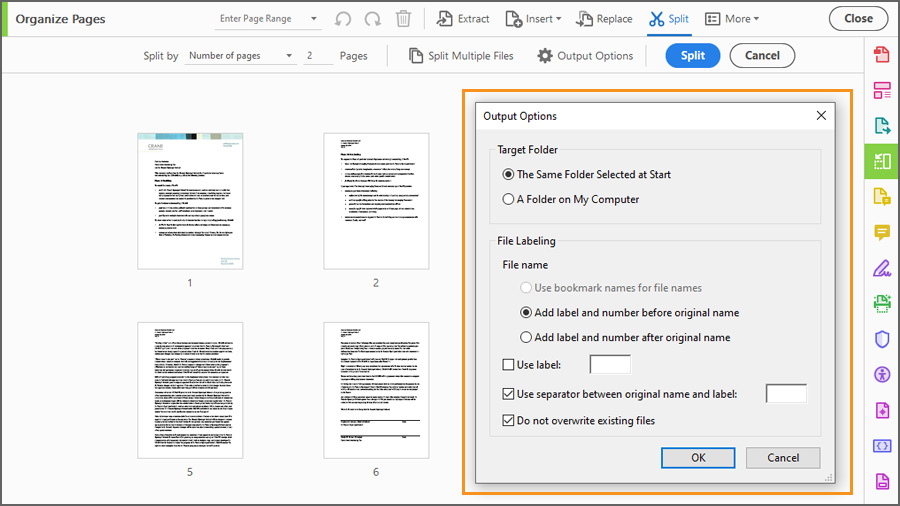
Use the Split by menu to filter by the number of pages, file size, or top-level bookmarks.
Click Output Options to give you maximum control of splitting your document. You can set the number of pages for batch processing, file size parameters, the bookmark structure, and more.
Set your Target Folder options that allow you to target the same folder or another folder on your computer.
Set your File Labeling options that enable you to use bookmarks as file names, or add custom labels or separators before, after, or between the original file names.
Click OK.
Organize your document
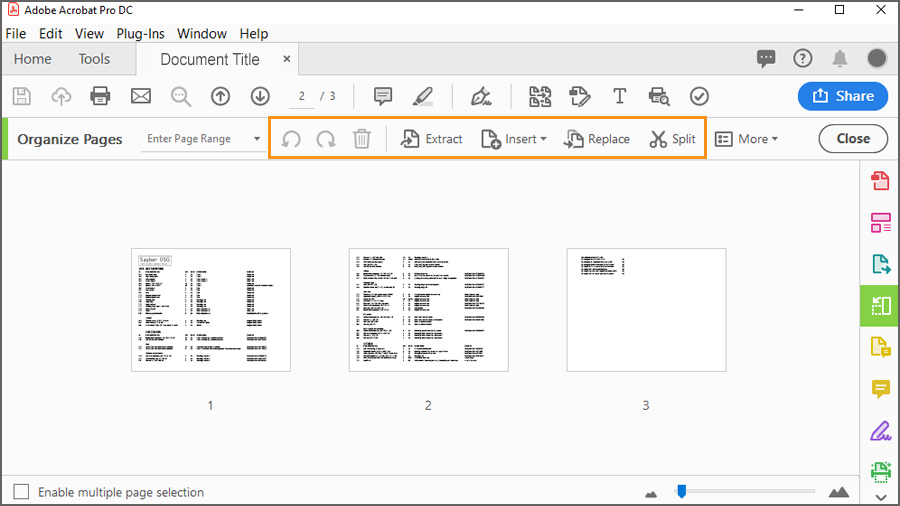
There may be times where you don’t want to alter your source file, but you want to share a different version with others. The Organize Pages
toolset provides you with several options to rearrange your PDF document without changing your source file by extracting, deleting, or inserting pages, and rotating or replacing pages.
Extract pages: You can pull pages from bigger documents by extracting them as one group or as separate files by checking the Extract pages as separate files box. You can choose to delete or keep the extracted pages from the source document.
Insert pages: You can insert a blank page or a page from another document easily. Select a file from an existing document, from the clipboard, from your scanner, or even a web page. You can also add a blank page where white space is needed.
Start with an open document, or go to Tools >
Organize Pages.
Choose Insert.
Choose From File, From Clipboard, Insert from Scanner, From Web Page, or Blank Page.
Choose the Location in which to insert the new page (before or after the existing content).
Set the Page number (first, last, or specific page number).
Click OK.
Delete pages:
Just as there are many reasons to insert pages, so are there are many reasons to delete pages. Removing a page is as simple as selecting it and pressing Delete.
Rotate pages: You may need to rotate pages within your PDF document.
Go to Tools > Organize Pages.
Select one page, or press and hold Shift and click to select multiple pages, then click the Rotate Clockwise or Counterclockwise icon.
Replace pages: Replace a single page or a range of pages.
Go to Tools > Organize Pages.
Choose Replace from the top menu.
Choose your file.
Select the Original page(s) you want to replace.
Set the Replacement page range.
Click OK.
Acrobat gives you maximum control over the output of your PDF and simplifies your workflow by providing you with multiple options to combine documents, split up documents, and organize document pages.

You can control how Adobe websites use cookies and similar technologies by making choices below. But note that if you disable cookies and similar technologies entirely, Adobe websites may not function properly.
Cookies are small text files stored by your web browser when you use websites. There are also other technologies that can be used for similar purposes like HTML5 Local Storage and local shared objects, web beacons, and embedded scripts. These technologies help us do things like remembering you and your preferences when you return to our sites, measure how you use the website, conduct market research, and gather information about the ads you see and interact with.
You can make choices in the menu below about what cookies and other technologies you want us to use on Adobe sites when you visit them from this browser. You can always change those choices later by clicking on the Cookie Preferences link at the bottom of the page.
If enabled:
We can improve your experience by tailoring the site and the content to things we think might be of interest
We can better keep track of your preferences — like what language you prefer to use
We will better understand your likely interests so we can provide you more relevant Adobe ads and content on non-Adobe websites and in non-Adobe apps
It will help us improve the performance of our website and those of our partners who use the Adobe Experience Cloud
If disabled:
We won’t be able to remember you from session to session so the experience may not be tailored to your interests
You’ll still have access to the content of the site but certain features that depend on cookies may not function
You’ll still see ads, they just may not be as relevant to you
General information
You can control how Adobe websites use cookies and similar technologies by making choices below. But note that if you disable cookies and similar technologies entirely, Adobe websites may not function properly.
Cookies are small text files stored by your web browser when you use websites. There are also other technologies that can be used for similar purposes like HTML5 Local Storage, web beacons, and embedded scripts. These technologies help us do things like remembering you and your preferences when you return to our sites, measure how you use the website, conduct market research, and gather information about the ads you see and interact with.
You can make choices in the menu below about what cookies and other technologies you want us to use on Adobe sites when you visit them from this browser. You can always change those choices later by clicking on the Cookie Preferences link at the bottom of the page.
If enabled:
We can improve your experience by tailoring the site and the content to things we think might be of interest
We can better keep track of your preferences — like what language you prefer to use
We will better understand your likely interests so we can provide you more relevant Adobe ads and content on non-Adobe websites and in non-Adobe apps
It will help us improve the performance of our website and those of our partners who use the Adobe Experience Cloud
If disabled:
We won’t be able to remember you from session to session so the experience may not be tailored to your interests
We’ll still count your use of our site and services
You’ll still have access to the content of the site but certain features that depend on cookies may not function
You’ll still see ads, they just may not be as relevant to you
Operate the site and core servicesOperate site and measure engagement
Always active
These cookies are required, and they are used to enable the site and related services core functionality. Without them the site could not operate, so they cannot be disabled.
These cookies enable the site and related services’ core functionality and collect statistics about user engagement, such as counting active use to help us understand trends. These cookies cannot be disabled.
Measure performance
These cookies are used to analyze site usage to measure and improve performance. Without them Adobe cannot know what content is most valued and how often unique visitors return to the site, making it hard to improve information we offer to you.
These cookies are used to analyze site usage to measure and improve performance. Without them Adobe cannot know what content is most valued, making it hard to improve information we offer to you.
Extend functionality
These cookies are used to enhance the functionality of Adobe sites such as remembering your settings and preferences to deliver a personalized experience; for example, your username, your repeated visits, preferred language, your country, or any other saved preference.
Personalize advertising
These cookies are used to enable Adobe and our partners to serve ads more relevant to your interests. Without them you will still see ads, but they might not be as relevant to you.
Personalize advertising
These cookies are used to enable Adobe and our partners to serve ads more relevant to your interests. Without them you will still see ads, but they might not be as relevant to you.