Introduction
Hello, in this tutorial we'll use Cinema 4D Lite to add 3D objects to tracked footage in After Effects CC.
And use a MoGraph effector and the fracture object to easily animate 3D text.
Here in After Effects CC we see the footage
Exporting tracked camera data and setting up 3D text
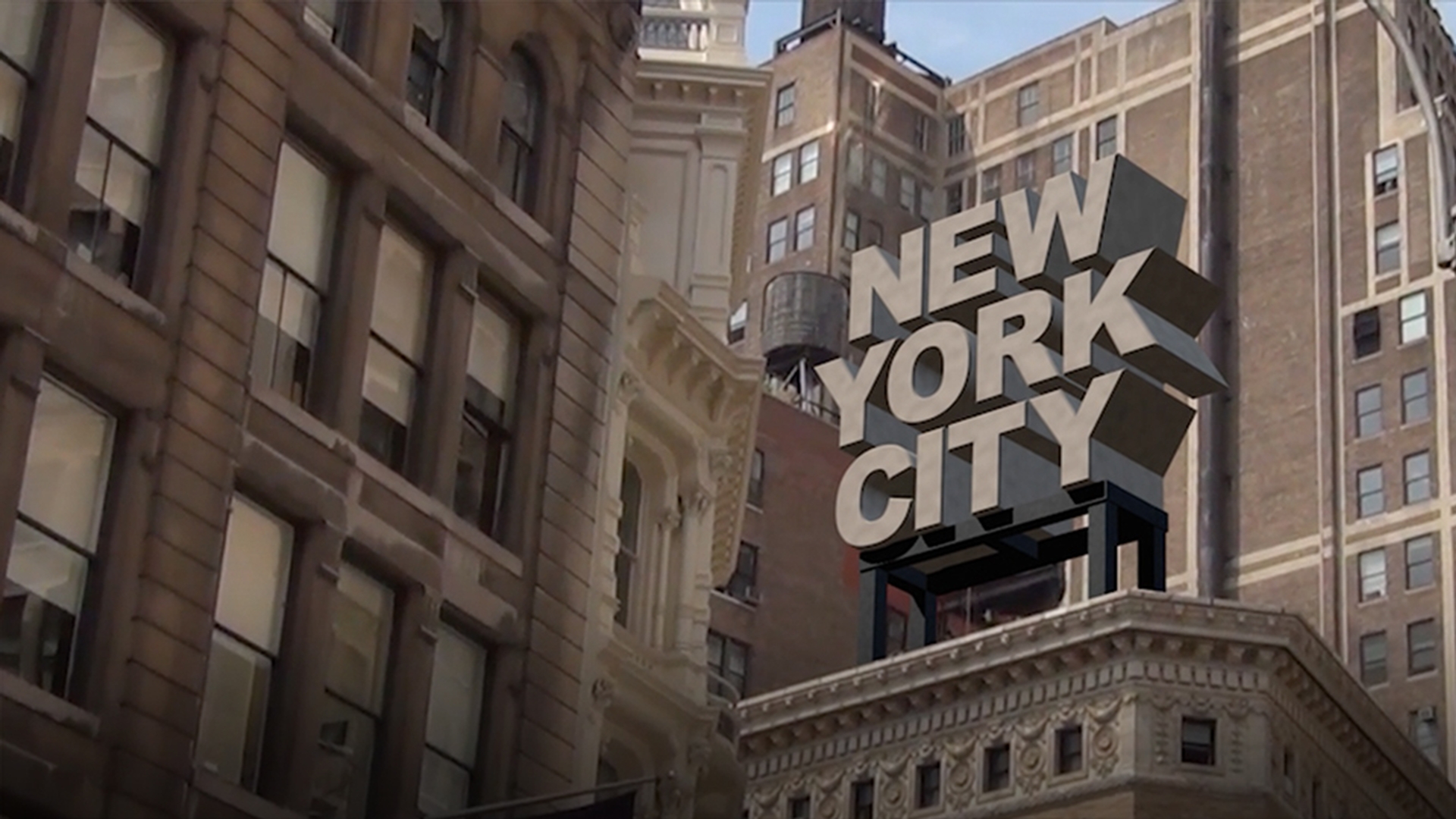
that has already been tracked of some buildings in New York City.
Here's the tracked camera, there's a null that was placed at the top of this building based on the tracking data.
We'll use that null to help us position the 3D elements.
Let's export the camera in the null to Cinema 4D Lite.
In the File menu choose Export, MAXON Cinema 4D Exporter...
This dialog tells us that 2D layers like the backplate won't be exported.
So just click OK.
I'll name the file NYC_Buildings_Export.c4d Now I'll import that Cinema 4D file we just created back into After Effects CC.
There it is.
Choose Edit Original... from the File menu to open it up in Cinema 4D Lite.
Here we can see the tracked camera.
And here's the null.
Let's stop looking through the camera.
There's the tracked camera and the null.
With the null selected I'll create a new Text object while holding down the Shift key to automatically make it a child of the null.
Zeroing out its X, Y and Z coordinates and its rotation will move the text to the null and orient it in the same way.
Let's zoom in.
Make the text read NEW YORK CITY, align it center, change the font to Arial Black, make it bigger and tighten up the Vertical Spacing.
With the text object selected I'll hold down the ALT key and make an extrude object, making the text a child of the extrude object.
In the object tab of the extrude object I'll increase the movement along the z-axis to 300 cm.
In the caps tab I'll give the text a Fillet cap.
This helps catch the light on the edges.
With the text object selected clicking Show 3D GUI, allows you to move the letters closer together manually.
Let's look through the camera and move the text higher in the scene, and Save.
Switching back to After Effects CC, I'll make the .c4d file a new layer in the comp.
As soon as I do, the 3D letters automatically appear and track correctly.
Switching back to C4D Lite, I'll make a new material.
In its Color channel I'll choose a light warm color.
Applying materials and lighting for realistic integration
In the Diffusion channel I'll add some Noise, scale it up and lower its Mix Strength to give it a worn non uniform look.
I'll name the material and drag it on to the extrude object.
There are several different types of lights, but I'll make an Infinite Light since its rays are parallel like the sun.
Switching to four views, you can see the light at the origin.
I'll move it closer to the text and rotate it so it points to the text at roughly the same angle as the sun's rays.
Let's Save and switch After Effects CC.
And switch the Renderer to final quality.
Let's zoom in.
The angle of the light is good, but the sides of the letters are too dark.
I'll make a fill light, but before I do, I'll name the first light Sun Light.
Then I'll hold down the Control key and drag off a copy of the light.
I'll move it here and point it to the sides of the letters and name new light Sky Light.
I'll make it a blue color and lower its intensity.
Now let's go back to the Sun Light and give it raytraced shadows.
Then I'll Save and switch back to After Effects CC.
That's better, but the bottom is still a little too dark.
If I create a point light and click Ambient Illumination, it will add more all-over light to the scene.
It's too bright.
So I'll lower its intensity.
Now let's save and switch back to After Effects CC.
That's better.
Building and organizing 3D scaffolding
Now let's make some scaffolding.
With the track null selected, I'll hold down the Shift key to make a new cube a child of it.
The cube is at the origin.
So I'll zero out its X, Y and Z coordinates and its rotation so it pops over to the null.
Let's take a closer look.
I'll make its Y and Z size 50 cm and make it wider manually, so that it sits right under the letters.
I'll Control drag a copy of it to the back.
Next I'll make another copy here, rotate it 90°, make it smaller and Control drag it to each side.
That's the base.
Now I'll Control rotate this one to make a copy of it.
Move it here and make it longer.
You can Control drag copies of it to make all the legs.
Let's make the scaffold material.
I'll choose a dark gray.
In the Diffusion channel I'll add a Noise, scale it up and lower its Mix Strength to give it an uneven look.
I'll also lower the Specular.
I'll make a new null and name it Scaffold and drag all the scaffold pieces into it to keep things organized.
Then I'll drag the scaffold material onto the null.
Let's save and go back After Effects CC.
There is the scaffolding, but we'll have to cover up the bottom with a matte.
To make the matte I'll make a duplicate of the bottom layer and drag it over the C4D layer.
Then I'll draw a mask on it.
Creating mattes to blend 3D elements with footage
To animate the letters, I'm going to use some MoGraph
Animating text with MoGraph fracture and effectors
namely the fracture object and the Plane effector.
Simply register your copy of Cinema 4D Lite to add these features to it.
With the extrude object selected hold down the ALT key and in the MoGraph menu create a new fracture object to make it a parent of the extrude.
The fracture object allows you to apply MoGraph effectors to its children.
Create and apply a Plane effector to it.
In its Parameter tab the Plane effectors Y value is a 100 cm.
Let's increase the Y value so that the letters move up completely out of the frame.
However, I don't want the effect to happen all at once, but gradually.
Let's make the Plane effector a child of the track null, and zero out its X,Y and Z coordinates and rotation.
In the Falloff tab let's make the Falloff Linear.
Let's move in for a closer look.
The falloff allows the effect to happen gradually between the two yellow planes on either side of the Plane effectors linear falloff.
If I increase the distance between the two planes, the falloff happens slower.
I don't want the Plane effector to affect all the letters at once.
So I'll click on the fracture object.
In its Object tab I'll change the Mode from Straight to Explode Segments & Connect.
This causes a shading anomaly to appear on the letters, which can be fixed by clicking on the extrude objects Phong tag and lowering the Phong Angle to 20°.
Now the Plane effector affects each letter separately.
If I rotate the Falloff to -90°, it will affect each line of letters separately.
I'll move to frame 120 and set a keyframe here at its start position.
I'll move 3 seconds later and set another keyframe here at its end position.
I'd also like the letters to rotate while they fall.
So I'll click on the Plane effector and in its Parameter tab I'll activate Rotation and set the P value to -180°.
And now the Plane effector rotates the letters as they fall.
And there you have it.
Thanks for watching.