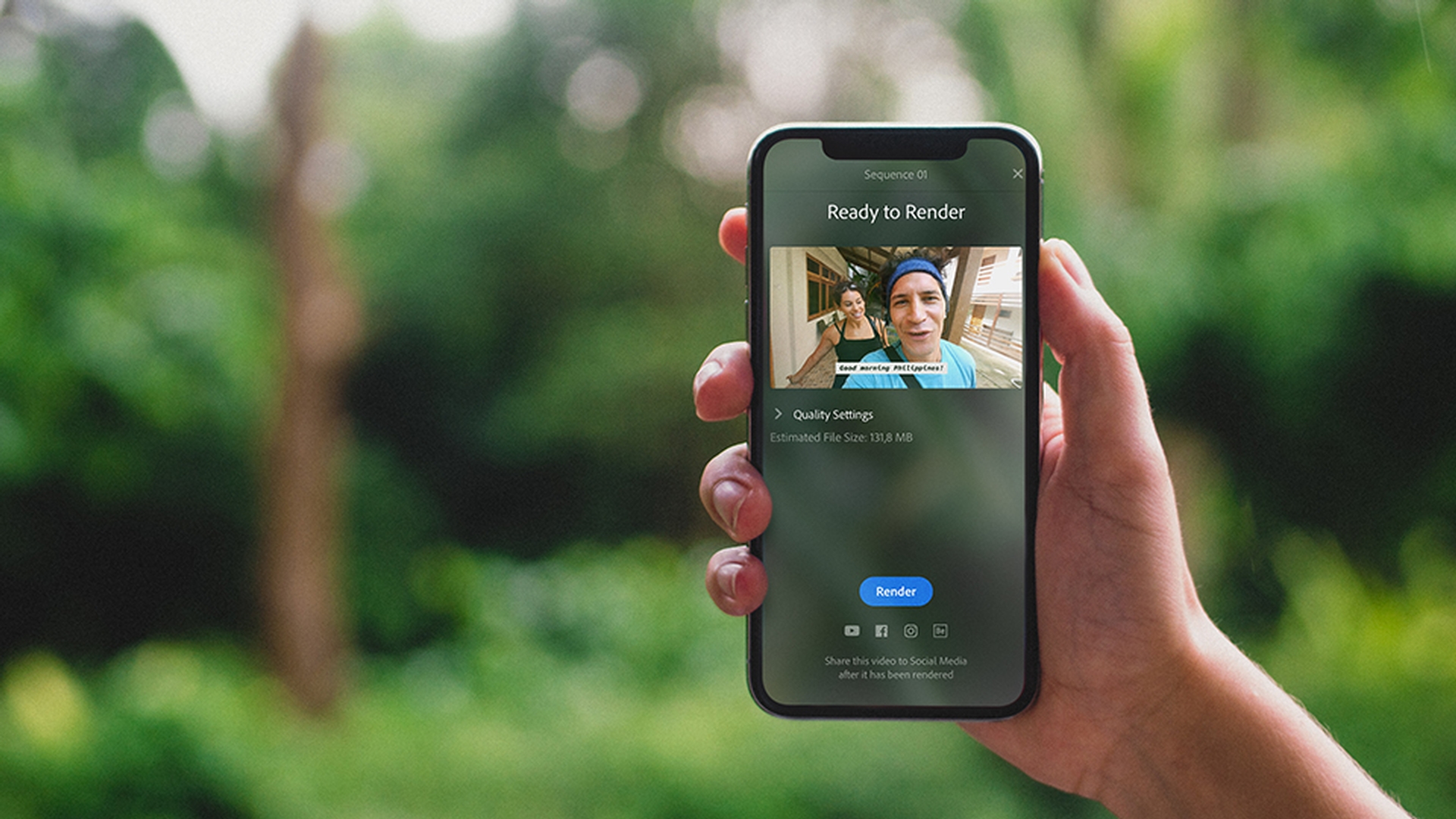
Learn how to save your videos to your devices and easily share directly to your social media channels.
Introduction
Hello everyone and welcome to part 5 of the getting started series on Adobe Premiere Rush CC.
In this video you will learn how to save your video to your devices
Understanding export and social sharing options
and share directly to your social media channels.
In this first release of Rush CC your social media destinations include YouTube, Facebook, Instagram and Behance.
And more destinations will be added over time.
By including these destinations here in Rush CC, you can upload directly to your social media channels and eliminate that extra step of having to go to each social platform individually and uploading there.
Publishing directly to YouTube and social channels
So, to add to YouTube just turn on that destination, so it turns blue.
Then here you can log in to your YouTube account and specify which playlist you want to add the video to.
And here you can also enter in your own unique video title as well as a description.
You can also add in your own unique tags to boost your videos discoverability.
Then from there you can set a custom thumbnail from a current video frame
Customizing video details and thumbnails
in your video or you can upload your own custom design that you created in Adobe Photoshop CC or Adobe Spark Post.
And if you need it you can even schedule your video to upload on a specific date or time.
Adjusting export presets and advanced settings
Rush CC will automatically choose a default preset that's optimized to make your video look great on whatever social media platform you're publishing to.
But you can also open up the Advanced Settings and choose other export presets that you prefer.
And then you can hit export to share your video to the world.
Exporting and uploading your video
But don't worry you will have one more chance to preview your final video and then you can relax, kick back and have a cup of tea and Rush CC will export and handle the upload for you.
What you learned: Export videos to social media, add metadata and custom thumbnails, schedule videos, and control advanced custom render settings
In the first release of Premiere Rush, your social sharing destinations include YouTube, Facebook, Instagram, and Behance. More destinations will be added over time.
Publish to any social destination by turning the switch to blue
Log in to your social media channel
For YouTube, follow these steps:
Select a playlist you would like your new video to be added to
Add a title, description, and tags, choose a privacy setting, upload a custom thumbnail, and schedule (optional)
Premiere Rush will automatically choose optimal export settings for the platform, but you can go to advanced settings to select a YouTube preset you prefer
Click Export. You will get one more chance to review your video before it is shared with the world
You can control how Adobe websites use cookies and similar technologies by making choices below. But note that if you disable cookies and similar technologies entirely, Adobe websites may not function properly.
Cookies are small text files stored by your web browser when you use websites. There are also other technologies that can be used for similar purposes like HTML5 Local Storage and local shared objects, web beacons, and embedded scripts. These technologies help us do things like remembering you and your preferences when you return to our sites, measure how you use the website, conduct market research, and gather information about the ads you see and interact with.
You can make choices in the menu below about what cookies and other technologies you want us to use on Adobe sites when you visit them from this browser. You can always change those choices later by clicking on the Cookie Preferences link at the bottom of the page.
If enabled:
We can improve your experience by tailoring the site and the content to things we think might be of interest
We can better keep track of your preferences — like what language you prefer to use
We will better understand your likely interests so we can provide you more relevant Adobe ads and content on non-Adobe websites and in non-Adobe apps
It will help us improve the performance of our website and those of our partners who use the Adobe Experience Cloud
If disabled:
We won’t be able to remember you from session to session so the experience may not be tailored to your interests
You’ll still have access to the content of the site but certain features that depend on cookies may not function
You’ll still see ads, they just may not be as relevant to you
General information
You can control how Adobe websites use cookies and similar technologies by making choices below. But note that if you disable cookies and similar technologies entirely, Adobe websites may not function properly.
Cookies are small text files stored by your web browser when you use websites. There are also other technologies that can be used for similar purposes like HTML5 Local Storage, web beacons, and embedded scripts. These technologies help us do things like remembering you and your preferences when you return to our sites, measure how you use the website, conduct market research, and gather information about the ads you see and interact with.
You can make choices in the menu below about what cookies and other technologies you want us to use on Adobe sites when you visit them from this browser. You can always change those choices later by clicking on the Cookie Preferences link at the bottom of the page.
If enabled:
We can improve your experience by tailoring the site and the content to things we think might be of interest
We can better keep track of your preferences — like what language you prefer to use
We will better understand your likely interests so we can provide you more relevant Adobe ads and content on non-Adobe websites and in non-Adobe apps
It will help us improve the performance of our website and those of our partners who use the Adobe Experience Cloud
If disabled:
We won’t be able to remember you from session to session so the experience may not be tailored to your interests
We’ll still count your use of our site and services
You’ll still have access to the content of the site but certain features that depend on cookies may not function
You’ll still see ads, they just may not be as relevant to you
Operate the site and core servicesOperate site and measure engagement
Always active
These cookies are required, and they are used to enable the site and related services core functionality. Without them the site could not operate, so they cannot be disabled.
These cookies enable the site and related services’ core functionality and collect statistics about user engagement, such as counting active use to help us understand trends. These cookies cannot be disabled.
Measure performance
These cookies are used to analyze site usage to measure and improve performance. Without them Adobe cannot know what content is most valued and how often unique visitors return to the site, making it hard to improve information we offer to you.
These cookies are used to analyze site usage to measure and improve performance. Without them Adobe cannot know what content is most valued, making it hard to improve information we offer to you.
Extend functionality
These cookies are used to enhance the functionality of Adobe sites such as remembering your settings and preferences to deliver a personalized experience; for example, your username, your repeated visits, preferred language, your country, or any other saved preference.
Personalize advertising
These cookies are used to enable Adobe and our partners to serve ads more relevant to your interests. Without them you will still see ads, but they might not be as relevant to you.
Personalize advertising
These cookies are used to enable Adobe and our partners to serve ads more relevant to your interests. Without them you will still see ads, but they might not be as relevant to you.