
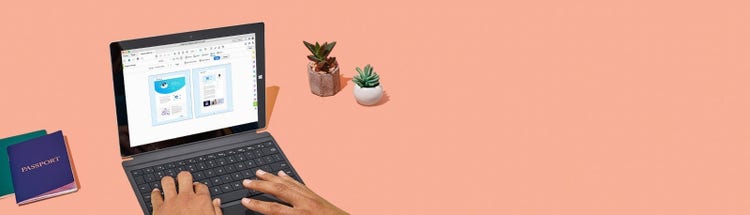
No matter where you are, Adobe Acrobat makes it easy for you to rotate, arrange or remove a range of pages or a single page of any PDF. You can even rotate pages you’ve merged from scans or other files that come in sideways or upside down.
Adobe Acrobat
Ever get a PDF file with pages that are turned the wrong way? Learn how to fix it easily by rotating pages in any PDF and ensure a readable document.
No matter where you are, Adobe Acrobat makes it easy for you to rotate, arrange or remove a range of pages or a single page of any PDF. You can even rotate pages you’ve merged from scans or other files that come in sideways or upside down.

Rotate and organise pages in your PDF document from any browser on any device with the Acrobat Reader mobile app.

Organise the pages of your PDF in any order by simply dragging and dropping page thumbnails until they’re in the order you want them.

Use the Delete Pages option to remove unwanted pages from your final PDF file.

Use our easy online tool to instantly rotate pages in your PDF and resave your file — right from your browser.
£14.99/mo
incl. VATFee applies of half your remaining annual commitment if you cancel after 14 days.The simple PDF tool for editing and converting documents.
Fee applies of half your remaining annual commitment if you cancel after 14 days.
£19.97/mo
incl. VATOur most comprehensive PDF solution with full convert and edit capabilities, advanced protection, and powerful e-signature features.
Filters
Sort
Popularity
Alphabetically
coll-no-results-text
Categories
REFINE YOUR RESULTS
Close
Special Offers – opens in a new window
filter by category
RESOURCES
1 result in
results in
coll-result-mobile-text
results in
1 result in
results for
1 result in
results in
Your search for returned no results
Your search for returned no results
View more
coll-all-filters-text
coll-filters-category-text
coll-filters-applied-text
coll-filters-results-text
coll-filters-reset-text
countdown-timer-text
License|Licenses

At Adobe, we’re serious about protecting your personal information. To ensure your account details are safe, we use Secure Sockets Layer (SSL), an industry standard for encrypting private data over the internet.