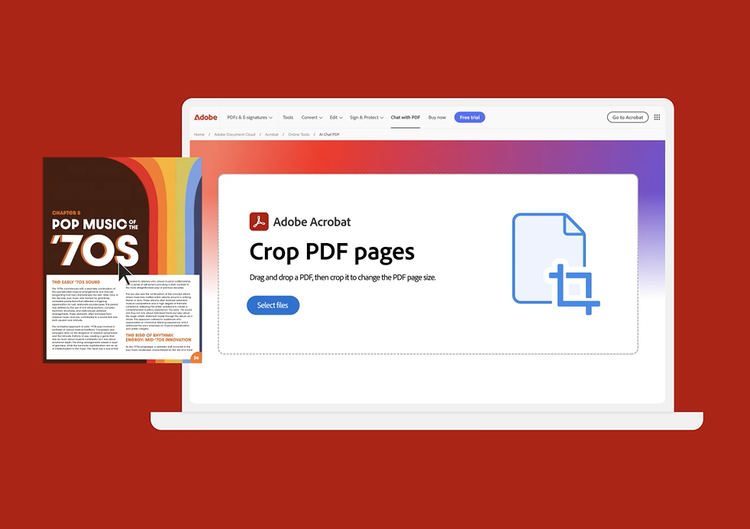
After uploading the PDF file you want to crop and signing in for free, the Acrobat Crop PDF tool automatically outlines the first page of your PDF document with a rectangular cropping border. You can resize the crop area by dragging the border handles as desired. Select Crop when you’re ready to save your cropped PDF file.
You can use the Acrobat cropping tool in any web browser, such as Microsoft Edge or Google Chrome. As a result, you can use the tool on almost any operating system, such as Mac, Windows, or Linux.
Acrobat makes it easy to resize pages of different sizes for consistency. To auto-crop multiple pages in a PDF document, first designate a selected area on one page. Then select all pages as your desired page range or enter a range of consecutive pages that you want to crop. When you select Crop, Acrobat will apply the same cropping process to all designated pages.
Cropping a PDF doesn’t reduce file size because file content is hidden but not discarded. By resetting the page size, you can restore the page and its content to its original condition.
After cropping a PDF file, you can organize the pages when you sign up for a seven-day free trial of
Adobe Acrobat Pro. The Acrobat Pro free trial for Mac or Windows lets you delete, extract, insert, rotate, or
rearrange PDF pages. You can also use our PDF editor to edit PDFs, edit scanned PDFs with OCR, merge files, annotate files,
reduce PDF file size, and insert headers, page numbers, bookmarks, or watermarks. In addition, PDF converter tools let you convert files to and from PDF, including HTML pages, image formats like PNGs and TIFFs, Microsoft Word documents, Excel spreadsheets, and PowerPoint presentations.