Photo to PDF

{{verb-widget-legal}}

How to convert picture to PDF online

Turn JPG, PNG, BMP, HEIC, or other image files into polished PDFs in just a few clicks with Acrobat online tools. Whether you’re organizing documents, sharing visuals, or preparing files for print, converting images to PDF is fast and easy.

Follow these steps to convert images to PDF:
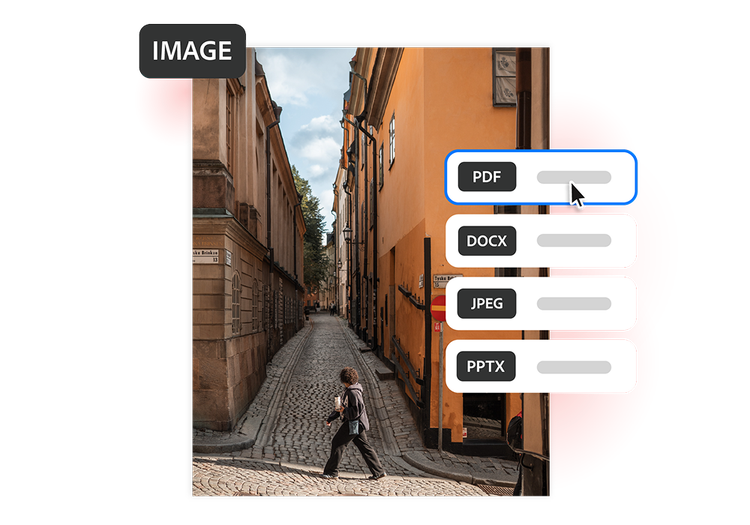
Cobblestone street with warm orange buildings, shown as an Image to PDF conversion with PDF selected in the format menu

  • Upload a source: Use the tool above to select or drag and drop your image file into the converter.
  • Convert the file: Your image is automatically converted into a high-quality PDF.
  • Download your file: Download your newly converted PDF file, then save, print, or share your PDF.
#F8F8F8

More ways to work with PDFs

Try our online tools to convert, compress, and merge PDF files — Acrobat can do it all.

Try our free PDF to Word converter

Try our free PDF to Word converter

Try our free JPG to PDF converter

Try our free JPG to PDF converter

Try our free Word to PDF conversion tool

Try our free Word to PDF conversion tool

Combine PDF files anytime, anywhere

Combine PDF files anytime, anywhere

Questions about the image to PDF converter? We have answers.

What file types are supported?
The image to PDF converter supports uploads of JPEG, JPG, PNG, BMP, HEIC, TIFF, GIF, PSD, INDD, and AI files.
Are there limits on the number or size of files I can convert?
The online converter is designed for quick, individual conversions. For large batches or bigger files, you may encounter limits. Explore Acrobat online tools for more options and formats.
Why should I convert images to PDF?
PDFs are more convenient for sharing, presenting, and printing. They also help keep multiple images organized in a single file while preserving image quality and formatting.
Can I convert images to PDF on my phone?
Absolutely. This online converter works in any supported browser on your smartphone or tablet, so you can convert images to PDF and iOS, Android, or any supported mobile platform.
Is it secure to convert images to PDF online?
Your privacy and file security are a priority. Files are processed and deleted from Adobe servers unless you choose to sign in and save them.
Who would use an image to PDF converter?
An image to PDF converter is useful for students, small business owners, photographers, and anyone who needs to turn photos or scans into a professional, shareable document. Adobe Acrobat's image to PDF tool is especially popular for combining receipts, portfolio images, or assignment photos into a single organized file.
How do I turn multiple photos into one PDF document?
To combine multiple photos into one PDF, use Adobe Acrobat's image to PDF converter to convert your images, then use the Merge PDF tool to bring them together into a single file. This is ideal for creating photo portfolios, multi-page reports, or collections of scanned receipts.

Try our free image to PDF converter

Discover the benefits of turning images into PDFs with Acrobat online tools.

https://main--da-dc--adobecom.aem.page/dc-shared/assets/images/frictionless/icons/share.svg

Easier file sharing

PDFs are simple to send, open, and view across devices and operating systems. Convert images into a format that’s more professional and universally accessible.

https://main--da-dc--adobecom.aem.page/dc-shared/assets/images/frictionless/icons/image-quality.svg

Preserve image quality

The appearance of your original image remains intact once converted to PDF. This includes color, sharpness, and layout details.

https://main--da-dc--adobecom.aem.page/dc-shared/assets/images/frictionless/icons/combine.svg

Easily combine images

Turn multiple photos or scans into a single organized PDF for presentations, reports, receipts, portfolios, or school assignments.

https://main--da-dc--adobecom.aem.page/dc-shared/assets/images/frictionless/icons/print.svg

Not all image files print reliably. PDFs maintain consistent sizing and formatting, making them ideal for printing flyers, photos, and visual documents.

https://main--da-dc--adobecom.aem.page/dc-shared/assets/images/frictionless/icons/organize.svg

Better organization

Instead of managing scattered image files, convert them into structured PDFs that are easier to archive, label, search, and share.

https://main--da-dc--adobecom.aem.page/dc-shared/assets/images/frictionless/icons/more.svg

Do more with your PDFs

Edit, organize, and sign your PDFs with all the online tools that Acrobat has to offer. You can combine multiple files into a single PDF, compress large documents, and protect sensitive information by adding password protection.
Try these Acrobat online tools

Convert from PDF

Convert to PDF

Reduce file size

Edit

Sign & Protect

Generative AI

Convert from PDF
Convert to PDF
Reduce file size
Edit
Sign & Protect
Generative AI