Adobe Acrobat

PDF AI

Drag and drop or select a PDF to use AI to chat, get a summary, and more.

PDF AI

{{verb-widget-legal}}

How to Use the PDF AI Assistant

Follow these steps to take your PDF from static to smart with PDF AI:
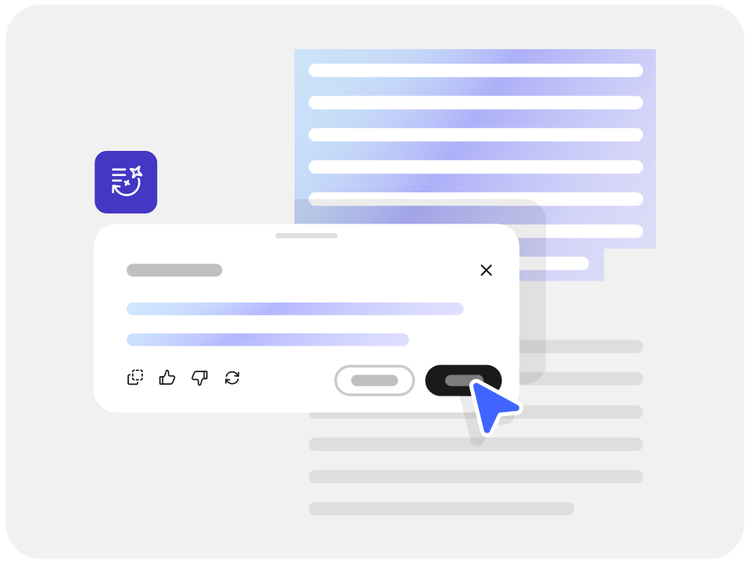
An AI chat box showing how PDF AI lets you interact with your PDF.

  1. Use the Select files button or drag and drop your PDF, DOC, or RTF files.
  2. Interact with AI by using the chat box to ask questions, request summaries, and get insights instantly.
  3. Sign in to save your work or share results.

Try PDF AI for Free

Experience the power of Acrobat AI Assistant—no sign-in required for basic features. For advanced capabilities, log in and try PDF Spaces to interact with multiple PDFs at once.

https://main--dc--adobecom.aem.page/dc-shared/assets/images/product-icons/frictionless-svg/chat-question-answers.svg | Two chat bubbles representing PDF AI that allows you to chat with your PDF

Chat with your PDF

Instantly get answers and insights from your documents, with cited sources. Chat features can help you find a specific answer more quickly or break down complex topics into digestible concepts.

https://main--dc--adobecom.aem.page/dc-shared/assets/images/product-icons/frictionless-svg/document-insights.svg | A document with a lightbulb representing a PDF AI summary

AI-Powered Summaries

Quickly understand large or complex PDFs with concise summaries. Use an AI summary to deepen your own understanding, draft executive reports, or extract key points.

https://main--dc--adobecom.aem.page/dc-shared/assets/images/product-icons/frictionless-svg/iterate.svg | A PDF document enhanced by PDF AI

Iterate on your content using AI

Use the chat panel to paraphrase or rewrite parts of your document or translate text. AI Assistant can help you with document needs, ranging from proof reading to analysis.

https://main--dc--adobecom.aem.page/dc-shared/assets/images/product-icons/frictionless-svg/multi-pdf.svg | A stack of documents with quotations showing the multi doc AI functionality

Multi-PDF interaction

Log in to use PDF Spaces and work with several PDFs together. The advanced chat in PDF spaces will cite answers from your own sources, giving you trustworthy AI answers.

https://main--dc--adobecom.aem.page/dc-shared/assets/images/product-icons/frictionless-svg/simplify.svg | A browser with a cursor illustrating simple, online PDF AI tools

Use PDF AI to simplify

PDF AI can help with everything from understanding the terms of an invoice to extracting insights from financial reports, and it can speed up academic research complete with citations pointing back to original document sources.

FAQs about PDF AI.

What is PDF AI?
PDF AI refers to the use of Artificial Intelligence to reimagine a PDF document from a static file to a powerful productivity tool. This term refers to AI-powered features such as PDF chat, custom summaries, generative creation and editing, and agentic support to bring you increased efficiency and smoother decision-making.
How secure is PDF AI?
Your files are processed securely by Adobe servers and deleted unless you sign in to save them. Adobe does not train models on your inputs and interactions.
Can PDF AI translate my documents?
Yes, you can request translations directly in the AI Assistant panel.
Do I need to sign in to use PDF AI?
Basic features are available without signing in. For advanced options like PDF Spaces, you’ll need to subscribe.
What are PDF Spaces?
PDF Spaces allow you to interact with multiple PDFs – up to 10 documents simultaneously - for deeper analysis and collaboration. When you upload multiple documents, AI Assistant will provide you with some key takeaways and areas to get started.
What types of PDFs work with PDF AI?
To use the free online PDF AI tool, you can upload a PDF, DOC/DOCX, or RTF to get started. Acrobat AI Assistant will convert your file to a PDF to enable AI features. The AI Assistant can process files up to 100MB and up to 600 pages, and supported languages include English, French, German, Spanish, Italian, Brazilian Portuguese, and Japanese.
What are some of the ways to use PDF AI?

PDF AI can help you break down complex concepts. For example:
  • Financial reports: Extract key metrics, trends, or risks from balance sheets, income statements, or investor presentations.
  • Academic research: Summarize findings, identify methodologies, or translate jargon-heavy sections into plain language.
  • Technical documentation: Explain processes, decode acronyms, or simplify engineering specs for non-technical stakeholders.
  • Medical or scientific papers: Break down experimental results, summarize conclusions, or translate terminology for broader audiences.
Verb
pdf-ai

Try these Acrobat online tools

Convert from PDF

Convert to PDF

Reduce file size

Edit

Sign & Protect

Generative AI

Convert from PDF
Convert to PDF
Reduce file size
Edit
Sign & Protect
Generative AI