

1. Open PDF Spaces.
In Adobe Acrobat, navigate to PDF Spaces under “Files” or “Tools” on desktop, laptop, or mobile.






Check out these curated PDF Spaces to discover new ideas, insights, and knowledge.

Featured
See what PDF Spaces can do, how it can help you, and easy ways to get started using it.

Featured
Use her smart money strategies to hit your first big milestone

Featured
Learn how PDF Spaces helps you be a more productive marketer

Featured
Learn how PDF Spaces can help you be a better student
Productivity
See what PDF Spaces can do, how it can help you, and easy ways to get started using it.

Productivity
Learn from Ryan’s best sales stories and strategies, then use this PDF Space to get tailored advice for your own sales goals.

Productivity
Learn how to rock a brainstorm session and use the PDF Space to think with you

Productivity
Use these TED Talk transcripts to see how to apply psychology to improve your sales process and close deals faster.

Lifestyle
Shonda Rhimes, Alex Smith, John Wooden and other TED speakers offer up real-world advice for people navigating their career journey.

Lifestyle
Dive into the transcripts of TED’s most powerful talks on finding joy, meaning, and balance in everyday life.

Lifestyle
Save Commander Nyla Sugg in this high-stakes interstellar rescue mission.

Lifestyle
A PDF Space dedicated to exploring Alex's story, his motivations and ways you can tackle any challenge ahead of you to become an unstoppable force.
Productivity
See what PDF Spaces can do, how it can help you, and easy ways to get started using it.
Productivity
Learn from Ryan’s best sales stories and strategies, then use this PDF Space to get tailored advice for your own sales goals.
Featured
Learn how PDF Spaces helps you be a more productive marketer.
Featured
Learn how PDF Spaces can help you be a better student

FEATURED PDF SPACE
Get an inside look at how he gets ready for his Big Bro podcasts. Dive into real conversations with A-list celebs and advice from Cudi himself. All powered by PDF Spaces in Adobe Acrobat.
Whether you’re a college student or professional, PDF Spaces makes it easier to organize information, get answers from your docs, and speed up your workflows.

Turn complex information into actionable insights with AI-powered summaries, audio overviews, and interactive visuals that surface key info.

Just ask AI Assistant questions about your documents and get answers with linked citations.
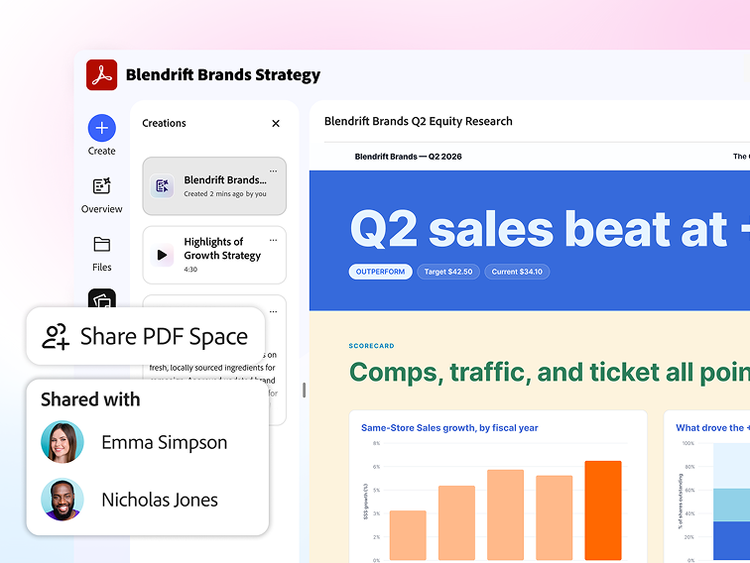
Share summaries, audio overviews, interactive visuals, and a custom AI Assistant. Then see how others engage with your content.
1. Open PDF Spaces.
In Adobe Acrobat, navigate to PDF Spaces under “Files” or “Tools” on desktop, laptop, or mobile.

2. Add multiple files.
Upload PDF files, documents, web links, and more — then organize them how you need.

3. Summarize. Chat. Analyze.
Get a summary of your files. Then ask AI Assistant questions or build an interactive report to uncover insights.

4. Share and collaborate.
Customize your PDF Space as a smart experience and share it with others to make info easier to explore.
See how sales, marketing, and business teams use PDF Spaces to get up to speed on any topic and level up document management, research, and collaboration.

Get your team on the same page by sharing competitive analyses, market trends, and more in one PDF Space. You can also share an interactive experience with clients to help seal the deal.

Create a campaign marketing plan in seconds from all your audience insights and strategy docs. Plus, uncover trends and create content for blogs, white papers, and social media.

Bring all your business docs together in PDF Spaces, and understand key insights with an instant summary, engaging audio overview, or interactive visual report.

