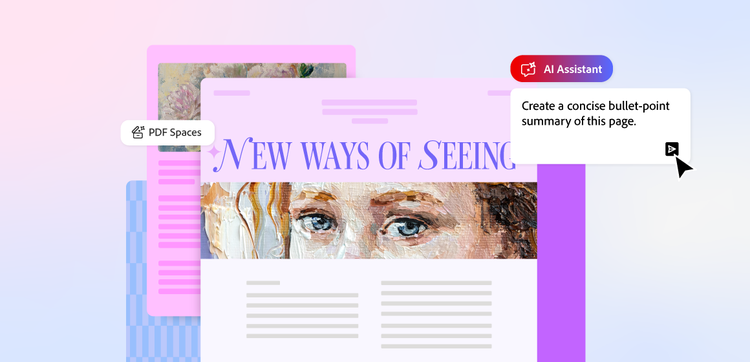
AI document formatter: How to use AI to format your documents.
Ever found yourself trying to whip up a document but you just can’t get it right? Whether it’s a social media post, a scope of work, or even a menu, Adobe’s AI document formatter makes it easy to build out your document. Read on to learn how to turn ideas into a valuable document in moments.
What is an AI document formatter?
An AI document formatter is a tool that uses artificial intelligence to apply and edit the layouts of documents. Guided by a prompt provided by the user, the formatter focuses on the layout and look of the page more than the written content or the images, though some models can do both.
With Adobe’s AI document formatter, you’re able to combine multiple documents, images and files to create a format that contains all the relevant assets. Document formatters also excel at enhancing existing documents, meaning they can be used on both new and existing files.
How to use the Adobe AI Assistant as a document formatter.
It’s simple to use AI Assistant as a document formatter. You’ll need a paid Adobe account to begin, but once you have that you can get guided steps within PDF Spaces. Learn more about pricing.
- Open PDF Spaces. Log in to Adobe and open the app either in a browser or via your desktop.
- Think about your goals. How do you want to format your document? Do you want to combine files, build a summary, or create a new report? You can always change your mind, but deciding on this will help you to create your prompt.
- Upload your files. It’s easy to add files to your PDF space. Drag and drop or select files from your device, a web link, or copy and paste text into the space.
- Choose your AI Assistant. The default AI Assistant can be used for most tasks, but you can also use specialised assistants too.
- Engage with your documents. This is where your prompts come in. Tell the PDF space what you’d like to do with documents and what you’d like for an end result.
- Check you’re happy with the results. Sometimes you’ll need to tweak your prompt or include additional material to get your desired results, so don’t be afraid to play around. Once you’re happy, you can save and share your work.
Why use AI to format your documents?
Adobe’s AI Assistant is a useful tool for formatting documents of all shapes and purposes. There are plenty of benefits to using AI.
- Reduce time spent on documents. One of the key benefits of using AI is that it typically cuts time spent on long-winded manual tasks. It gives you more time to focus on the important things.
- Improve drafts. Most creative outputs go through a couple of rounds of improvements, whether it’s a cover letter or a piece of music. AI can take an existing draft and improve on it, taking in your feedback and providing some of its own.
- Summarise your content. Does your document contain large amounts of text that take up too much space? An AI document formatter can summarise your content to provide an easy-to-digest format.
- Simplify complex information. If the content in your document is difficult to understand due to its complexity, Adobe’s AI formatter can reword or explain it so it’s accessible.
- Create fresh content. If you’re out of ideas, AI can be used to generate content for your document, whether it’s an intro to a museum guide, or a draft for a prospective letter.
Ways to format your document using the AI Assistant.
There are plenty of ways to format your documents when you’re using the AI Assistant, but they’re not always obvious from first glance. Below, we explore the range of opportunities the AI Assistant can offer you.
Customise your AI Assistant to get tailored advice.
PDF Spaces comes with multiple assistants built in. So theoretically, you can give the same request to different versions and receive different answers. Some versions are better suited to analysing information, while others excel at being chatty companions.
You have four pre-built assistants to choose from, but can also create your own, to develop the assistant you want.
Chat with your AI Assistant for fast insights.
While you can set tasks for the AI Assistant, you can also chat with it, as you would with a colleague. You can ask it for advice on documents, or request feedback on work you’ve created. If you’re ever unsure about the AI’s functions, you can always ask the assistant itself about the insights it can provide.
Generate content summaries.
If you need to summarise your content, whether to simplify complex topics or give readers a quick understanding before committing to the full document, AI Assistant can be useful.
Summarising is as simple as uploading your documents to the PDF space and then requesting a summary from the assistant.
Get in-depth reformatting advice.
After uploading your documents to the PDF space, you can request that the AI Assistant gives you advice on reformatting. This can be as simple as using the prompt: ‘Can I get advice on reformatting?’
You may also want to include extra details on the specific type of advice. For example, you might be thinking whether it’s worth including a chart in your document.
Ask for tone and style advice.
The AI Assistant can also give you advice on the tone and style of the content in your document. It can help you determine, for example, if the content is too formal or informal.
Similarly, if exploring a complex subject, you can ask for advice on how the layout of the document can help with explanations.
Prompt ideas for the AI document formatter.
Sometimes, knowing where to begin can be the hardest part of using an AI document formatter. If you’re unfamiliar with AI assistants or simply want to know more about what they can do, we’ve compiled a list of example prompts to give you some ideas.
- Summarise this section into a table: If you have a spreadsheet filled with data, or even just a paragraph that covers numerical ranges, you can turn those numbers into an easy-to-read table.
- Condense this page into an accessible bullet point list: If you’ve uploaded a medical journal aimed at professionals, you’re still able to summarise the content in a way that the average reader can understand.
- Suggest three alternative H1 headings: You can use an AI document formatter to help you come up with impactful titles or headlines.
- Convert these meeting notes into a readable summary: The AI Assistant can use context to help you restructure the format of a document to better fit your needs.
- Reformat this email to be more professional: With a strong understanding of tone and intention, the AI Assistant can transform content to make it more suitable for your intended audience.
FAQs.
Can AI format a document for me?
Yes, Adobe’s AI Assistant can reformat your documents for you. To get the results you require, you might need to refine and tweak your prompts as you review the output, but you should be able to format your document.
How can I use AI to rewrite a document?
You can ask Adobe’s AI Assistant to rewrite your document, provided it isn’t too long. The AI Assistant is better suited to summarising texts and condensing documents than outright rephrasing multiple pages of copy. However, we encourage you to play around with prompts and review the results.
Can AI reformat a PDF?
Yes, Adobe AI Assistant is particularly adept at reformatting PDFs. You can use it to transform a number of documents into a single readable PDF or completely shake up the format of an individual PDF. Remember to provide specifics of what you’d like to see in your prompt.
More useful resources.
Useful PDF tools.
Sign up to Adobe Acrobat to fill, edit and manage your PDF documents.