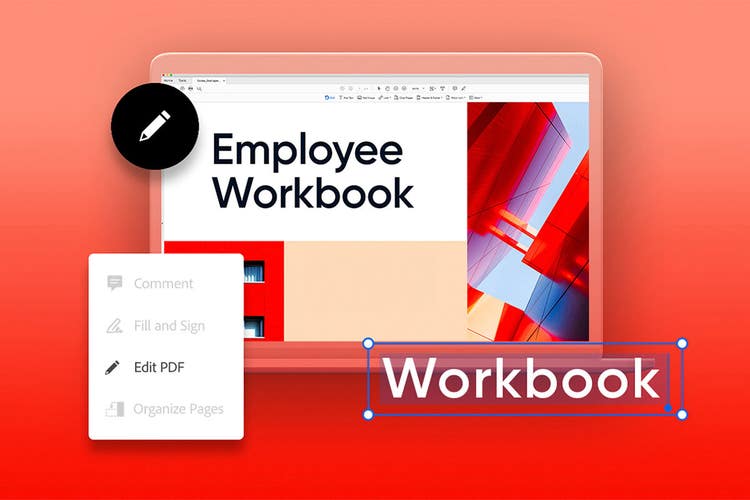
Adobe Acrobat
Best free PDF editor from Adobe
Try Adobe Acrobat PDF Reader for free or use Acrobat online.


Adobe Acrobat
Try Adobe Acrobat PDF Reader for free or use Acrobat online.
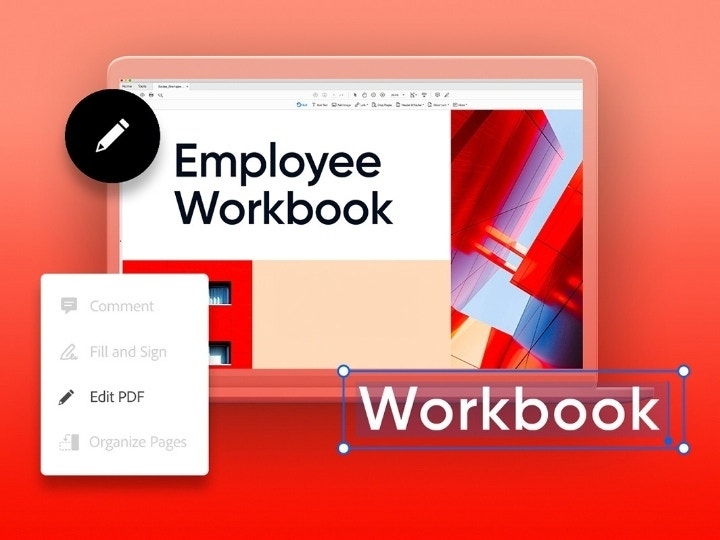
Explore essential Acrobat tools for free
Learn how to edit text, change imagery, and organize pages in a guided tutorial.

If you need to do more than sign, edit text, annotate form fields, or share PDFs, try Adobe Acrobat Pro.
It’s simple to export many file types to PDF, whether you’re working with Microsoft Word documents, Excel spreadsheets, HTML web pages, or PowerPoint presentations. In addition to leveraging the Adobe PDF editor, you can also use a PDF converter to save photos, like PNGs or JPGs, in PDF format. And, since the PDF format offers universal compatibility, anyone — from clients to contractors — can view, review, and sign PDFs electronically with ease.
The user-friendly commenting tools in Acrobat let you mark up and edit PDF documents for easier communication and document collaboration. Annotate your file before sharing by adding text boxes and formatting text, and insert sticky notes, shapes, or freehand drawings with the Pencil tool to further illustrate your ideas. Once you share, your collaborators can add comments via sticky notes, highlights, lines, shapes, and a typewriter tool that lets you add, underline, or strikethrough text on PDF documents.
When you’re ready to share your PDF document, use Acrobat to compress it and decrease the file size without losing image quality. If you’re working with large files, this compression saves time and lets you send and receive documents fast. You can also share your PDF as a link.
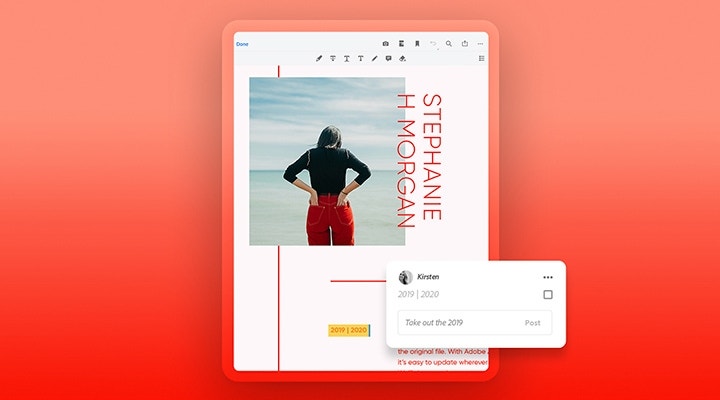
Another way to make the most of your PDFs is with the free online PDF editor. With web-based editing software, you can access PDFs right from Chrome, Safari, or Firefox web browsers. Plus, you can access these tools from different operating systems, including Windows or Mac computers, or from iPhones and other mobile devices.
With Acrobat online tools, or a 7-day free trial of Adobe Acrobat Pro, you can try all of the following actions:


Changing an image or editing text is a breeze with the Adobe online PDF editor. You can add sticky notes, highlights, drawings, and more with the easy-to-use tool. There are five simple steps to edit your PDF.
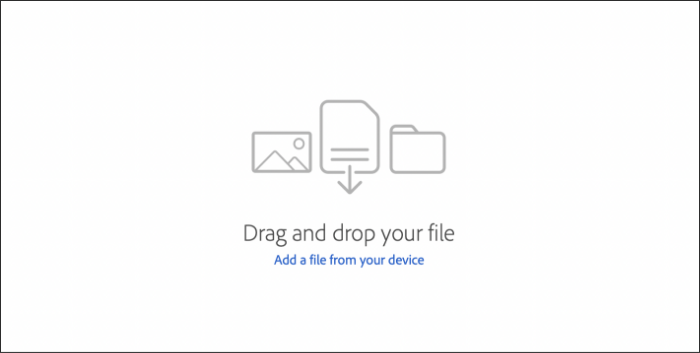
Choose your PDF to edit by either clicking Select a File or by dragging and dropping a file into the drop zone.
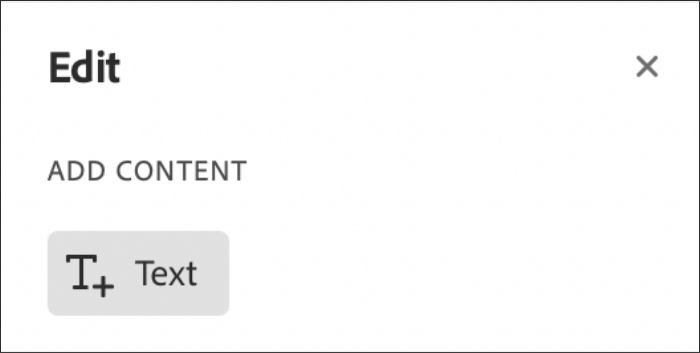
To add text, select Tools > Edit PDF > Add Text. Drag to determine the width of the text box you want to add. If you want the text to be vertical, right-click the text box and choose to make the direction vertical. The Add Text tool can detect font name, size, color, character, paragraph, line spacing, and horizontal scaling text properties when close to the point of click. The properties are automatically applied and can be changed using the options under Format.
From there, you can type text and resize the text box by dragging the selection handle. Hover the pointer over the line of the bounding box to move the text box. When the cursor changes to the Move pointer, drag the box to the new location. To keep alignment with the other list items, press or hold the Shift key while you drag.
Under the Toolbar you can add text, highlights, drawing, sticky notes, and more. You can add sticky notes or text boxes anywhere on the PDF. With the Adobe online PDF editor you can strike through, highlight, or underline content. With the drawing tool, you can freehand create whatever you want.
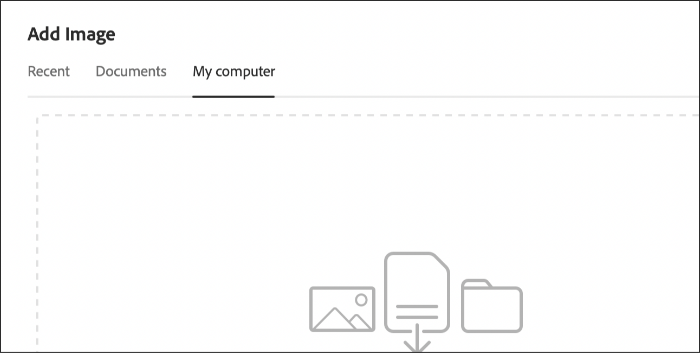
You can try Adobe Acrobat Pro for free for seven days on your desktop, mobile device, or online to use more advanced editing tools that let you move, add, flip, or rotate JPGs, PNGs, and more. Add an image by selecting the option from the Objects list. From there, you can adjust your image however you like.
Click and drag the image to size it as you are placing it. Use the box handles around the image to resize it or go under the Tools tab under Objects to flip, rotate, or crop the image.
To align images or objects relative to each other by their edges, go to Tools > Edit PDF > Edit. Select the object or objects, then press and hold the Shift key and click the objects one by one. Under Objects in the right panel, click Align Objects and select an alignment option. You can also right click the object or objects, and point to the Align Objects option from the context menu to select an alignment option from the submenu.
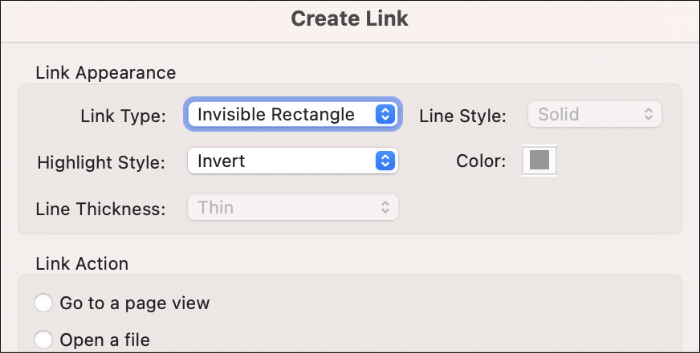
With Adobe Acrobat Pro, adding links to your PDF is as easy as ABC. Go to Tools > Edit PDF > Link and then Add or Edit. The arrow will become a crosshair, and any existing links in the document will become temporarily visible. Drag a rectangle to the place you want your link to live, whether that’s a text box or graphic. You can customise your link’s appearance by choosing from different link types, highlight styles, line type, thickness, colours, or you can make it invisible. Then you will want to choose a destination for your hyperlink. From there, you can go to a page view by clicking Next to set the page number and see the magnification for the current document or in a different document and click Set Link.
Another option would be to open a file, choose the destination file, and click Select. If the file is a PDF, indicate whether it should open in a new window or an existing one. Then click OK. Another action would be to open a web page. Provide the web page’s URL and then you can also create a URL link to open a PDF at a specific page. Lastly, you can create a custom link by clicking Next to open the Link properties dialog box. You can set an action such as performing a menu command or reading an article that can be associated with the link.
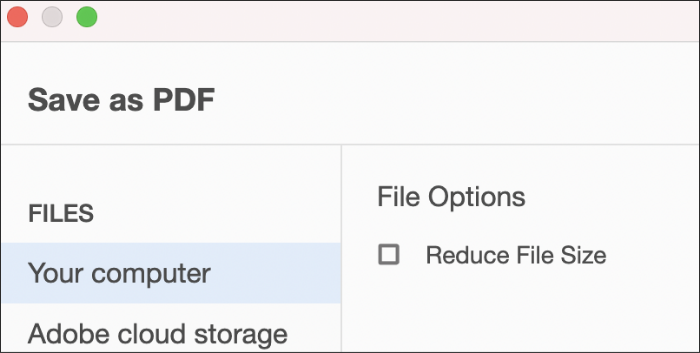
Save your hard work by naming your file and clicking the Save button. That’s it.

Unlike the free version, with the full, paid version of Acrobat Pro, you get complete control over your PDF documents. Learn how to build PDF forms and files from scratch, and use the editing features to adjust the formatting and create space for signatures.
Or turn existing documents into editable, searchable files with optical character recognition (OCR) in Adobe Acrobat. This extracts PDF text and lets you adjust and edit it yourself.
If you want to create, edit, scan, or resize PDF documents, the right software can make it easy. Whether you need a complete suite of PDF editing tools for your small business or you just want to save and compress a few files, Adobe Acrobat can help you make it happen.