Redact a PDF with Adobe Acrobat.
Learn how to redact a PDF and blur text using Adobe Acrobat’s powerful redaction tools. Keep private or sensitive information hidden to help secure your data at every stage of sharing.


Learn how to redact a PDF and blur text using Adobe Acrobat’s powerful redaction tools. Keep private or sensitive information hidden to help secure your data at every stage of sharing.

To redact a document means removing certain words or data from a file, such as a PDF or Word document, before it’s shared. Many people choose to redact PDFs online or apply PDF blur features to prevent sensitive information from being seen.
Redaction exists to keep sensitive details private. As digital documents evolve, simply blacking out text isn’t always secure. Hidden layers of data mean users often need secure tools to redact a PDF, blur a PDF for free, or fully remove confidential information.
Common examples of redacted text might include:
Whether you’re running a business or simply managing your personal documents, you can give yourself peace of mind if you take a few extra steps to protect sensitive content.
If you’ve ever tried blacking out text in a PDF, you might be surprised to learn that it isn’t always secure. Proper redaction means permanently deleting information, not just making it invisible.
That’s where Adobe Acrobat Pro comes in. It lets you redact PDFs safely by permanently removing sensitive details such as account numbers, addresses, or personal identifiers.
Adobe’s redaction tool goes a step further by tackling something many people forget about – metadata. This hidden data lives beneath the surface of your PDF and can still reveal private information if it isn’t properly removed.
Adobe takes care of both the visible content and what’s lurking underneath, so nothing slips through the cracks. Metadata can include the:
PDFs can also contain formatting elements, such as JavaScript, that change how the document looks and is presented. You might want to keep every bit of this information private.
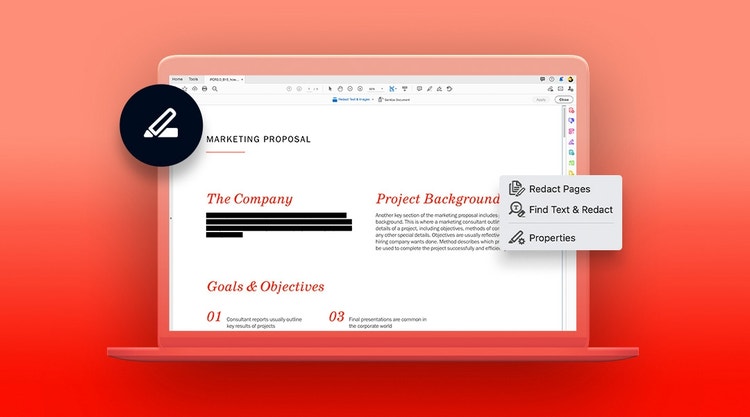
Because no one wants private information ending up in the wrong hands. Redacting sensitive content helps keep communication safe between organisations, businesses, customers, and the wider public. Since PDFs are everywhere in day‑to‑day work, being able to redact PDFs online or use a secure PDF blur has become a must-have.
This is especially true for legal and government documents. Court papers shared externally often need to remove details or blur text in PDFs to protect privacy. If this information slips through, it could:
Redaction software can be used in a range of settings to redact information and help secure documents – as well as formatting. Let’s take a look at a few examples.
Redacting documents is a common practice in legal settings. Identifying images and data might be redacted, as mistakenly sharing sensitive client or case information could lead to severe penalties and consequences.
Most redactions on medical documentation will focus on sensitive and private information. This often relates to patients, but sometimes employees or hospital practices too. Data redaction can prevent confidential records, such as a patient’s medical history, being divulged.
Government documents often contain information that simply can’t be shared openly. That’s why redaction is used to redact a PDF or apply a PDF blur, helping protect individuals or organisations from harm. This approach also supports compliance with legislation such as the Official Secrets Act. In the UK, redaction is regularly used to provide anonymity where restriction orders apply ahead of publication.
Business documents can carry a lot of weight and risk. Professional communications between companies or clients often include financial data, proprietary details, and even trade secrets – all of which benefit from Acrobat tools that can redact a PDF or apply a secure PDF blur. Failing to redact PDFs properly online can result in legal trouble, reputational damage, and strained relationships with key business partners.
Redaction isn’t just for official paperwork. Media professionals often need to protect anonymous sources or remove identifying details before publishing a story. Investigative journalists regularly redact PDFs online or blur text in PDFs on a case‑by‑case basis, given the wide range of sensitive topics they cover.
You might also want to redact a PDF or apply a PDF blur to remove your own personal information before sharing documents externally.
Using a proper redaction tool matters, whatever the scenario. Simple methods like blacking out text on paper or changing text colour to white can be unreliable, whereas trusted software lets you securely redact PDFs and protect your privacy.
By using Adobe Acrobat’s Redact tool, you can redact text, images or sensitive content in your PDF in moments. That includes visible data and hidden metadata too. Redacted text and graphics aren’t just concealed – they’re completely secure.
Before you begin, you may well want to make a copy of your PDF, so you have the original to refer to – and access to the data you’re about to remove – if required. Of course, it goes without saying that both files will need to be properly secured.
To begin, simply enter Edit Mode on Acrobat, and proceed with the steps below to easily redact and delete text from your PDF.
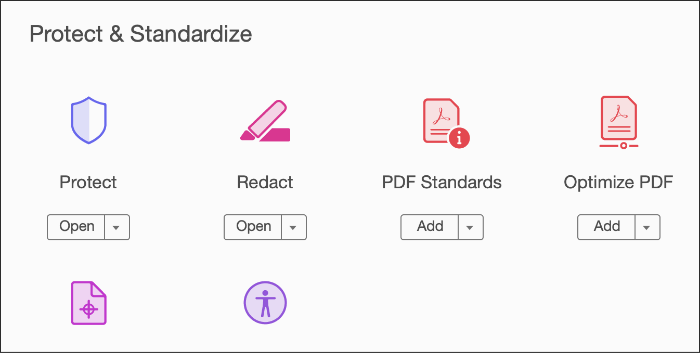
Click on Tools › Redact. Alternatively, you can click Redact from the left-hand menu under All Tools.
Draw squares or rectangles across or over the graphics and text you want to redact from your PDF. If you make any mistakes, you can use the Command+Z or Control+Z shortcuts to go back a step, depending on your operating system.
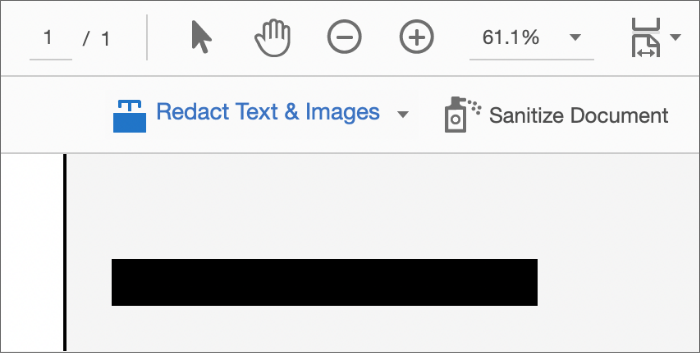
If you want to alter the appearance of your redaction box, you can. First, click or tap the drop-down menu labelled Redact Text & Images.
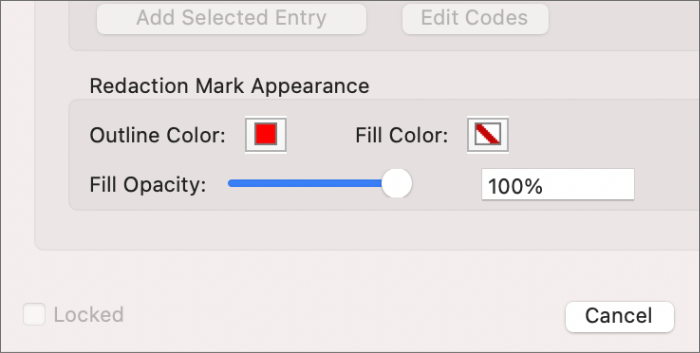
Next, press Redaction Tool Properties. Choose your ideal colours, opacity, or any custom text you want to use. Once done, click OK to confirm your selection.
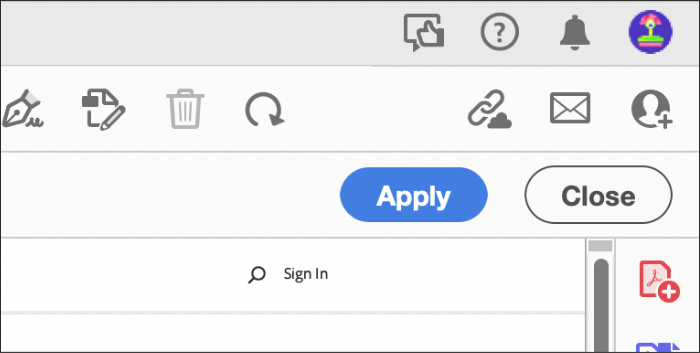
Once you’re happy with your redaction, click Apply. You’ll then see a pop-up to confirm the redacted info will be removed permanently, and you won’t be able to get this back.
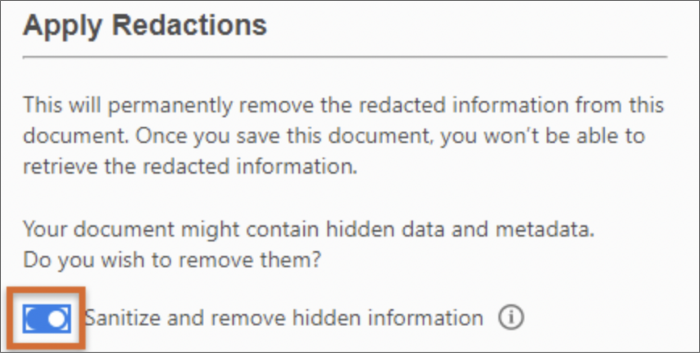
Under the same pop-up, you’ll have the option to remove any metadata too. Leave the button toggled to sanitise and remove hidden data and metadata in your PDF. This should thoroughly secure your document and help ensure no private information is unwittingly passed along.
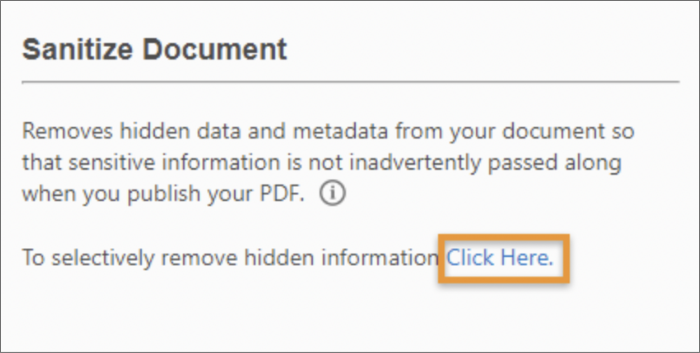
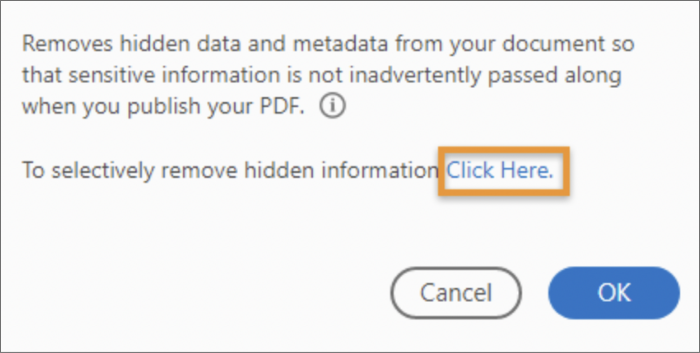
If you’re happy with your redactions, click OK to apply the changes. This will then permanently delete the text and images selected from your PDF.
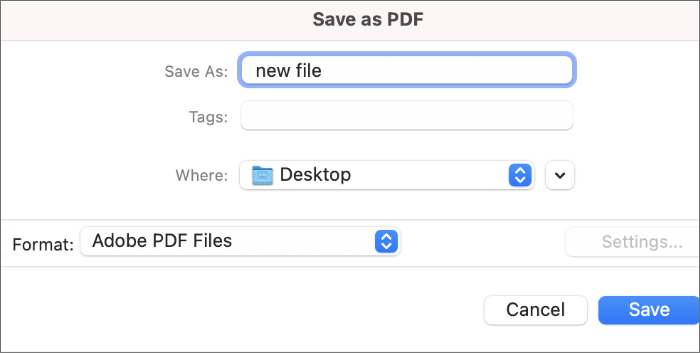
Once complete, it’s worth saving your redacted document under a different file name. This means you can retain the original PDF should you need any of the redacted text or data.
People in the UK have the right to request that certain personal data is erased.
For many organisations, this can mean they’re required to redact personal data on request, which often means removing information such as:
During litigation or commercial transactions, documents often contain information that simply doesn’t need to be shared. Courts may request that irrelevant or commercially sensitive details be removed, meaning teams need to redact a PDF online before submission. This often includes redacting children’s names, dates of birth, and financial account numbers from legal filings.
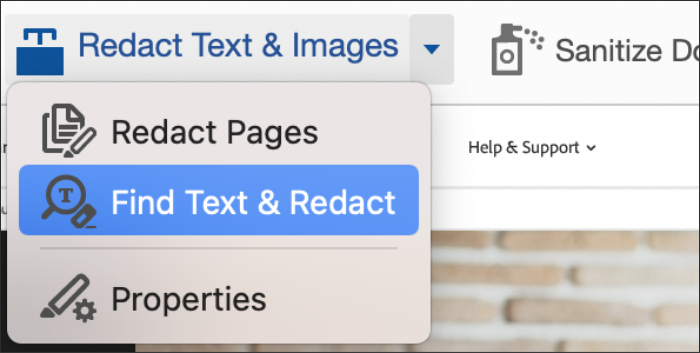
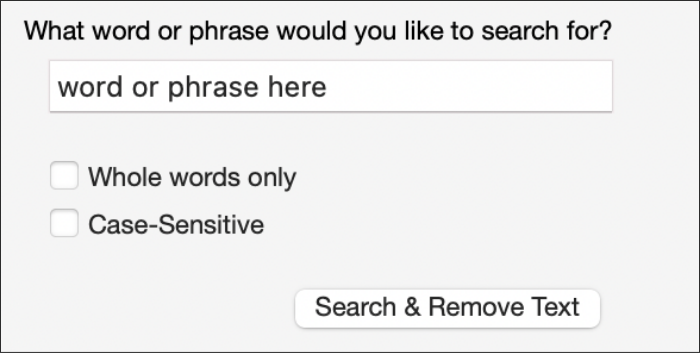
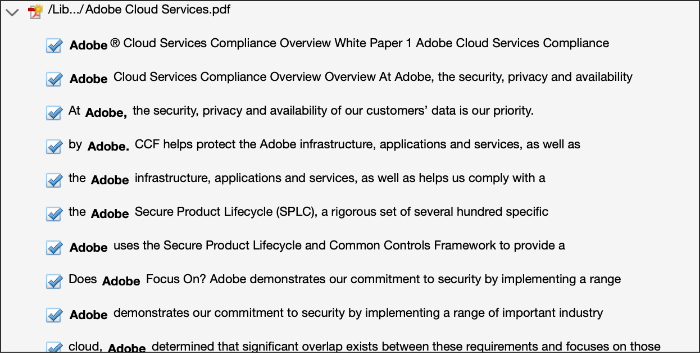
If you already know the words or phrases that need removing, you don’t have to hunt through pages manually. Using the Find Tool allows you to quickly redact specific text in a PDF by searching for exact terms and deleting them efficiently from your document.
To get started:
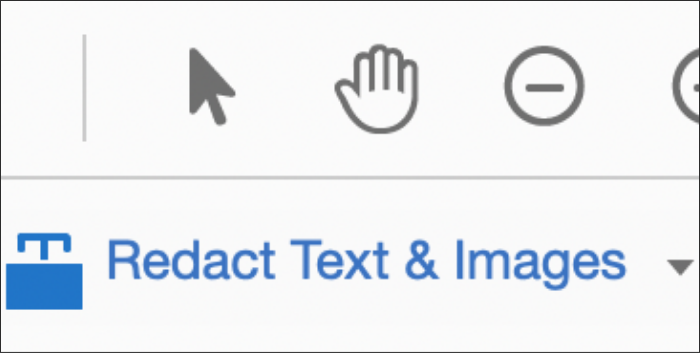
1. Navigate to Tools › Redact › Redact Text & Images in the menu.
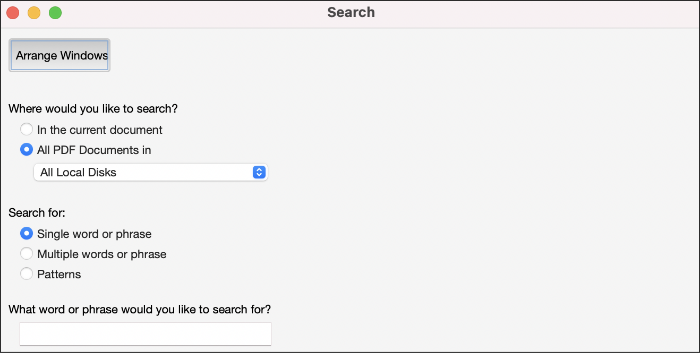
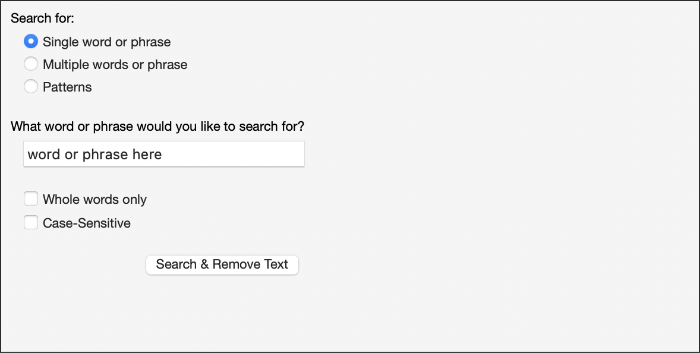
You’ll find several search options here, including:
To change the language of patterns:
5. Once you’re happy with your search terms, click Search & Remove Text.
Sanitising a PDF file offers an even more thorough level of redaction. Doing this removes most visible and hidden data that you want to make private – which could include, but isn’t limited to:
Sanitising your PDF is already a step in the full redacting guide above. However, if you want to skip straight to it, in order to focus on this extra level, simply follow these straightforward steps:
Remember: blurring hides information visually, while redaction removes it completely. You might want to blur a PDF if you want to obscure it, without removing it permanently. For instance, if you might need it to reveal it again later.
Make sure sensitive information never slips through the cracks by choosing to redact a PDF as you work. Whether you’re converting PDFs to formats like Word or Excel (or the other way around), data can easily be exposed if it’s not handled properly. Adobe’s tools let you redact PDFs online, removing sensitive information before your file is shared.
You can also add extra protection, such as password‑protecting your PDF to prevent unauthorised copying or editing. For a more secure, streamlined workflow, try Adobe Acrobat Pro and unlock a complete suite of professional PDF tools.
Yes, you can redact a PDF for free using some online tools or trial versions. These are useful for basic jobs, like hiding names or numbers. However, free tools often limit features, security, or file size. For full protection, professional PDF redact software offers greater control.
To black out information on a PDF, open it in a PDF editor like Adobe Acrobat. Use the Redact tool to select the text or images you want hidden and apply the redaction. This permanently removes the information, unlike a simple PDF blur, which only hides content visually.
To redact a PDF for free in Adobe, sign up for a free Adobe Acrobat Pro trial. This offers full access to professional PDF redaction tools, including text, image, and metadata removal. Once the trial ends, you’ll need a subscription to continue using these features.
To change a blurred PDF to a cleared PDF, you’ll need access to the original file. A PDF blur only hides information visually and cannot always be reversed. If you own the document, open the unblurred version and re‑export it. Permanently redacted content can’t be restored.
Yes, redacting a PDF is safe when done properly. Using professional tools to redact a PDF permanently removes sensitive text, images, and metadata. Unlike basic PDF blur methods, true redaction ensures information can’t be recovered, helping protect privacy and meet legal or compliance requirements.
Redacting a PDF without an editor is difficult because true redaction requires permanently removing data. Some online tools let you redact a PDF online without installing software, but simply covering text or changing colours isn’t secure. For reliable protection, professional redaction tools are recommended.
You can undo any redactions you have added using Acrobat Pro. Follow these simple steps:
There are several ways to redact a PDF, including:
The right method for you depends on your security requirements.
To redact a Word document, you can:
The PDF will retain the formatting of your original Word document and help ensure users can’t make changes to the file to reveal the hidden information.
Yes, you can compress a PDF online without installing software using Acrobat online tools. Various free web‑based services let you upload a PDF, reduce its file size, and download the compressed version. However, compression options and security controls may be limited compared to desktop tools.


