How to Change a PDF From Read-Only.
A PDF (Portable Document Format) file is a widely used document type that preserves layouts across devices and operating systems. They’re quite common but can be difficult to edit.
This guide covers what they are, how to unlock them, and some other things to consider when you change a PDF from read-only.
Key takeaways.
- Read-only PDFs can lock content due to permission restrictions, passwords, digital signatures, or by being a scanned copy of a document.
- You can unlock read-only PDFs using a PDF editor, removing passwords, or by converting scanned documents using Optical Character Recognition (OCR).
- You should always get permission to edit read-only PDFs, particularly when handling sensitive data.
What is a read-only PDF?
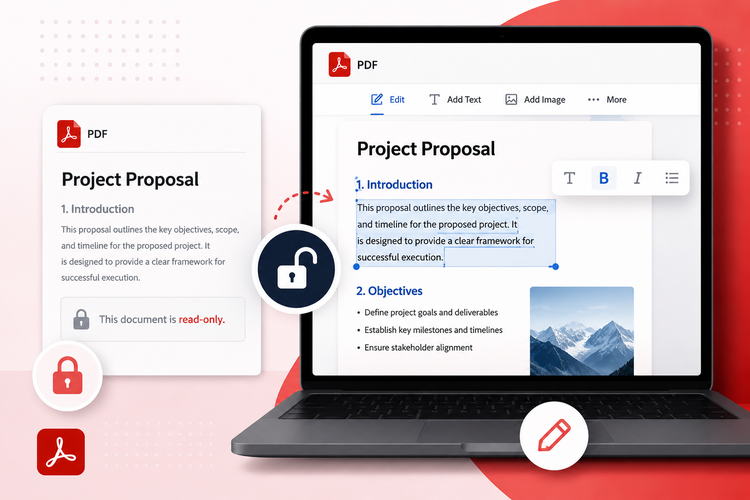
A read-only PDF is a file that can be opened without being able to edit it. The document’s content, structure, or permissions limit the editing. Copying and annotating it also become difficult.
It’s intentional, so that the file’s original format can be preserved, to protect potentially sensitive information, or to maintain the document’s integrity.
Other settings that could cause a PDF to be read-only are:
- No editing permissions. Restricted permissions that disable editing features where users can only view the file without making changes like altering text or images.
- Password protection. Putting a password on the document to restrict editing access. This can be full-protect, meaning you can’t view the document at all. Or it can be set up so you can view and read the document only, without being able to edit it unless you know the password.
- Scanned image format. If a PDF is created by scanning a document, it often becomes a static image rather than editable text. This makes it effectively read-only unless processed with OCR (Optical Character Recognition).
- Digital signatures and locks. When a PDF is signed using a digital signature, it may be locked to prevent further edits. This ensures authenticity and prevents tampering after approval.
- File system restrictions. Sometimes, the read-only status is applied at the operating system level, meaning the file itself is marked as non-editable regardless of PDF settings.
How can I unlock and edit a read-only PDF?
There are a few methods you can try to remove read-only from a PDF, depending on the issue. There isn’t just one fix, because the restriction may be due to permissions, a password, scanned images, or digital signatures. The best way to approach it is to identify the cause first, then choose the right Adobe Acrobat tool.
Some methods to consider include:
1. Use PDF editing tools.
If you have a lightly restricted file, you can use Adobe’s PDF editor to make changes in your web browser, without having to install software. This means that you could change a read-only PDF to editable from any device, wherever you are.
This is the best first step when the document is viewable but not obviously locked by a password or signature.
2. Remove or enter the password.
To add a password to a PDF:
- Open the PDF in Adobe Acrobat.
- Go to the Tools menu and select Protect.
- Choose Protect Using Password.
- Select whether you want to restrict viewing or editing.
- Type and confirm the password, then click Apply.
You can also use the Adobe protect PDF tool online to do this.
To remove passwords from a PDF, you’ll need to get the password and enter it if it’s from another person.
3. Use Optical Character Recognition.
OCR tools can help to turn text inside scanned PDF images into editable text. When you scan documents, they’re essentially an image, making it difficult to extract the text.
But with the Adobe OCR tool, you can turn the text inside the scanned image into an editable format.
4. Annotate the PDF.
If you just want to annotate the PDF rather than edit it, you can use highlighting features in Adobe Acrobat or online.
Adobe Acrobat tools offer editing features which let you highlight, comment and add notes so that you keep the original file intact while still being able to review it.
5. Edit a signed PDF.
Digitally signed PDF files are often locked so the signature can’t be changed.
To edit a document, you’ll either need to request the file back and then get it re-signed or use a previous version before it was signed and edit it.
6. Consider converting to another file format.
A range of conversion tools are available from Acrobat online that could make it easier to access text and images from a PDF. If you need to get a summary of the PDF, you can use the AI Summary Generator, for example.
If you want to convert other types of files to a PDF or vice versa, like Word to PDF or PDF to Word, you can do that too. Check out the complete range of Adobe Acrobat online tools.
What to consider when you change a read-only PDF to editable.
Before you change a PDF from read-only to editable, you need to check whether you’re allowed to do it. It may be read-only due to the owner setting the permissions, but it’s important to pause before you make any edits.
Some things to consider include:
- Get permission for sensitive files. Seek written permission for business or legal documents before you remove read-only from those PDFs.
- Do not bypass security controls. If restrictions were added intentionally, only remove them when you are authorised to do so.
- Ask for the password when needed. If you do not have access rights, request the owner’s password or an editable copy instead of just going ahead with it.
- Treat signed PDFs carefully. Signed files often lock after approval, so any edits should be treated as a new version that needs fresh approval or re-signing.
Taking a moment to confirm permission helps protect you, preserves the document trail, and avoids accidental tampering.
FAQs.
Can I sign a read-only PDF?
Yes, you can sign a read-only PDF if signing permissions are enabled. Adobe Acrobat allows digital signatures even when there are restrictions on editing because signing is classed as a separate authorised action.
Why might a PDF file be set as read-only?
A PDF may be read-only to protect its content, preserve formatting, or prevent unauthorised changes. Common reasons include:
- Restricted permissions
- Password protection
- Scanned image formats
- Digital signature that locks the document after approval.
Can I convert a read-only PDF into an editable format?
Yes, converting a read-only PDF into formats like Word or Excel can make it easier to edit. Tools within Adobe Acrobat can extract text and images for reuse, depending on the file’s restrictions.