SEO for PDFs.
A PDF and search engine optimisation (SEO) might seem unrelated, but they can work together to show content-rich documents – such as e-books, guides, or tutorials – in search results.
Whatever PDF content you have available online, you’ll want to make sure it’s picked up by search engines to attract new users or customers to your website.
In this guide, we’ll cover how to optimise PDFs for SEO and turn complex files into discoverable, accessible, and high-ranking content.
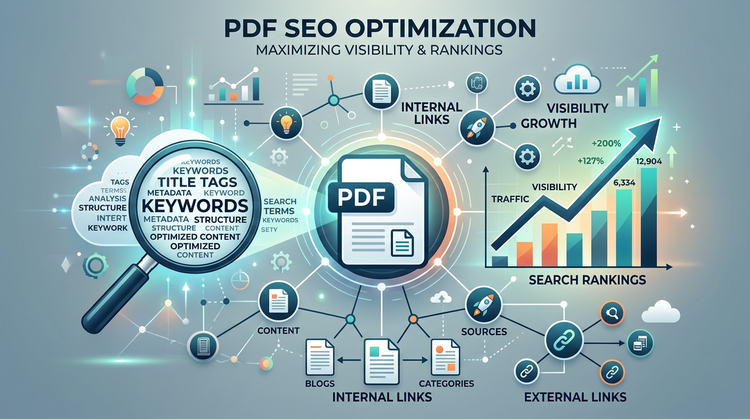
Key takeaways.
- Optimising your PDFs for SEO can help boost visibility and traffic to your website.
- To improve readability and user experience, make sure to structure your PDFs with headings and descriptive internal links.
- Increase your search engine discoverability by optimising PDF filenames, meta data, and ensure mobile friendliness by using canonical tags.
Why you might want to improve SEO for PDFs.
SEO is the process of improving a website to increase its visibility in search engine results pages (SERPs), such as Google and Bing. Its primary purpose is to help content rank well in results pages and drive organic traffic to your website.
Google analyses, stores, and organises billions of documents a day, including webpages and PDF files. While PDFs can be indexed by search engines, they often lack the clear metadata and hierarchical structure needed to understand them. This can lead to HTML pages ranking higher in search results instead.
That’s not to say PDFs are bad for SEO. In fact, they’re particularly ideal for high-quality, in-depth content, such as whitepapers or educational guides. And if you incorporate OCR scanning, even better.
Whether you’re digitising marketing materials or running courses as part of training and development for your business, improving SEO for PDFs presents a great opportunity to generate traffic to your site.
How to improve the SEO of PDFs.
Optimising PDFs for SEO is fairly straightforward and follows similar principles to optimising standard HTML pages. With just a few tweaks, you can adopt PDF SEO best practices that will increase your chances of attracting more people to your online content.
Here are a few steps you can take to improve SEO for PDFs.
Choose the right filename.
The filename of your PDF is arguably one of the most important elements of discovery. It will appear in the SERPs, so it should be meaningful and relevant for visitors.
Ensure your PDF includes an SEO-friendly filename, with target keywords separated by hyphens, and stick to a limit between 55 and 70 characters.
Change metadata.
Similar to the filename, your PDF should also include clear metadata, such as a meta title and description. These should define what your PDF is about and incorporate keywords that search engines will pick up.
You can do so via Adobe Acrobat by following these steps:
- Open your PDF and click on File.
- Navigate to Document Properties.
- Enter the meta title in the Title field.
- Enter the meta description in the Subject field.
Employ keywords.
Keywords are a vital part of SEO for PDF files, making documents significantly more searchable, discoverable, and accessible in search engines. They also tell readers what to expect. Identify one or two phrases that highlight the PDF’s core content and include them throughout the copy.
Avoid keyword stuffing though, as this can mislead search engines and potentially hurt your rankings.
Add headings.
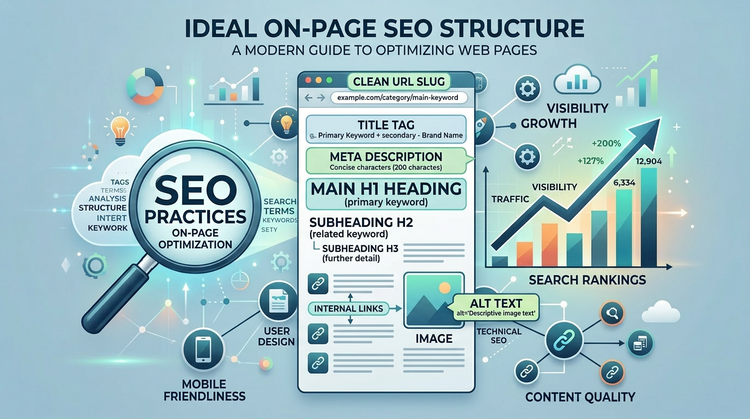
Just like a typical webpage, your PDFs should also include headings. They’re crucial for search engines and visitors to quickly understand the document’s content and hierarchy.
Break up your PDF content into headings, subheadings, and bulleted lists to make it easier to skim. Incorporate an H1, H2, and H3 structure for organisation, and don’t forget to include keywords.
Insert links.
PDFs and SEO internal linking go hand in hand when adding value to your website. It also helps search engines to better understand your content. Include internal links and anchor text in your PDF document that lead to relevant sections of your website.
You may also wish to add external links from reputable sites – such as a government report or scientific study – to improve your page’s authority.
Add canonical tags.
On a more technical note, adding a canonical tag (rel=canonical) to your PDF tells search engines that your document is the original version. This is especially crucial if you offer both a webpage and a PDF version with the same content, such as datasheets.
Canonical tags are an important tool to direct search engines to display your PDF as the preferred content, so it doesn’t compete with the rest of your website.
Compress and optimise for mobile.
PDFs can often fall short in the SERPs if they aren’t mobile-friendly. Compressing your PDF for mobile optimises it for smaller screens and limited data, ensuring easier sharing and faster downloads on smartphones.
It can also improve the user experience by allowing better navigation and readability on small screens.
Optimise a PDF with Acrobat’s online tools.
Optimising your PDF for SEO is simple with Adobe Acrobat’s online PDF editor tools.
Its range of features allow you to easily manage, edit, add, and delete PDF pages and assets – all for free.
There’s no need to download any additional software either. Simply upload your PDF document to the editor tools or drag and drop it into the drop zone to get started.
Update elements or create new ones to optimise your PDF for SEO, whether it’s inserting links, optimising the filename, or incorporating headings.
Collaborating with others? You can easily highlight, annotate, and add comments to your PDF file, or fill and sign for approval. If you’re working with sensitive data, you can also password-protect your PDF before it goes live on your website.
FAQs.
Can SEO read PDFs?
Yes, search engines like Google can read, index, and rank PDF files – and have been since 2001. While PDFs are treated similarly to HTML pages, they can be harder for search engines to process, particularly if they’re image focused.
Optimising PDFs for SEO ensures text is readable and therefore discoverable in search results.
What is the 80/20 rule of SEO?
The 80/20 rule, based on the Pareto Principle, states that roughly 20% of your SEO efforts generate 80% of your website’s organic sales and leads. It suggests that small groups of keywords, pages, or optimisation tactics carry most of the weight of your site’s conversions and search visibility.
When applied to PDFs, prioritising unique, text-based content, keyword-optimised filenames, and structural meta data can go a long way in improving discoverability.
How to make PDFs searchable?
To make a PDF searchable, use Optical Character Recognition (OCR). This technology converts scanned images or non-selectable text into machine-readable PDFs that you can edit and share.
Once you create a searchable PDF, you can then incorporate PDF SEO best practices to bring users to your online content.
More resources.
- How to Make Adobe Your Default PDF Viewer
- How to Open and Edit a PDF on Mac
- How to Write on a PDF
- How to Edit PDF on iPhone
Useful PDF tools.
Ready to transform your PDF? Adobe Acrobat lets you work smarter, with a range of features at your fingertips for use across desktop, mobile, and web. Explore Acrobat’s online tools today.