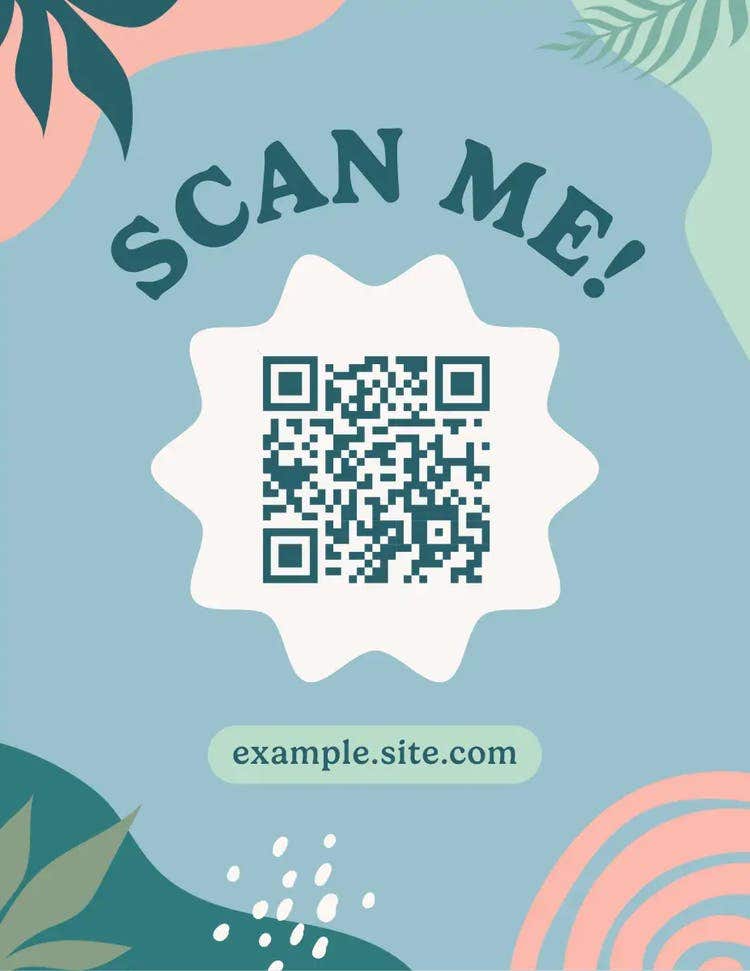




You have probably come across a QR code - on posters, adverts, flyers and business cards. Printing QR codes has grown in popularity over the last two decades.
They are useful for sharing information, especially when space on a poster, for example, is limited. It allows you to focus on the core message when creating your marketing materials.
Adding a QR code that people can scan with their smartphones allows them to find more information, sign up for your newsletter or be directed to your website. It's the perfect way to connect the offline world with the digital world. All you need is a link and a QR code generator.
With Adobe Express, you can generate stickers for QR codes, adapt their design, and place them on your marketing materials. In this article, we explain how to generate them easily.
Key takeaways.
- QR codes are square barcodes that connect offline marketing materials (posters, flyers, business cards) directly to digital content – removing the need for users to manually type long URLs.
- You can use the free Adobe Express tool to generate, customise, and design QR codes with various styles, colours, and file formats in just a few clicks.
- QR code stickers have diverse applications across marketing campaigns, events, products, loyalty programs, and feedback collection. This requires strategic placement, proper sizing, material selection, and optional analytics tracking to see its effectiveness.