Introduction
[Lisa Carney]: With a mobile app on your phone, there are no keyboard shortcuts, but Lightroom on mobile does have several very useful gesture shortcuts you can use to streamline your workflow and access cool features.
Hi, I'm Lisa Carney, a professional Hollywood retoucher working on everything from movie posters to high-end campaigns.
Let me show you some of my favorite gesture shortcuts in Lightroom on mobile.
Let's start off in Grid view.
Navigating grid view with gesture shortcuts
On an iPhone, you can use a two-finger swipe and pinch gesture to enlarge or reduce the size of the thumbnails.
And that same gesture works for both iOS and Android when you're viewing a single photo.
Sometimes all the controls can get in the way of seeing a full image.
That's easy to fix.
Viewing and inspecting photos fullscreen
Just tap the image once to hide the controls and the sliders so you can see the photo all by itself.
Then tap again to bring back the interface.
If you want to quickly zoom in on the image, just double-tap on the photo.
This is the most accurate view of the image, if you really want to see the details.
Double-tap again to fit the entire photo on the screen.
After I've made some changes to one of my photos,
Comparing edits with the original image
I like to compare how it looks with the original image.
Press and hold your finger on the photo to see the original unedited version.
Then release your finger to return to the current edited image.
Using info overlays and image details
Let's go back to the Grid view for some of my favorite gesture shortcuts.
On an iPhone, if you tap the screen with two fingers, you can cycle through different information overlays.
This lets me see the file type, which is useful if I want to see which images are raw files.
I can display the flags and ratings on the photos, see the basic photo info, as well as the camera EXIF data that includes the aperture, shutter speed and lens details.
Here's another iPhone shortcut: When you're viewing a single image two-finger tap the photo to cycle through an information overlay that includes file details and a view of the histogram.
And here's a great tip within a tip: When viewing the info overlay, tap the Info to cycle through the different information layouts.
Adding flags and star ratings with gestures
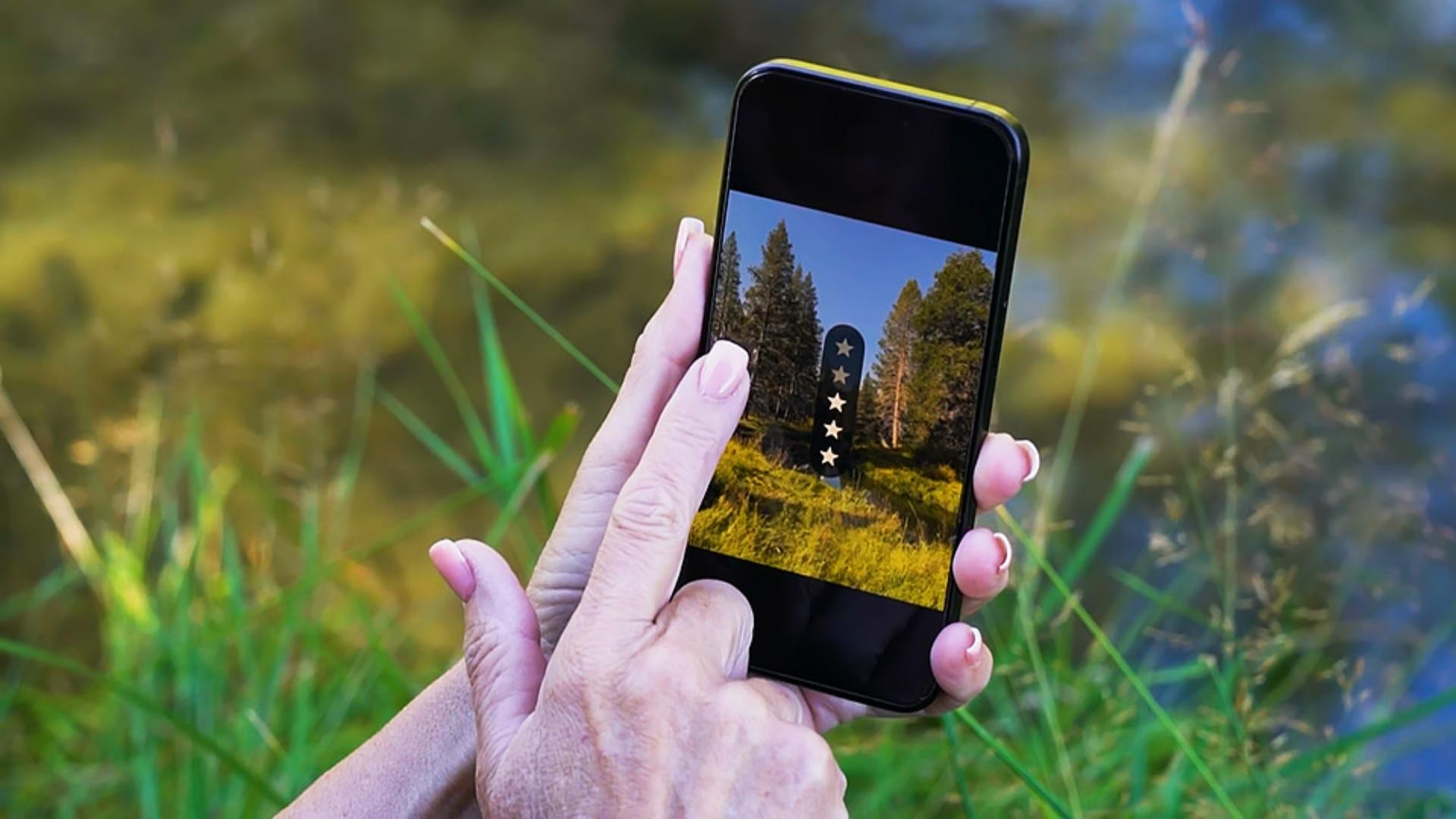
One of the most important things you can do with your photos in Lightroom on mobile is to add flags and star ratings, so you can easily find your best shots.
And there's a great shortcut for that.
When you're viewing a single photo, tap the image once to hide the controls, then swipe vertically on the left side of the image to add star ratings, or swipe vertically on the right side of the image to add flags.
You can choose Pick, None or Reject.
Then swipe left or right to go to the next photo and do it again.
This saves to me so much time when I'm redoing my photos and marking my favorites.
Give some of these shortcuts a try with your own photos in Lightroom on mobile.
Thanks for watching and happy editing!


