ACROBAT
How to use the Chrome PDF viewer.
Open and access PDFs with the built-in PDF viewer in Chrome.


ACROBAT
Open and access PDFs with the built-in PDF viewer in Chrome.

Full-featured PDF viewing right from your browser.
The Google Chrome browser comes with built-in PDF viewer functionality that enables you to open and access PDFs easily. You can amplify your ability to work with PDFs by using the Adobe Acrobat extension for Google Chrome. The Acrobat extension gives you additional features, including file conversion, and saves hard drive space by allowing you to access documents from anywhere via your browser.
A common issue for folks who juggle many different electronic documents at once is keeping track of everything. You need to open PDFs or documents in one application, access a plugin in another, and then switch to yet another application to open a different document. It can really make your head spin.
There are two ways to view PDFs in Chrome:
With the free PDF viewer native to Google Chrome (its default PDF viewer), you can easily view PDF documents from your browser without having to jump to other apps.
If you add the Adobe Acrobat extension for Google Chrome to your browser, you’ll be able to easily convert different file types between PDF and other formats right in your browser so you can move seamlessly between viewing and editing PDFs along with other documents.
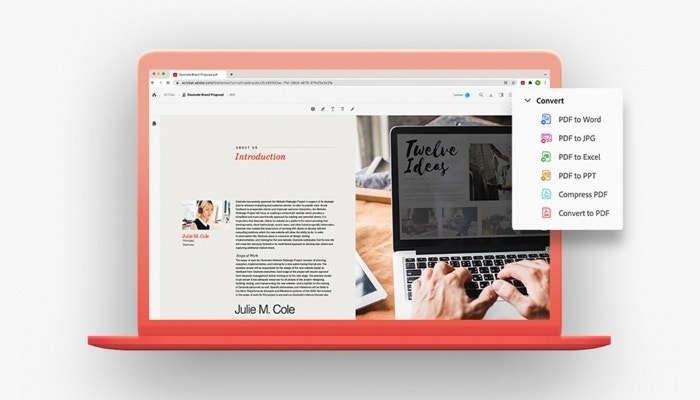
Installation of the Acrobat extension for Chrome is a breeze:
1. Go to the Google Chrome web store and find the Acrobat extension.

2. Click Add to Chrome.
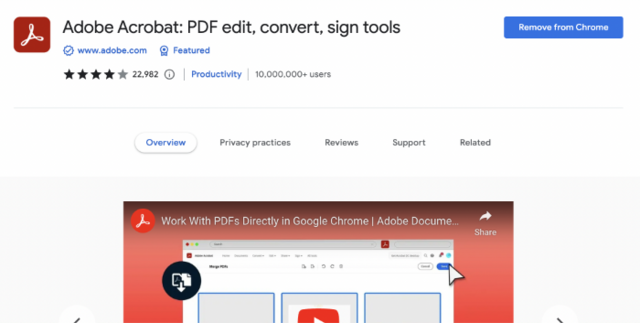
3. Launch your Chrome web browser.

4. Click the Chrome menu icon — three vertical dots — in the upper-right corner of the toolbar.
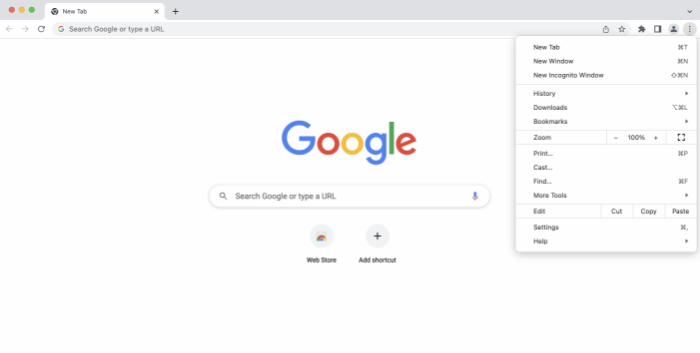
5. Select More Tools > Extensions.
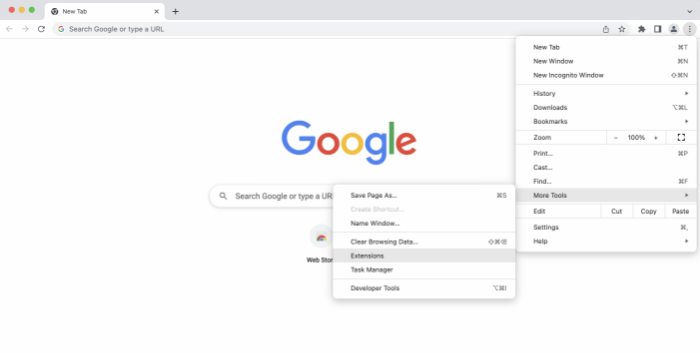
6. Find the Adobe Acrobat extension and click the toggle button to turn it on.
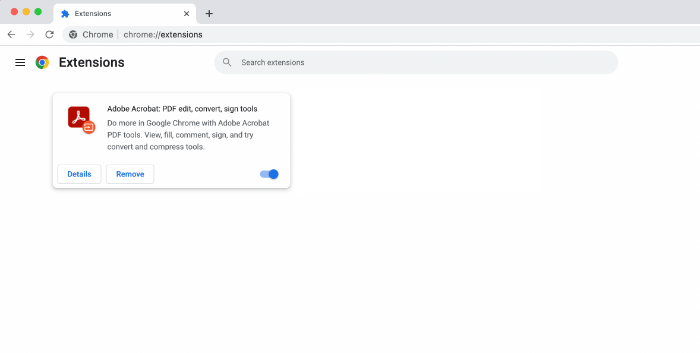
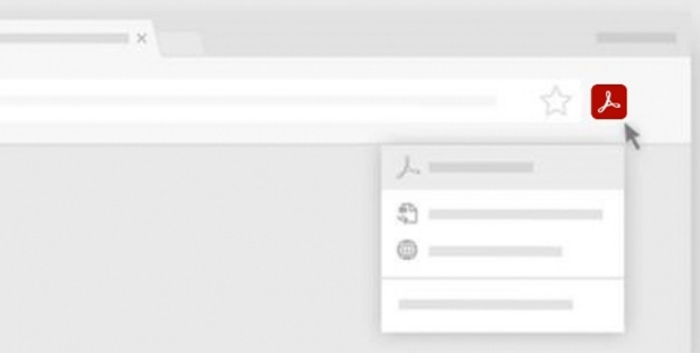
For ease of use, we recommend pinning the Acrobat extension for quick access:
1. Locate and click on the puzzle-shaped icon in the upper-right corner of the Chrome window.
2. Locate the Adobe Acrobat extension in the dropdown menu.
3. Click the pushpin icon to the right of the extension name.
4. The pushpin icon will turn blue.
5. Now, you’ll be able to see the Acrobat extension in the toolbar of every Chrome window you open.
To get started, try opening any PDF in your browser. When prompted, select an Acrobat tool.
The Acrobat extension for Google Chrome supercharges your ability to work with PDFs in the browser with additional advanced settings.
With this extension, you’ll be able to convert PDFs to other formats like JPGs and Microsoft docs, add password protection, add highlights and annotation, reduce file sizes, and use other powerful features. In addition, the ability to sign, complete, and add signatures to a form comes standard, so you’ll never be out of the loop at work or when you need to get an important document out the door. You can also save a filled-out form on Chrome to reduce physical file storage.
With this new Chrome extension, you’ll be able to view PDFs and work with PDF tools in your browser, as well as have access to new right-click context menu options for PDFs.
The Acrobat extension for Chrome makes reading and accessing documents from a web browser easier and more efficient. It also offers additional features and benefits that are above and beyond the native viewer to make it a powerful accessory.
Accessing documents at lightning speed is great for efficiency, but in-browser viewing also saves hard drive space, as the file can be stored in Adobe Document Cloud storage. The Acrobat extension is also compatible with other cloud storage systems like Google Drive, Dropbox, and OneDrive, so you’re able to access and manipulate remote documents without ever having to download them.
With compatibility for Mac, Windows, and Linux, the viewer allows you to easily view and render PDF documents online, and you can turn the extension on and off quickly, whenever you need it.
When you use Adobe Acrobat, you’ll be able to save and upload many different types of documents to PDF format for easy viewing. Other apps, including Google Suite apps, the Microsoft suite, and many others, support easy conversion to PDF format.
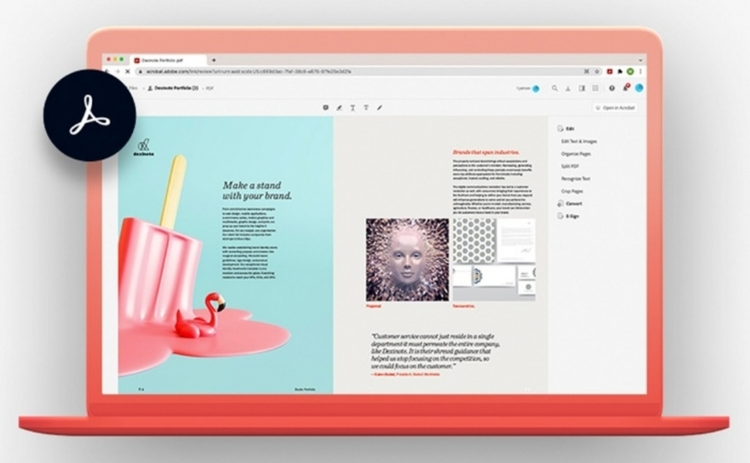
The Acrobat extension for Google Chrome will give you much more versatility when working with PDFs in your browser, but Chrome has its own PDF viewer built-in to the browser as a default. If you need to make adjustments to how you open PDFs with Chrome, refer to these instructions:
The native Chrome PDF viewer is the default way to open PDF files and view them in Chrome. It’s relatively simple to adjust your Chrome PDF viewer settings. You can toggle it on and off to either read PDFs in the browser or have them downloaded directly.
If you’d like PDFs to download, follow these steps:
If you prefer to view PDFs using Chrome’s built-in viewer, you can customize your view.
For full-screen PDF presentation:
To split the PDF view into two pages:
As a note, you don’t have to close down and reopen Chrome for the settings to update. However, if you are experiencing issues, you can always restart your browser and double check that you have the latest version of Chrome installed on your device.
The most common reasons come down to productivity and functionality. While Chrome’s built-in PDF viewer offers users a convenient way to quickly view PDF files, the Chrome PDF viewer doesn’t have as many features as the Acrobat extension for Chrome.
Disabling the viewer in favor of downloading PDF files to your computer also gives you the option to save files of interest so that you don’t have to spend time relocating them online or in your bookmarked pages later on.
You might also want to disable the native viewer to opt into a more full-featured version of PDF software that the Chrome PDF viewer would block. In that case, downloading PDFs directly to your device, rather than opening them in a browser first, allows you to work with them directly in Acrobat, accessing all of its many features.