Introduction
Hi, I'm Seán Duggan with the Adobe Learn team.
I've been a photographer for a long time, and using Lightroom on my mobile devices is a big part of my photography workflow.
In this series of tutorials, I'll show you everything you need to know to get started working with your own photos in Lightroom on mobile.
Let's get started with a look around the Lightroom interface.
Exploring the Lightroom mobile interface
Right now, we're looking at the All photos view.
This is exactly what it says - it's all the photos that you have in Lightroom.
If I tap All photos in the upper left, I can see other ways to view my images, including some of the albums that I've created.
I'll tap Back on All photos to return to viewing my images.
If you look at the bottom of the screen, you'll see that there are three tabs.
Right now, I'm viewing the Lightroom tab, which is how you can work with the images that are already in Lightroom.
This includes any photos that were added from your mobile device, as well as any photos that were added to Lightroom on another surface.
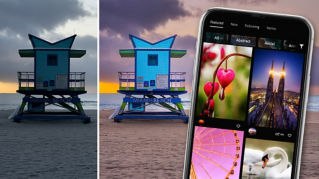
For example, these photos of Miami were added from Lightroom on my computer.
Since the photos are automatically synced across the Lightroom ecosystem, I can work with them here on my phone.
If you're using the free version of Lightroom on mobile, the center tab is labeled Edits.
Let's explore how you can add photos to Lightroom from your mobile device.
Viewing photos on your device and entering edit mode
To view the photos on your phone or tablet, tap on the Device tab in the lower left.
If you have an Android phone, this will be the Gallery tab.
When you're in the Device or Gallery view, you're seeing photos that are on your device.
In the upper left, you can see the name of the album that is currently being displayed.
If I tap on that, I can see all of the available albums on my iPhone, including the default Media types albums, as well as any album that I have created.
I'll tap the X in the upper right to go back to viewing the Recents album.
When you're in the Device or Gallery view and you see an image that you want to work with, tap it and Lightroom will display the image in the Edit view.
If you swipe horizontally on the image, you can see the other nearby photos on your device.
If you make no edits to the photo and tap the Back arrow in the upper left, it will not be added to Lightroom.
Editing a photo and understanding non-destructive changes
I'll choose this image again and this time I will make a few changes.
I'll tap on Auto to apply an Auto tone adjustment, and maybe I'll adjust the Exposure slider a little bit.
Next, I'll tap the Crop Tool at the bottom of the screen.
I'll use the Aspect ratio icon in the lower left, and I'll choose a 1 x 1 ratio for a square crop, and I'll drag on the image just to adjust the position within the crop box.
Then I'll tap the Checkmark to apply the crop.
The great thing about applying edits in Lightroom is that the photo is never permanently changed.
If I tap the Undo icon at the top of the screen, I can choose to Reset the edits that I've made.
In this case, I'm going to keep these edits, so I'll tap on the photo to close that menu.
I'll tap the Back arrow in the upper left, and this takes me back to the Device view.
And here you can see that the thumbnail of the photo I just added has a small badge on it, indicating that it's been added to Lightroom.
The Pencil icon means that edits have been applied to this image.
Now let's see how you can add multiple photos to Lightroom.
Importing multiple photos into Lightroom
I'm still in the Device or Gallery view.
I'll tap the three dots in the upper right corner, and I'll choose Select.
Now I can tap on individual thumbnails to select them, or I can also swipe across several images at once to add them to the selection.
If you want to cancel the process, just tap Done in the upper right.
When you're ready to bring the images into Lightroom, tap Import at the bottom of the screen.
I'll choose Import into Lightroom, which will copy the photos from my device and start synching them across the Lightroom ecosystem.
In the All photos view in Lightroom, I can see the newly imported photos.
Syncing photos across the Lightroom ecosystem
And back in the Device or Gallery view, I can see that these now have a badge on the thumbnail to indicate they've been added to Lightroom.
The original photos are still on my phone, and I can still view them using the default photos app on my phone.
But now there are copies of these that have been added to Lightroom.
Now that you know how you can add photos from your phone or tablet into Lightroom on mobile, you can get started working with your own images.