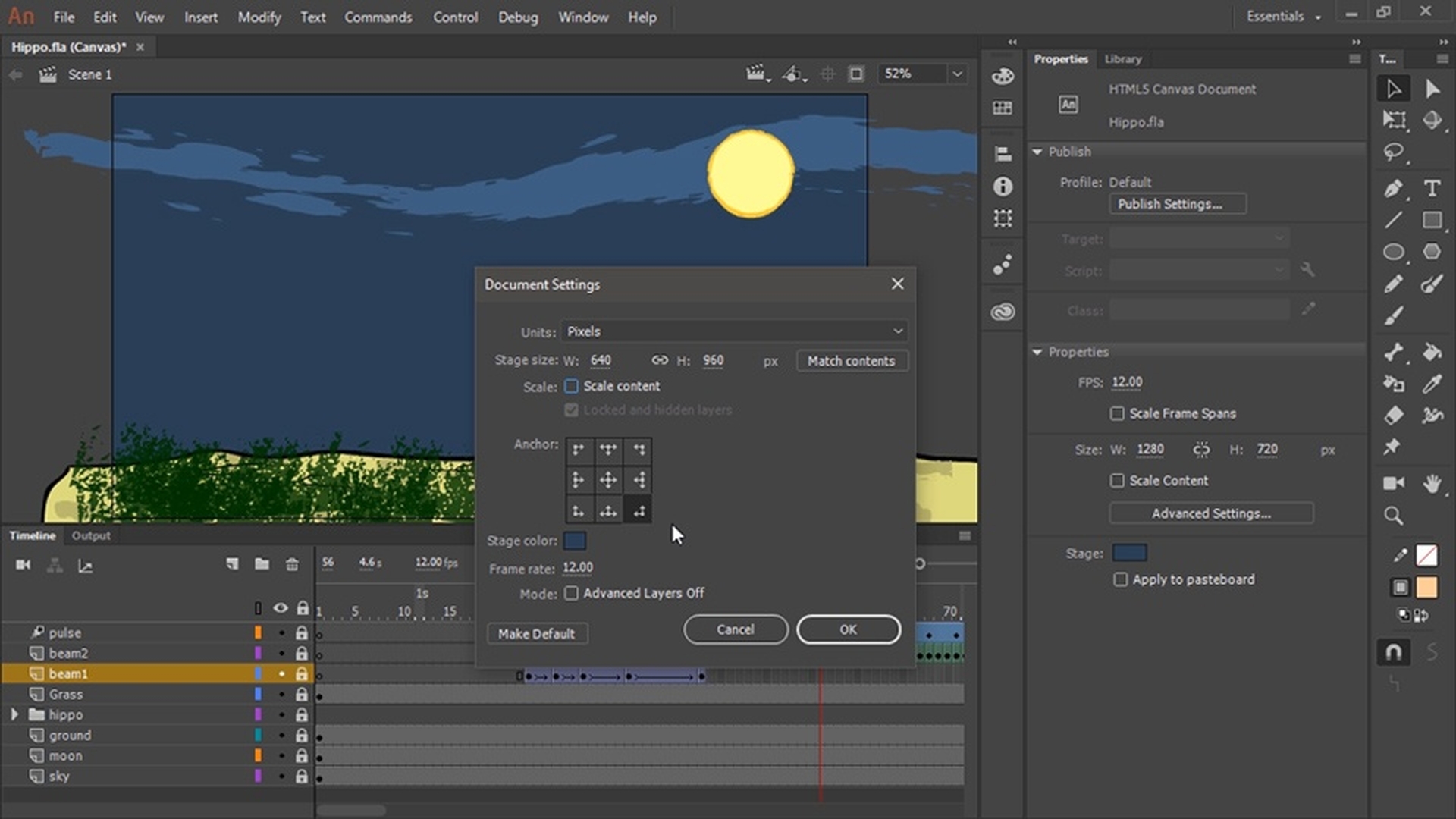
Mit Animate lassen sich vorhandene Projekte an verschiedene Bildschirmgrößen anpassen, zum Beispiel dieses Widescreen-Projekt für die Auflösung eines Mobilgeräts.
Im Bedienfeld „Eigenschaften“ (Properties) sehe ich, dass die Animation eine Auflösung von 1280 x 720 Pixel hat.
Passend für Desktops.
Aber ich möchte, dass sie auch auf Mobilgeräten gut aussieht.
Dafür gibt es zwei Methoden.
Ich kann den Inhalt skalieren.
Ich wähle also „Inhalt skalieren“ (Scale Content) und ändere die Breite in 640.
Die Höhe wird automatisch angepasst.
Das Seitenverhältnis wird beibehalten.
„Bühne zentrieren“ (Center Stage).
„An Fenster anpassen“ (Fit in Window).
Das Bild wurde nicht verändert, weil sämtliche Elemente mit Vektoren gezeichnet wurden.
Ich könnte „Inhalt skalieren“ (Scale Content) aber auch deaktivieren und die Verknüpfung zwischen Breite und Höhe aufheben.
Ich gebe jetzt 640 x 960 ein.
Beim Anpassen an das Fenster werden die Elemente anders angeordnet als zuvor.
Ich entsperre all diese Ebenen, kehre zum ersten Frame zurück und wähle die Elemente aus, die ich neu positionieren will.
Ich ziehe sie an die gewünschte Stelle.
Das Nilpferd und das Land befinden sich jetzt unten, und der Himmel mit dem Mond und den Wolken ist oben.
Ich kann auch diese Objekte skalieren.
Mit dem Werkzeug „Frei transformieren“ (Free Transform Tool).
Dann positioniere ich die Objekte neu.
Zurück zur ursprünglichen Version meines Projekts.
Es gibt noch eine Möglichkeit, Inhalte zu skalieren, nämlich ausgehend von einem Fix- oder Ankerpunkt.
Hierfür klicke ich auf „Erweiterte Einstellungen“ (Advanced Settings) im Bedienfeld „Eigenschaften“ (Properties).
Diese Werte möchte ich ändern.
Statt 1280 x 720 gebe ich wieder 640 x 960 ein.
Hier gibt es Möglichkeiten zum Fixieren bzw.
Verankern von Inhalten.
Wenn ich „Inhalt skalieren“ (Scale content) auswähle, wird der Anker (Anchor) deaktiviert.
Ich hebe die Auswahl von „Inhalt skalieren“ (Scale content) auf.
Dann wähle ich einen Anker (Anchor).
Sagen wir, rechts unten.
Ich klicke auf „OK“.
Ich passe den Inhalt an das Fenster an und wähle „Clip-Inhalt außerhalb der Bühne“ (Clip content outside the stage), um das Ergebnis zu überprüfen.
Es gibt also mehrere Methoden, um Inhalte zu skalieren und an verschiedene Bühnengrößen anzupassen.



