Erfahre, wie du mit Adobe Photoshop Lightroom für Android Fotos bearbeiten, organisieren und teilen kannst.
1
Fotos zu Lightroom hinzufügen.
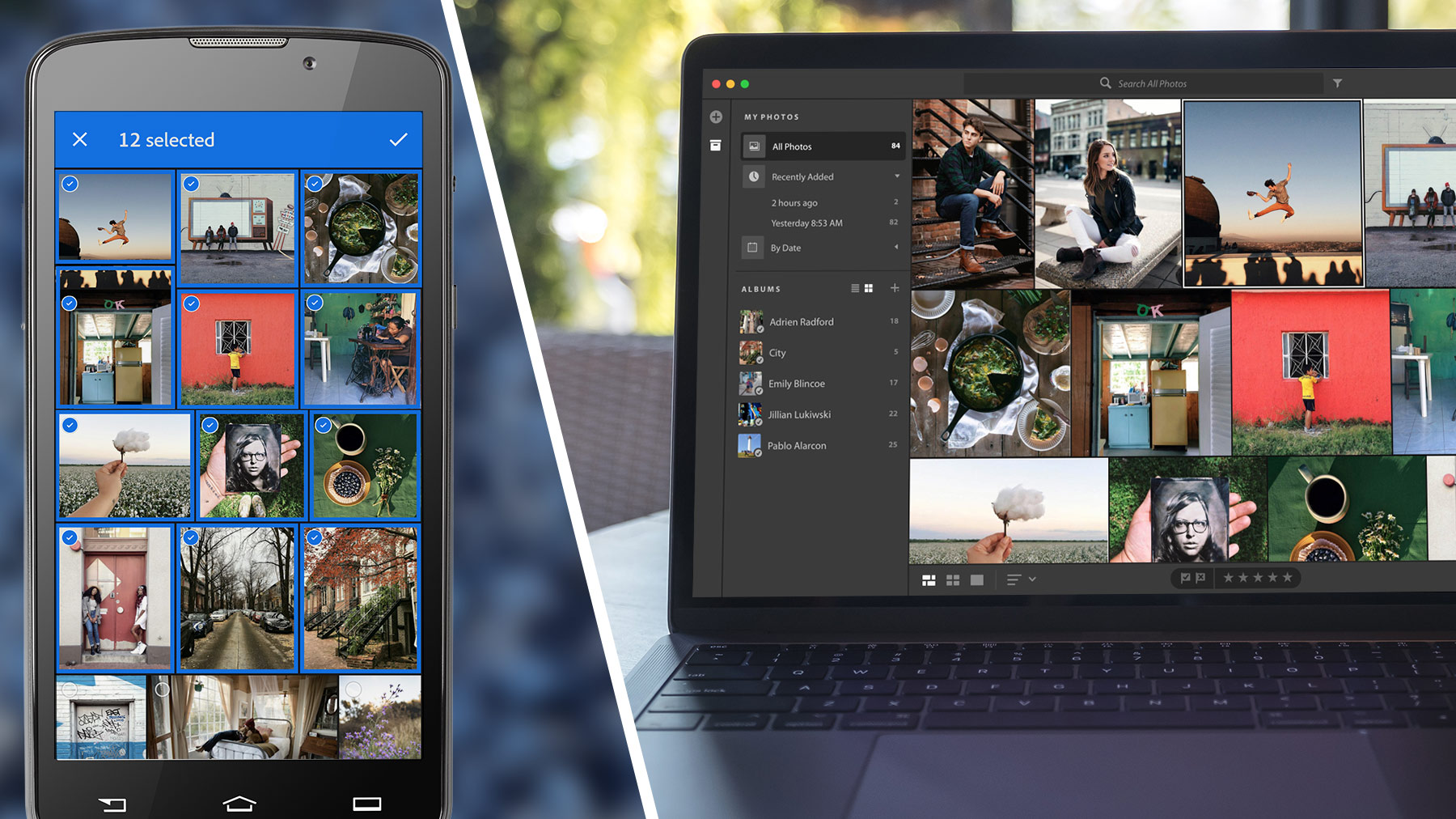
Starte Lightroom auf deinem Android-Gerät, und melde dich an. Füge Fotos hinzu, die du auf deinem Tablet oder Smartphone gespeichert hast, oder nimm neue Bilder auf. Um ein auf dem Gerät gespeichertes Foto hinzuzufügen, tippe auf das Bildsymbol im blauen, abgerundeten Rechteck rechts unten. Markiere die Fotos, die du hinzufügen möchtest, und tippe auf „Hinzufügen“. Um ein neues Foto aufzunehmen, tippst du auf das Kamerasymbol und anschließend auf den blauen Kreis. Durch Tippen auf „JPEG“ bzw. „DNG“ (Rohdatenformat) kannst du den Aufnahmemodus ändern.
2
Fotos durchsuchen und sortieren.
Fotos, die du zu Lightroom hinzufügst, werden auf dem Startbildschirm unter „Alle Fotos“ angezeigt. Tippe auf „Alle Fotos“, um eine Liste deiner Fotos anzuzeigen. Sie werden standardmäßig nach Aufnahmedatum sortiert. Wenn du die Reihenfolge ändern möchtest, tippe rechts oben auf die drei Punkte. Tippe auf „Nach Aufnahmedatum sortieren“, und wähle die gewünschte Sortieroption.
Lightroom erkennt Objekte in Aufnahmen und vergibt automatisch suchbare Stichwörter. Tippe auf das Symbol zum Suchen, und gib ein Stichwort wie „Blume“, „Wasser“ oder „Berge“ ein, um entsprechende Fotos anzuzeigen.
3
Bilder in Alben organisieren.
Die Erstellung von Alben ist eine praktische Methode, um Fotos zu organisieren. Tippe auf dem Startbildschirm von Lightroom auf das Pluszeichen (+). Wähle „Neu erstellen > Album“, gib einen Namen ein, und bestätige mit „OK“.
Du kannst Fotos zum Album hinzufügen, indem du auf den Albumnamen tippst und Fotos vom Gerät oder aus deinem Lightroom-Konto hinzufügst. Alternativ kannst du mit der In-App-Kamera neue Fotos aufnehmen.
4
Fotos bearbeiten.
In der Mobile App kannst du Bilder zuschneiden, Farben und Farbtöne anpassen und Presets anwenden. Tippe auf ein Foto, um es im Bearbeitungsmodus zu öffnen. Mit den Bearbeitungsoptionen am unteren Bildschirmrand, den zugehörigen Reglern und weiteren Einstellungen kannst du den Look anpassen.
5
Fotos teilen.
Wenn dein Foto zur Weitergabe bereit ist, tippe auf das Bild, um es zu öffnen, und danach oben auf das Symbol zum Teilen. Wähle dann die Art der Weitergabe, z. B. per Textnachricht, E-Mail oder über ein soziales Netzwerk.
Synchronisierte Fotos auf dem Desktop und im Web öffnen.
Änderungen, die du an Fotos oder Alben in der Mobile App vornimmst, werden mit Lightroom auf dem Desktop und im Web synchronisiert. So kannst du immer und überall an deinen Fotos weiterarbeiten.
In anderenTutorials zu Lightroom findest du weitere Informationen zum Bearbeiten, Organisieren, Speichern und Weitergeben von Fotos.

You can control how Adobe websites use cookies and similar technologies by making choices below. But note that if you disable cookies and similar technologies entirely, Adobe websites may not function properly.
Cookies are small text files stored by your web browser when you use websites. There are also other technologies that can be used for similar purposes like HTML5 Local Storage and local shared objects, web beacons, and embedded scripts. These technologies help us do things like remembering you and your preferences when you return to our sites, measure how you use the website, conduct market research, and gather information about the ads you see and interact with.
You can make choices in the menu below about what cookies and other technologies you want us to use on Adobe sites when you visit them from this browser. You can always change those choices later by clicking on the Cookie Preferences link at the bottom of the page.
If enabled:
We can improve your experience by tailoring the site and the content to things we think might be of interest
We can better keep track of your preferences — like what language you prefer to use
We will better understand your likely interests so we can provide you more relevant Adobe ads and content on non-Adobe websites and in non-Adobe apps
It will help us improve the performance of our website and those of our partners who use the Adobe Experience Cloud
If disabled:
We won’t be able to remember you from session to session so the experience may not be tailored to your interests
You’ll still have access to the content of the site but certain features that depend on cookies may not function
You’ll still see ads, they just may not be as relevant to you
General information
You can control how Adobe websites use cookies and similar technologies by making choices below. But note that if you disable cookies and similar technologies entirely, Adobe websites may not function properly.
Cookies are small text files stored by your web browser when you use websites. There are also other technologies that can be used for similar purposes like HTML5 Local Storage, web beacons, and embedded scripts. These technologies help us do things like remembering you and your preferences when you return to our sites, measure how you use the website, conduct market research, and gather information about the ads you see and interact with.
You can make choices in the menu below about what cookies and other technologies you want us to use on Adobe sites when you visit them from this browser. You can always change those choices later by clicking on the Cookie Preferences link at the bottom of the page.
If enabled:
We can improve your experience by tailoring the site and the content to things we think might be of interest
We can better keep track of your preferences — like what language you prefer to use
We will better understand your likely interests so we can provide you more relevant Adobe ads and content on non-Adobe websites and in non-Adobe apps
It will help us improve the performance of our website and those of our partners who use the Adobe Experience Cloud
If disabled:
We won’t be able to remember you from session to session so the experience may not be tailored to your interests
We’ll still count your use of our site and services
You’ll still have access to the content of the site but certain features that depend on cookies may not function
You’ll still see ads, they just may not be as relevant to you
Operate the site and core servicesOperate site and measure engagement
Always active
These cookies are required, and they are used to enable the site and related services core functionality. Without them the site could not operate, so they cannot be disabled.
These cookies enable the site and related services’ core functionality and collect statistics about user engagement, such as counting active use to help us understand trends. These cookies cannot be disabled.
Measure performance
These cookies are used to analyze site usage to measure and improve performance. Without them Adobe cannot know what content is most valued and how often unique visitors return to the site, making it hard to improve information we offer to you.
These cookies are used to analyze site usage to measure and improve performance. Without them Adobe cannot know what content is most valued, making it hard to improve information we offer to you.
Extend functionality
These cookies are used to enhance the functionality of Adobe sites such as remembering your settings and preferences to deliver a personalized experience; for example, your username, your repeated visits, preferred language, your country, or any other saved preference.
Personalize advertising
These cookies are used to enable Adobe and our partners to serve ads more relevant to your interests. Without them you will still see ads, but they might not be as relevant to you.
Personalize advertising
These cookies are used to enable Adobe and our partners to serve ads more relevant to your interests. Without them you will still see ads, but they might not be as relevant to you.