Erfahre, wie du mit den Upright- und Transformationssteuerungen in Lightroom Classic perspektivische Verzerrungen (horizontal oder vertikal) korrigieren kannst.
Adobe Photoshop Lightroom ist jetzt Adobe Photoshop Lightroom Classic – mit allen bekannten Funktionen und Werkzeugen.Lightroom ist der Cloud-basierte Foto-Service von Adobe.

Starte Lightroom Classic. Importiere ein Foto, bei dem die Perspektive korrigiert werden muss. Verwende ein eigenes Foto, oder lade die bereitgestellte Beispieldatei herunter. Weitere Informationen zum Import von Fotos findest du im TutorialFotos in Lightroom Classic importieren .
Hinweis:
Falls du ein eigenes Foto bearbeitest, solltest du ein Foto mit vielen horizontalen oder vertikalen Linien auswählen, um dieses Feature anschaulich testen zu können. Bilder von Bauwerken und Innenräumen oder mit Horizontlinien eignen sich dafür am besten.
2
Das Foto im Modul „Entwickeln“ öffnen.
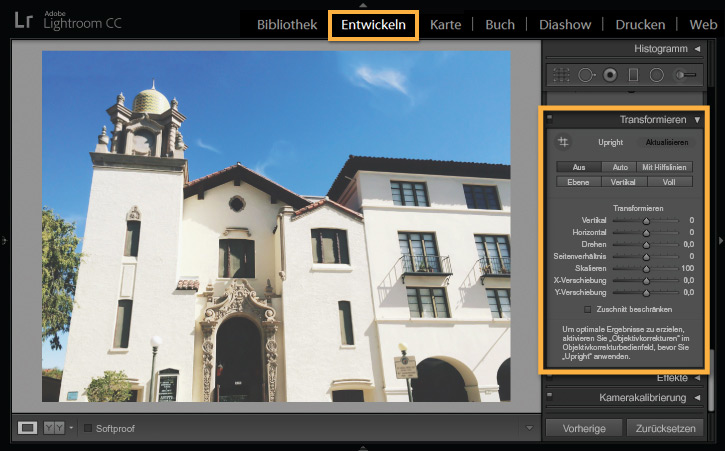
Klicke am oberen Bildschirmrand auf „Entwickeln“. Das Beispielfoto wurde von einem niedrigen Blickwinkel aus aufgenommen. Dadurch wirkt das Gebäude verzerrt und sieht aus, als neige es sich nach hinten. Diese Verzerrung und Perspektive können korrigiert werden.
Tipp: Im nächsten Schritt werden die Optionen der Upright-Funktion erläutert. Um damit optimale Ergebnisse zu erzielen, solltest du zuvor das Bedienfeld „Objektivkorrekturen“ erweitern und „Profilkorrekturen aktivieren“ wählen. Stellt Lightroom fest, dass das Foto mit einer unterstützten Linse aufgenommen wurde, werden Linsenverzerrungen automatisch korrigiert.
Scrolle auf der rechten Seite zum Bedienfeld „Transformieren“. Erweitere es durch Klicken auf die Titelleiste.
3
Eine Upright-Option anwenden.
Folgende Upright-Optionen stehen im Bedienfeld „Transformieren“ zur Verfügung, mit denen du die Perspektive von Fotos korrigieren kannst:
Mit Ebene werden verzerrte horizontale Linien gerade.
Vertikal korrigiert vertikale Verzerrungen.
Auto
bewirkt eine ausgeglichene Korrektur von Horizontalen und Vertikalen im gesamten Bild, während so viel wie möglich vom Originalfoto erhalten bleibt.
Voll entfernt ebenfalls die vertikalen und horizontalen Verzerrungen. Im Gegensatz zu „Auto“ werden hier aber deutlich stärkere Veränderungen vorgenommen. Das führt manchmal dazu, dass Lightroom ganze Bildteile wegschneidet.
Mit der Option Mit Hilfslinien kannst du Hilfslinien einfügen und dadurch die Korrektur der Perspektive präziser beeinflussen.
In diesem Beispiel wird die Option „Voll“ angewendet. Experimentiere mit den Optionen unter „Upright“, um die beste Korrektur für dein Foto zu finden. Mit „Zurücksetzen“ kannst du jederzeit zum Originalfoto zurückkehren.
4
Weiße Bereiche entfernen.
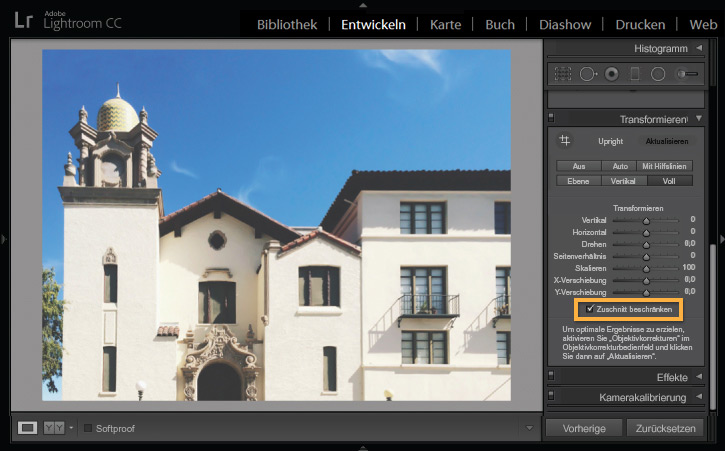
Beim Korrigieren der Perspektive in einem Foto können weiße Bereiche entstehen, weil die ursprünglichen Abmessungen des Fotos beim Geraderichten verändert werden. Dieser Effekt trat im vorherigen Schritt nach Anwendung der Upright-Option „Voll“ auf.
Wähle „Zuschnitt beschränken“, um das Foto automatisch mit den ursprünglichen Abmessungen des Fotos freizustellen.
5
Manuelle Korrekturen anhand der Schieberegler im Bedienfeld „Transformieren“ durchführen.
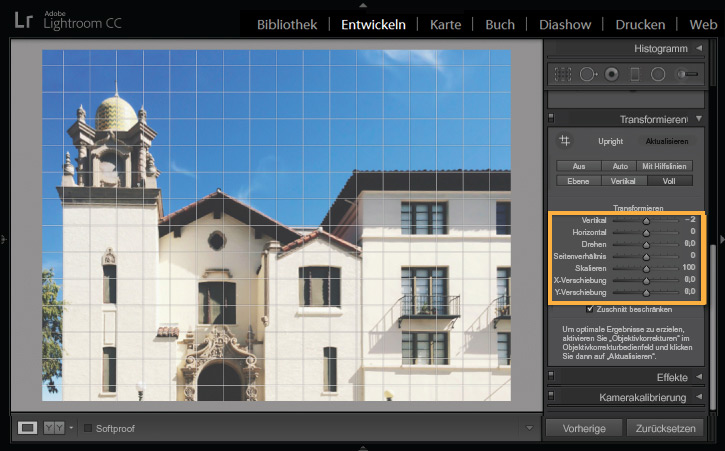
Zusätzlich zu den oder anstelle der Upright-Optionen kannst du die Perspektive im Foto auch manuell mit den Schiebereglern des Bedienfelds „Transformieren“ anpassen.
Falls du mit dem bereitgestellten Beispielfoto arbeitest, kannst du die vertikale Verzerrung justieren, indem du den Regler „Vertikal“ ein wenig nach links ziehst.
6
Experimentieren.
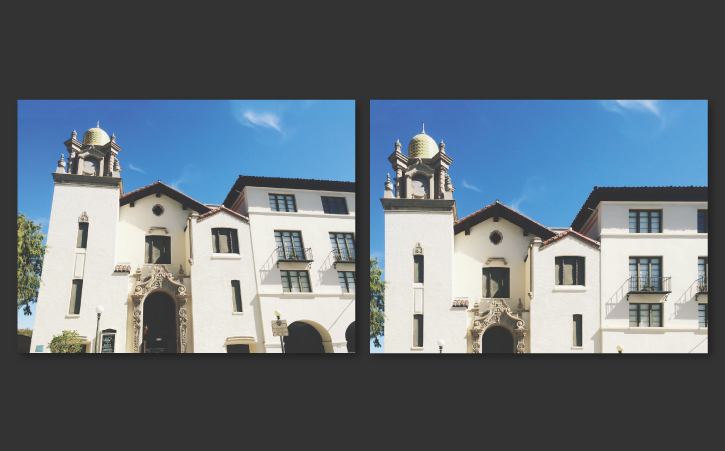
In der Abbildung siehst du links das Originalfoto und rechts die Version mit korrigierter Perspektive.
Am besten funktioniert die Perspektivenkorrektur an Fotos, die markante horizontale oder vertikale Linien aufweisen. Experimentiere mit den Upright- und Transformationssteuerungen, um die Perspektive in anderen Bildern zu korrigieren, z. B. Panoramen oder Aufnahmen aus extremen Winkeln.
You can control how Adobe websites use cookies and similar technologies by making choices below. But note that if you disable cookies and similar technologies entirely, Adobe websites may not function properly.
Cookies are small text files stored by your web browser when you use websites. There are also other technologies that can be used for similar purposes like HTML5 Local Storage and local shared objects, web beacons, and embedded scripts. These technologies help us do things like remembering you and your preferences when you return to our sites, measure how you use the website, conduct market research, and gather information about the ads you see and interact with.
You can make choices in the menu below about what cookies and other technologies you want us to use on Adobe sites when you visit them from this browser. You can always change those choices later by clicking on the Cookie Preferences link at the bottom of the page.
If enabled:
We can improve your experience by tailoring the site and the content to things we think might be of interest
We can better keep track of your preferences — like what language you prefer to use
We will better understand your likely interests so we can provide you more relevant Adobe ads and content on non-Adobe websites and in non-Adobe apps
It will help us improve the performance of our website and those of our partners who use the Adobe Experience Cloud
If disabled:
We won’t be able to remember you from session to session so the experience may not be tailored to your interests
You’ll still have access to the content of the site but certain features that depend on cookies may not function
You’ll still see ads, they just may not be as relevant to you
General information
You can control how Adobe websites use cookies and similar technologies by making choices below. But note that if you disable cookies and similar technologies entirely, Adobe websites may not function properly.
Cookies are small text files stored by your web browser when you use websites. There are also other technologies that can be used for similar purposes like HTML5 Local Storage, web beacons, and embedded scripts. These technologies help us do things like remembering you and your preferences when you return to our sites, measure how you use the website, conduct market research, and gather information about the ads you see and interact with.
You can make choices in the menu below about what cookies and other technologies you want us to use on Adobe sites when you visit them from this browser. You can always change those choices later by clicking on the Cookie Preferences link at the bottom of the page.
If enabled:
We can improve your experience by tailoring the site and the content to things we think might be of interest
We can better keep track of your preferences — like what language you prefer to use
We will better understand your likely interests so we can provide you more relevant Adobe ads and content on non-Adobe websites and in non-Adobe apps
It will help us improve the performance of our website and those of our partners who use the Adobe Experience Cloud
If disabled:
We won’t be able to remember you from session to session so the experience may not be tailored to your interests
We’ll still count your use of our site and services
You’ll still have access to the content of the site but certain features that depend on cookies may not function
You’ll still see ads, they just may not be as relevant to you
Operate the site and core servicesOperate site and measure engagement
Always active
These cookies are required, and they are used to enable the site and related services core functionality. Without them the site could not operate, so they cannot be disabled.
These cookies enable the site and related services’ core functionality and collect statistics about user engagement, such as counting active use to help us understand trends. These cookies cannot be disabled.
Measure performance
These cookies are used to analyze site usage to measure and improve performance. Without them Adobe cannot know what content is most valued and how often unique visitors return to the site, making it hard to improve information we offer to you.
These cookies are used to analyze site usage to measure and improve performance. Without them Adobe cannot know what content is most valued, making it hard to improve information we offer to you.
Extend functionality
These cookies are used to enhance the functionality of Adobe sites such as remembering your settings and preferences to deliver a personalized experience; for example, your username, your repeated visits, preferred language, your country, or any other saved preference.
Personalize advertising
These cookies are used to enable Adobe and our partners to serve ads more relevant to your interests. Without them you will still see ads, but they might not be as relevant to you.
Personalize advertising
These cookies are used to enable Adobe and our partners to serve ads more relevant to your interests. Without them you will still see ads, but they might not be as relevant to you.