
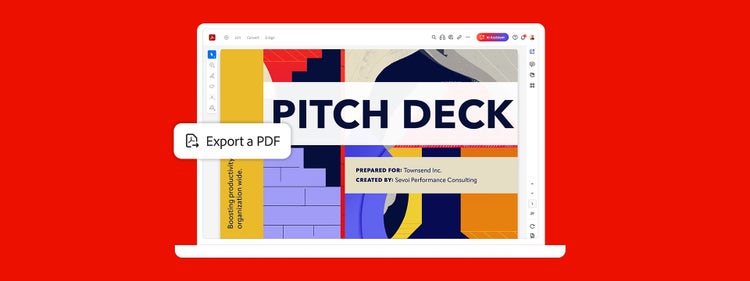

Convert PDF to Word without losing formatting.
Turn your PDFs into fully editable Word documents in just a few clicks with Adobe Acrobat.
Copying and pasting from your PDF to create a Microsoft Word document isn’t just hard work. It’s busywork. Now you can convert your PDF back to formatted DOCX or DOC files in just a few clicks, so you can start on new projects — without starting again.
Keep your work intact.
When you convert your PDF document to a DOC or DOCX format, all your fonts and formatting come with it. That includes tables, bullet points and everything else you want to keep updated.
Work from anywhere.
Convert PDF files to Word documents from your mobile device. Whether you want to convert PDF to Word on iPhone or Android, Adobe Acrobat makes it simple. Keep editing or start a new project whenever or wherever you need to.
Turn scanned files into Word documents.
Adobe Acrobat converts even the most complicated scans into fully formatted Word documents thanks to OCR. No more reflowing. No more adjusting content.
Convert only what you need.
It’s easy to copy, paste and export only the text you need from a PDF, right into a Word document. The Acrobat PDF converter makes PDF conversion quick and easy, making your workflow more efficient and saving time.
How to convert PDF files into Word documents with Acrobat:
- Open Acrobat and select your PDF file:
Launch Acrobat and open the PDF you want to convert. - Access the Export PDF tool:
In the right-hand pane, click on “Export PDF” to open the conversion options. - Choose Word as the export format:
Select Microsoft Word from the available export options. - Run the export:
Click “Export.” If your PDF contains scanned text, Acrobat will automatically perform text recognition (OCR) so all content becomes editable. - Save your converted Word file:
Choose a location, enter a file name, and then select DOCX for editable content or DOC for compatibility with older versions of Word. Finally, click “Save.” - Open and review your Word document:
Once saved, open the Word file to confirm that text, fonts, tables, and formatting have been preserved as expected.
Related features
Get more out of Adobe Acrobat with these tips:
How to convert PDF to Word on desktop and mobile.
No matter which device you use, Acrobat makes it simple to convert PDFs to Word:
- On Mac or Windows: Open Acrobat on your computer, choose Export PDF, and select Microsoft Word as the format. Save your file as DOCX or DOC to start editing.
- On iOS or Android: Open Acrobat on your mobile, select your PDF, tap Export PDF, and convert it to a Word document with fonts and formatting preserved.
With Acrobat, you get consistent results across desktop and mobile, so your documents are always ready for editing.
Try converting your PDF online now.
PDF to JPG
Convert PDFs to sharp, shareable image files.
--- #b6b6b6
PDF to Excel
Extract tables and data into editable Excel sheets.
--- #b6b6b6
PDF to PPT
Transform PDFs into ready-to-edit PowerPoint slides.
--- #b6b6b6
