Convert a PDF to JPG image

{{verb-widget-legal}}

How to convert a PDF to a JPG

Follow these easy steps to change a PDF to JPG, PNG or TIFF with the Acrobat image converter:

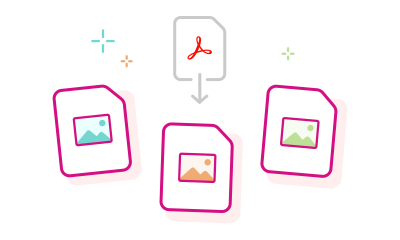
https://main--dc--adobecom.aem.page/dc-shared/assets/images/frictionless/how-to-images/pdf-to-jpg-image-how-to.svg | An Adobe Acrobat document pointing to JPG or PNG image files showing the PDF into image conversion process.

  1. Click the Select a file button above or drag and drop your PDF into the drop zone.
  2. Select the PDF you want to convert to an image with the help of our PDF to JPG converter.
  3. Select the desired image file format: JPG, PNG, or TIFF.
  4. Click Convert to JPG.
  5. Download your new image file or sign in to share it.

Why convert PDF to JPG?

Turn your PDFs into high-quality JPGs in just a few clicks. Need to extract an image? Make your file easier to share? Or ensure it looks great on any device? A quick PDF to JPG conversion does it all. JPGs work everywhere - perfect for social posts, presentations, websites, or email attachments. No more compatibility issues, just fast, seamless sharing.

Acrobat’s fast and free converter makes it easy to transform your PDFs into flexible, shareable image files.

Try our free PDF to JPG conversion tool

https://main--dc--adobecom.aem.page/dc-shared/assets/images/shared-images/frictionless/seo-icons/convert-files.svg | Two document files with arrows showing how you can easily convert PDF files online

Convert PDFs to high-quality images - fast & easy

Transform your PDF into a sharp, shareable JPG, PNG, or TIFF in seconds with Adobe Acrobat online services. No downloads needed - just drag and drop on any browser or device. For best results, start with a high-resolution PDF to ensure image clarity.

https://main--dc--adobecom.aem.page/dc-shared/assets/images/shared-images/frictionless/seo-icons/fast-pdf.svg | Fast PDF Conversion

Batch conversion to save time

Work smarter by converting multiple PDFs to images at once. Acrobat’s bulk conversion is perfect for educators, designers, and businesses managing large volumes of files - ideal for fast image extraction and file handling at scale.

https://main--dc--adobecom.aem.page/dc-shared/assets/images/shared-images/frictionless/seo-icons/download-and-share.svg | A download arrow showing how easy it is to download and share your converted JPG file

Flexible formats, simple sharing

Choose your image format - JPG, PNG, or TIFF and the right resolution for your needs: 300 DPI for print, 150 for presentations, 72 for web. Once converted, download in a click or sign in to store and share via cloud. Need a smaller file? Compress with minimal quality loss.

https://main--dc--adobecom.aem.page/dc-shared/assets/images/shared-images/frictionless/seo-icons/work-wherever.svg | A desktop icon with a checkmark demonstrating that you can convert PDF to JPG using any platform or browser

Trusted, private and universally accessible

Use the converter on any operating system or browser - Edge, Chrome, Safari and more. Adobe respects your privacy: if you don’t sign in, your file is deleted from our servers. As the inventor of the PDF, Adobe ensures top-tier conversion quality and compatibility you can rely on.

Use cases

For professionals

Need to share a visual preview of a document without sending the entire file? Convert a PDF page to JPG and include it as an image in messages or online listings for quick, clear communication.

For small business owners

Use PDF to JPG conversion to repurpose invoices, flyers, or product catalogues into high-quality images for social media posts, website galleries, or customer communications - without needing a designer.

For students

Turn lecture notes or textbook excerpts into JPGs to insert directly into presentations or study flashcards, making learning materials more visual and engaging.

Questions? We have answers.

What other image file formats can I convert PDFs into?

The Acrobat online converter tool lets you quickly convert a PDF to a PNG, TIFF or JPG image using any web browser. Just choose your preferred file format. The Acrobat JPG conversion process happens in seconds, delivering image quality you can trust.

You can also try Adobe Acrobat Pro for free for seven days on Mac or Windows. In addition to converting PDF files to image file formats, Acrobat PDF tools let you convert JPG, BMP, GIF, Microsoft Word, PowerPoint, Excel and other file formats to PDF. You can also convert HTML webpages. Other Acrobat Pro tools let you edit PDFs, merge PDFs, delete PDF pages and reduce PDF file sizes. You can also add watermarks and use OCR functionality to edit scanned documents.

How do I convert a PDF to JPG on my phone?

To convert a PDF to a JPG image on your mobile device using Adobe Acrobat, follow these steps:

  1. Open the PDF: Launch the Adobe Acrobat app on your smartphone or tablet and open the PDF document you wish to convert.
  2. Access the export feature: Tap the Convert option in the top navigation bar.
  3. Choose image format: From the Convert panel, select Image format, then choose JPEG from the drop-down menu.
  4. Initiate conversion: Tap Convert to JPEG to start the conversion process.
  5. Save the image: Once the conversion is complete, select the folder where you want to save the image in the Save As dialog box and, if necessary, change the file name.

Each page of the PDF will be saved as a separate JPEG file. For more detailed information, refer to Adobe's official guide on converting PDFs to JPEGs.

What is the difference between JPG and PNG?
JPG and PNG files are different image file formats. PNG file compression is “lossless,” which means that there is no loss in quality each time the file is opened and saved again. As a result, it is a higher quality file format than JPG. JPEG files, however, are often much smaller in size, making them ideal for web use.
Can I convert multiple PDFs to JPG at once?
Currently, Acrobat’s online tool converts one PDF at a time. For batch conversions, try Adobe Acrobat Pro.
Will my converted JPG keep the same quality as the original PDF?
Yes! Acrobat preserves high resolution during conversion, ensuring your images remain crisp and clear.
Can I extract only certain pages from my PDF and convert them to JPG?
Absolutely! Before converting, simply select the pages you need, and Acrobat will generate JPGs for those pages only.
Is there a file size limit for converting PDFs to JPGs?
Acrobat’s free online tool supports most standard PDF sizes. For larger files, compress your PDF first or use Acrobat Pro.
Can I edit the JPG after conversion?
Yes - once converted, you can edit your JPG with any image editing software or Adobe Photoshop for advanced customisation.
Can I ensure the colours stay accurate when converting my PDF to JPG?
Yes, be sure your original PDF uses proper colour profiles. Acrobat helps preserve colour fidelity - especially important for brand materials.
What if my PDF pages are different sizes or layouts?
Check that your converted images maintain correct aspect ratios and aren't distorted or cropped. Acrobat preserves layout, but it’s good to review.
Can I edit the image after conversion?
Absolutely. Once converted to JPG, you can use editing tools in Acrobat or any image editor to crop, annotate, or enhance your image.
What if I need more control over compression and formatting?
Use Adobe Acrobat Pro for advanced options like selective image extraction, compression settings, and transparency control.
More resources

Content as a Service v3 - Wednesday, October 9, 2024 at 13:58

Verb
pdf-to-jpg

Try these Acrobat online tools

Convert from PDF

Convert to PDF

Reduce file size

Edit

Sign & Protect

Generative AI

Convert from PDF
Convert to PDF
Reduce file size
Edit
Sign & Protect
Generative AI