How to rotate a PDF
Follow these easy steps to rotate PDF pages using the Acrobat PDF rotator tool:
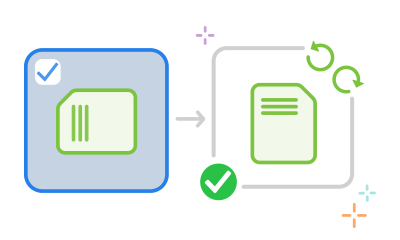
- Click the Select files button above or drag and drop one or more PDFs into the drop zone.
- Select the PDF file or files in which you need to rotate pages.
- After Acrobat uploads your files, either use the Select all tickbox at the top to select all of the page thumbnails or select specific page thumbnails to rotate.
- Click the rotate clockwise or rotate anticlockwise icon in the top toolbar.
- Select Save to apply the changes to your new PDF file. You can download the file or get a link to share it.
Why rotate a PDF?
Need to fix sideways pages? Adjust the layout for better readability? Or make sure your document looks right on any device? Rotating a PDF helps you correct orientation issues, streamline presentations, and improve viewing on screens and printouts. Whether flipping a single page or an entire file, it’s a quick way to ensure clarity and professionalism.
Easily rotate your PDF pages online in just a few clicks - no downloads, no hassle.
Try our free PDF rotator tool

Quick and efficient rotation
Easily rotate individual pages or entire PDFs left or right using Adobe Acrobat online - no software needed. Rotate up to 1,500 pages (100 MB limit), and streamline your workflow by rotating multiple pages at once. We recommend checking orientation before saving, preview layout to catch errors early and opting for consistent orientation for readability.

Optimised layout adjustments
Once rotated, use Acrobat’s tools to insert, reorder, delete, merge, or split pages, ensuring a clean, consistent layout for improved readability.

Cross-device editing
Edit your PDFs in any browser on any device - desktop, laptop, tablet, or phone - without needing to download software.

Trusted security and quality
Benefit from Adobe’s reliable quality and built-in document security, with files automatically removed from servers unless saved to your account.
Questions? We have answers.
The Acrobat Rotate PDF pages tool lets you flip a PDF by rotating one or more PDF pages to the left or right. Upload a file or multiple files, then select the pages you want to rotate. The Acrobat online tool also lets you reorder pages by dragging and dropping page thumbnails or delete selected pages by using the dustbin icon. You can insert up to 100 files too, each with a maximum of 500 pages. The total number of pages in your rotated PDF can be up to 1,500 pages, with a maximum file size of 100 MB.
If you need to flip an image in a PDF horizontally or vertically, try Acrobat Pro for free for seven days.
It’s easy to rotate an individual page in a PDF using Acrobat online services. After uploading a file, select the single page you want to rotate and click the rotate clockwise or rotate anticlockwise icon. You can also select single pages, a range of pages or multiple pages that are not ordered consecutively to rotate them at the same time.
For more advanced PDF tools, you can try Adobe Acrobat Pro for free for seven days on Mac or Windows. The Acrobat Pro trial lets you create PDFs, annotate PDFs, use other PDF editing tools, extract pages, recognise scanned text (OCR), convert PDFs, convert HTML pages, add page numbers, insert bookmarks, add watermarks, split a PDF by page range, store files in cloud storage and more.
You can rotate PDF pages quickly and easily on any device - whether you're using a desktop, laptop, tablet, or phone. The Acrobat Rotate PDF tool works directly in your web browser, so there’s no need to download software. All you need is an internet connection to access the tool and adjust your PDF pages in just a few clicks.
Why use an online PDF rotator?
- No downloads required: rotate PDFs instantly without installing any software.
- Works across all devices: use the tool on Windows, Mac, iOS, and Android.
- Compatible with all browsers: open the tool in Google Chrome, Microsoft Edge, Safari, or Firefox.
- Simple and fast: upload your file, rotate pages to the left or right, and save your updated document in seconds.
With Acrobat’s online PDF rotator, you can adjust your files anytime, anywhere, making it easy to manage documents whether you're at the office, at home, or on the go.
Use Acrobat tools for free
- Sign in to try 25+ tools, like convert or compress
- Add comments, fill in forms and sign PDFs for free
- Store your files online to access from any device
Create a free account | Create free account Adobe Acrobat Sign in


