Acrobat
How to merge PDF files on a Mac.
Merging and combining PDFs will keep your documents secure and easily shareable. Find out how to merge PDF files on a Mac.


Acrobat
Merging and combining PDFs will keep your documents secure and easily shareable. Find out how to merge PDF files on a Mac.

Combining PDFs into one document is a great way to organise documents for team projects or for clients who have lots of documents that need sending for signatures or approvals.
The PDF (or Portable Document Format) is used everywhere — from small businesses and large corporations to schools, hospitals, and even at home. With life getting busier and so much of our lives conducted digitally, it can feel like you have documents everywhere. Without proper organisation, you can lose track of multiple PDFs spread across a virtual stack of folders. But there’s an easier way.
Read below and find out how to merge PDF files on a Mac to make life easier.
The fastest and easiest way to merge PDF files is to use an online tool. Once you’ve signed in using your Apple, Adobe or Google credentials, click on the Merge or Combine files box.
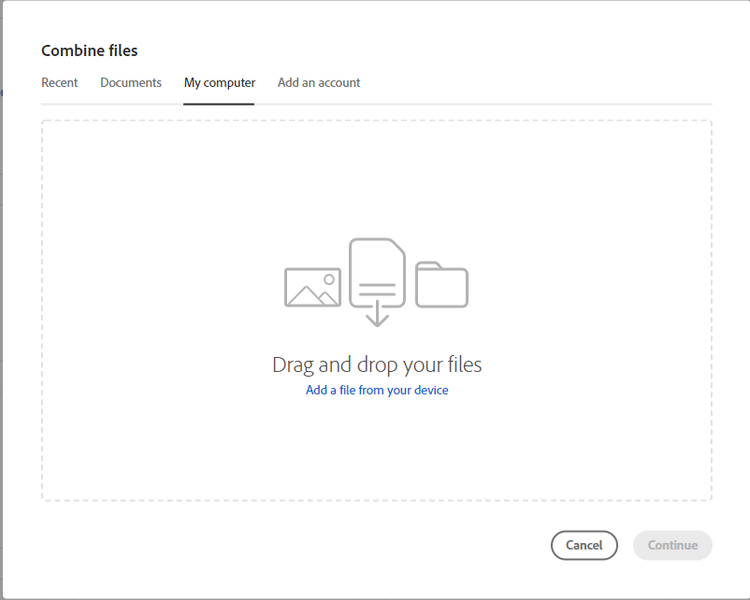
From here, you can drag and drop several documents into the box or click on Add a file from your device and then you can pick the documents you want to merge.
Click on Continue, and within seconds, you should have one document. With a Mac, you can use the Adobe Acrobat online tools, or you can use the Preview app:
Depending on the number of PDF documents you want to merge, this may result in quite a large file size. Before you send it, compress your file to make sure it’s easily shareable with others.
So now you know how to merge PDFs you need, but here are a few reminders of the benefits.
Find out what others are asking about merging PDF files on a Mac.
There's an easy solution if you want to merge folders without having to sift through hundreds of files and check for duplicates. Giving two folders the same name (such as Merging Folder) offers users the opportunity to merge. If you put the two folders in the same location – i.e. another folder – a dialog box will appear asking if you wish to Stop, Replace, or Merge the folders. Select Merge, and the merged folder will preserve the newer version of any file type of the same name. For example, if you have two Word files called ‘Vacation Plans’, the more recent saved version would be carried over.
Take a moment to explore everything you can do with Adobe Acrobat online services to make organising and navigating digital files easy.

