Acrobat
How to translate a PDF to English.
Need to translate a PDF to English? Learn how Adobe Acrobat can help you work with multilingual documents for study, work, travel and everyday tasks.


Acrobat
Need to translate a PDF to English? Learn how Adobe Acrobat can help you work with multilingual documents for study, work, travel and everyday tasks.

Working with documents in another language can make it harder to access important information. Whether you're reviewing research materials, travel documents or files shared by international contacts, translating a PDF into English can help you better understand and use the content.
With Adobe Acrobat, you can first convert your PDF into an editable format such as Microsoft Word, making it easier to work with multilingual content before preparing it for sharing or collaboration.
In this guide, you'll learn how to translate a PDF to English using Adobe Acrobat and explore practical ways to manage multilingual documents for study, work and everyday tasks.
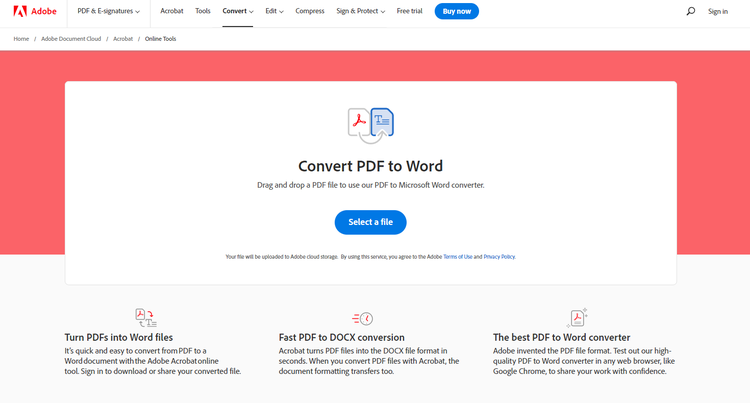
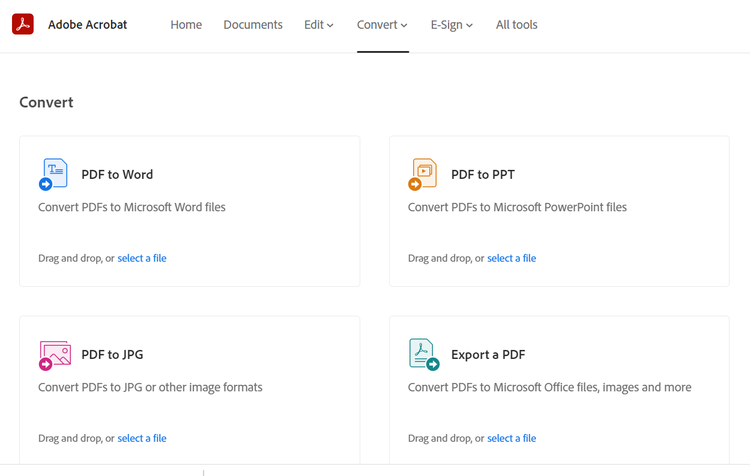
Before you translate a PDF to English, you'll need to make the content editable. PDFs are designed to preserve a document's layout and formatting, which can make direct editing difficult. Converting your PDF to a Microsoft Word document makes it easier to review, translate and update the text as needed.
Whether you're working with research papers, business documents or files received from overseas contacts, converting your PDF first can help streamline the translation process while keeping your content organised.
Follow these simple steps to convert your PDF using Adobe Acrobat:
Now that your PDF is in an editable format, you're ready to translate the content into English. The best approach depends on the type of document, your budget and the level of accuracy required. From AI-powered translation to professional language services, there are several ways to translate documents while maintaining clarity and context.
AI-powered translation tools can quickly translate content into English, making them a practical option for study materials, reports, articles and other everyday documents. Many tools can process large amounts of text in seconds, helping you understand and work with content more efficiently.
After translating the document, review important details carefully to ensure names, dates and specialised terminology have been interpreted correctly.
If you understand both languages, translating and reviewing the document yourself can provide greater control over the final result. This approach can work well for personal documents, study notes or content that requires specific wording and context.
Taking the time to review key sections can help improve accuracy before sharing or saving the translated file.
Once your document has been translated into English, Adobe Acrobat AI Assistant can help you review and analyse the content more efficiently. Use it to identify key information, generate summaries and quickly navigate longer documents during the review process.
Checking translated content before sharing or storing it can help improve clarity and ensure important information is easy to understand.
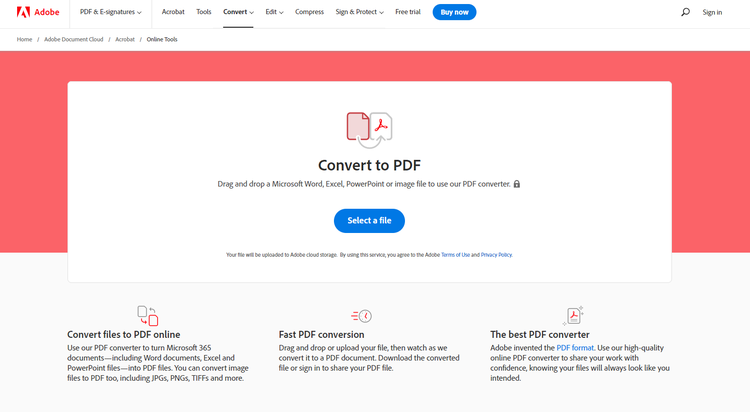
Once you've translated your document into English and reviewed the content, converting it back to PDF helps keep the layout, formatting and structure intact. PDF files are widely used for sharing, storing and printing documents because they display consistently across devices and operating systems.
Follow these simple steps to convert your translated document back to PDF using Adobe Acrobat:
Translating a PDF into English can make information easier to understand, share and use across different audiences. Once translated, saving your document as a PDF helps preserve its quality and ensures it can be viewed consistently across devices.
By saving your translated documents as PDFs, you can communicate more effectively, preserve document quality and share information with confidence.

