Acrobat
How to merge JPG files into one PDF – a complete guide.
Want to combine two or more images into a single file for easy viewing and sharing? Learn how to merge multiple JPGs into one PDF with our guide.


Acrobat
Want to combine two or more images into a single file for easy viewing and sharing? Learn how to merge multiple JPGs into one PDF with our guide.
Published by Adobe Acrobat Australia on 30 May 2025
Modified: 3 November 2025
Let’s say you want to send multiple JPG images to someone. Sometimes, combining more than one picture into a single file is easier for sending, storing, and viewing.
But while you can’t easily merge JPGs into one long, continuous image, you can convert multiple jpgs into a PDF. This will create a compressed, lightweight file to easily share and view - making things far more simple and accessible in the process.
This article will show you how to merge JPGs into a PDF to simplify file sharing. Trust us – it’s easy when you know how to turn multiple photos into a PDF.
To merge JPG files into a PDF using Acrobat online services, you’ll first need to convert each JPG image into its own PDF, then combine those PDFs into one file. Here’s a closer look at the two steps involved.
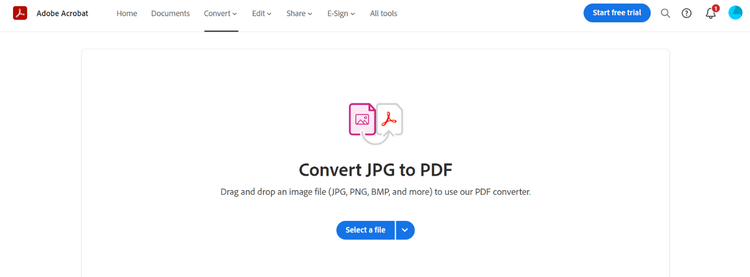
The first step in merging JPG files into a single PDF is to convert each image into its own PDF. With Adobe Acrobat online services, this process is quick and works on any browser.
Repeat this process for each JPG image you want to include in your final PDF. You can convert as many images as you like, whether it’s holiday photos, scanned documents, or school assignments.
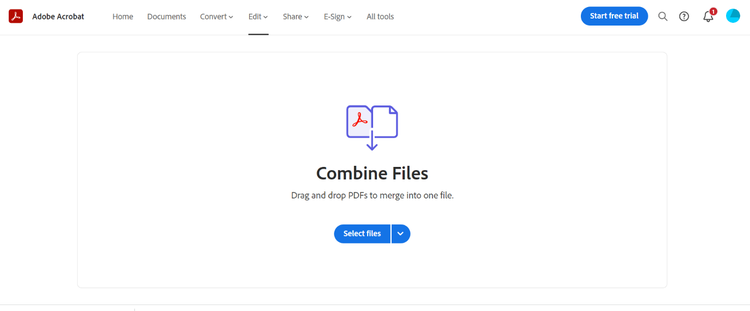
Once each JPG image is converted to a PDF, the next step is to combine them into one file. Using Adobe Acrobat online services, you can merge multiple PDFs into a single PDF quickly and easily.
Your JPG images are now combined into a single PDF, ready for sharing, emailing, or storing. This method keeps the original image quality and ensures all images appear in the order you chose.
Tip: If you want to make last-minute edits or protect your PDF, explore Acrobat’s Edit PDF and Protect PDF tools.
With Acrobat Pro, you can skip converting images one by one. Simply select multiple JPG files and combine them directly into a single PDF in just a few clicks. This saves time if you regularly work with photos, scanned images, or design files.
With Acrobat Pro, it’s easy to convert JPG files into PDF format. Follow these simple steps:
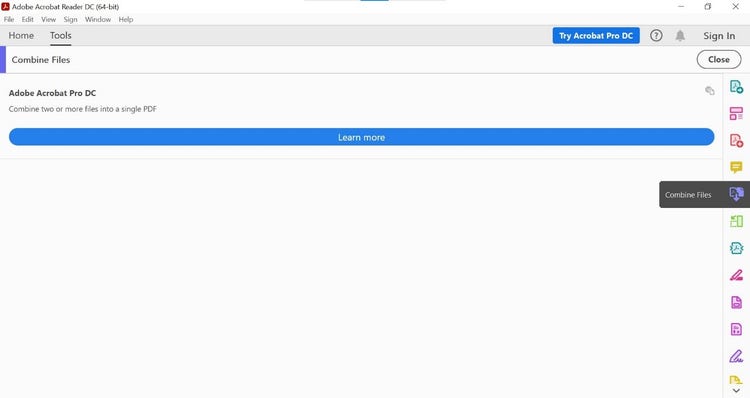
Tip: Acrobat Pro maintains the original image quality, so your merged PDF will preserve all details, whether it’s photos, charts, or scanned documents.
Don’t have Acrobat Pro? Try the 7-day free trial to quickly merge multiple JPG images into a PDF on your desktop.
Merging multiple JPG images into a single PDF offers several advantages for easy sharing, storage, and organisation.

