How to Use Remote Collaboration Tools and Features in PDFs.
Learning effective ways to collaborate with others remotely is something most of us have had to do in recent years. Remote collaboration continues to be something people need to find effective ways to do — whether that’s with co-workers working in other office locations, people working sometimes in the office and sometimes from home, or with independent contractors and freelancers.

There are many applications, online services and tools to work from anywhere. If you want to increase your collaboration on PDFs, Adobe offers tools and features to help. Read on to learn more.
What you’ll learn
- What remote collaboration tools and features are
- Types of remote collaboration tools
- Acrobat Online, remote cloud apps and collaboration
- Collaborative features and tools n Acrobat apps
What are remote collaboration tools and features?
They sound similar, but there are differences between remote collaboration tools and those within an app.
- Remote collaboration tools are products designed to help your team work together no matter where they’re located. They may be downloaded applications and software. Or they may be web-based applications accessed online. Remote collaboration tools help with communication, working efficiently and streamlining processes.
- Remote collaboration features are the built-in tools in an app. For example, sharing a file, or sending for signature. Knowing how to use these built-in tools effectively can make a huge difference in workflow.
Types of remote collaboration tools.
Remote working tools do come in all shapes and sizes and often incorporate overlapping features. Businesses and organizations may use one or more remote collaboration tool to interact and connect remotely. Types of remote work collaboration tools include —
- File collaboration tools let people work on files simultaneously. Multiple people can add content, make comments, and edit files together.
- File storage tools provide a centralized location to save and access files. People can have instant access to whatever they need with the click of a button.
- Authentication tools ensure that access to documents and systems is given only to the people you want to have it. They include things like identity verification, digital signatures, and setting password protection.
- Communication tools allow people to send messages, make calls, and have remote video conferences. These tools help with formal discussions and meetings, as well as impromptu conversations required during the workday.
- Time tracking tools keep track of how people working remotely use their time. They’re also effective for tracking time spent on particular tasks for billing purposes.
Collaborate remotely with Adobe’s products.
Cloud solutions can boost productivity and efficiency for any business, big or small, working remotely. Adobe’s cloud solutions for working with PDF files include —
Acrobat Online
Acrobat Online is web-based and easy to use. With Acrobat Online there’s no need for people working remotely to download apps and install software. Simply drag and drop files from a desktop and mobile phone browsers to —
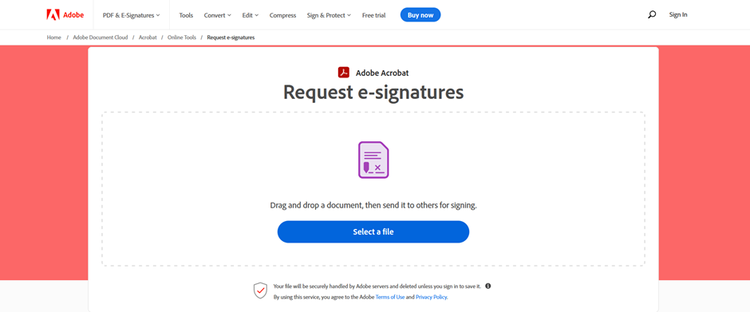
There are two options once modifications have been made using Acrobat Online.
- Users can download the file they have just changed, and it is subsequently deleted from Adobe’s servers.
- Or users can securely sign into an Adobe Document Cloud account using an email address, Adobe ID, Google, Apple or Facebook accounts to save and collaborate on files modified with Acrobat Online.

By default, files saved or uploaded to an individual user’s Document Cloud account are set to private. Then it’s just a click to give others access to a file for viewing, commenting or review, or to send them a link to the document via email.
Both free and paid options are available within Adobe Document Cloud accounts.
Acrobat with Document Cloud
Acrobat with Document Cloud allows teams to securely collaborate on files from any device.
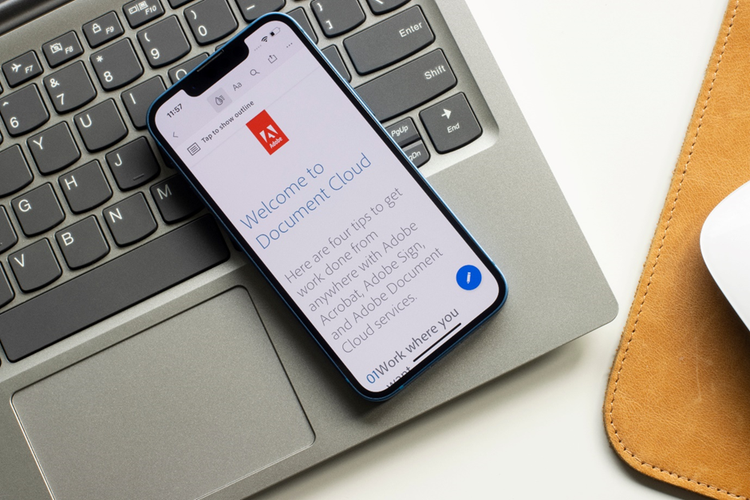
Along with the ability to edit and contribute to document content, some of the collaborative features include being able to —
- Access from anywhere — people can work on documents with this service via the free Acrobat Reader Mobile App or a full version of Acrobat.
- Protect information — the content of PDFs can be protected to prevent others from copying, editing, or printing sensitive information.
- Track access — get notifications and reminders for all activity, including people's access and changes to shared files, and documents sent out for signatures.
Adobe Creative Cloud
Adobe Creative Cloud offers plans for small and medium businesses, students, teachers, and creative professionals and access to Acrobat Pro, Photoshop, Indesign, Premier Pro, and many more.
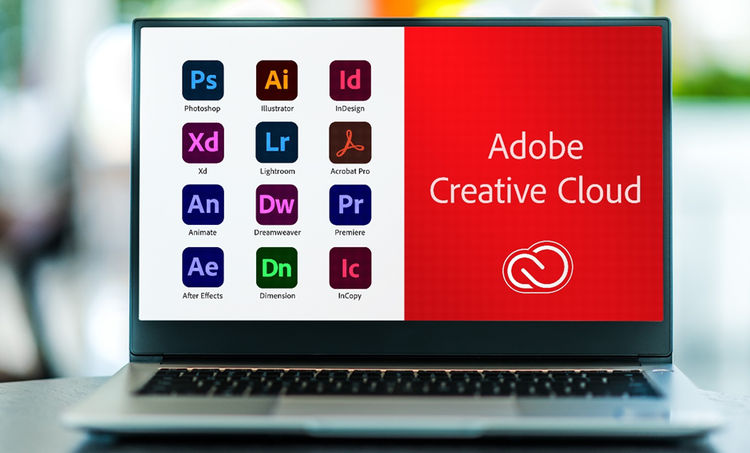
Some of the collaborative features in Adobe Creative Cloud include —
- Shared libraries to collaborate, store files, fonts, images, logos, and branding assets
- Tutorials on how to use the apps to ensure everyone knows how to use them
- Synchronisation of files in cloud storage and on devices.
Collaborative features and tools in Acrobat apps
Collaborate on documents with remote colleagues using built-in Acrobat tools. Simply go to “Tools” on the top left toolbar of an Acrobat app and you’ll see icons, descriptions and how to open them. Some of the uses for these tools to help with remote collaboration are —



Related content.
We regularly publishing articles to help people use Acrobat in different situations. Some other recent articles to help with remote working you might enjoy include —