PHOTOSHOP FEATURES
How to fade a picture in Adobe Photoshop.
Add drama or a vintage effect to your photos with a subtle fade.
Get free app | Get free app Photoshop View plans and pricing | View plans and pricing Photoshop
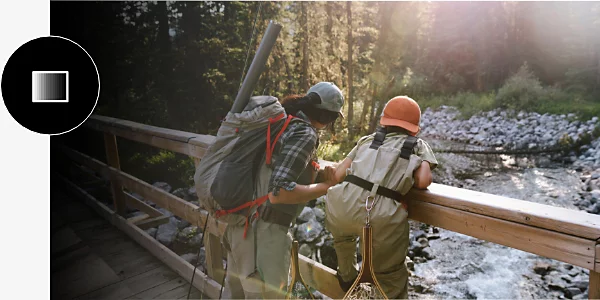
Discover all the ways to fade.
There are many ways to fade in Photoshop, but you can use a common set of tools to get the look you want, whether you’re starting with a JPG, PNG or PSD file.
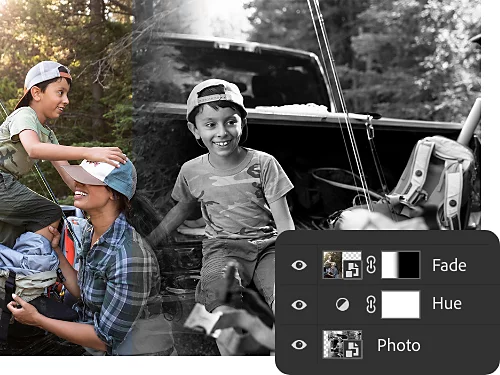
Colour fades and adjustment layers.
With adjustment layers, you can make colour and tonal adjustments nondestructively so your edits won’t change the original image. Fade colours, change hue, adjust photo saturation and more.
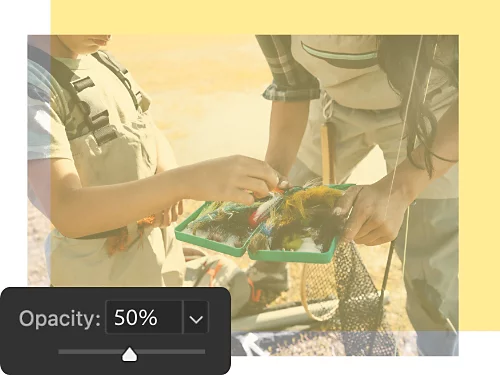
Opacity and transparency.
The opacity setting in the Layers panel gives you fine control over the background transparency of your image or a layer within your image. Using this feature, you can fade an image into transparency or put a coloured background behind your layer for it to fade into.
Fading images together.
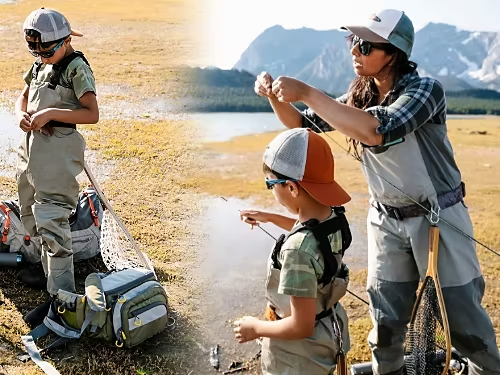
Using colour-ranging gradients and adjusting opacity, you can merge two different images. Fade them into one another equally or make one more pronounced than the other.
Layer masks.
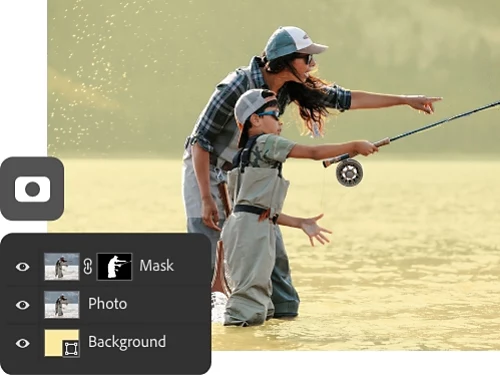
With layer masks, you can target different elements of an image to make them fade into the background, rather than changing or altering the image in its entirety.
How to fade a photograph.
The simplest way to fade an entire photograph is to use opacity and solid backgrounds.
- Open it:
Open your photo in Photoshop. In the Layers panel, click the small lock icon to unlock your background layer. You can also duplicate the background to create a new layer. - Layer it:
Create a new fill or adjustment layer by clicking the circle icon at the bottom of the Layers panel. Select Solid Colour from the drop-down menu. Select a colour of your fade in the colour picker and click OK. - Fade it:
Make sure your image layer is above your adjustment layer in the Layers panel and then adjust the opacity of your image until it’s faded just the way you want. - Adjust it:
Experiment with different colours for your adjustment layer and different levels of opacity to achieve the right effect.
When to use a fade.
While any project might involve a fade effect, here are some examples of common ones you can try.
Vintage photo effects.
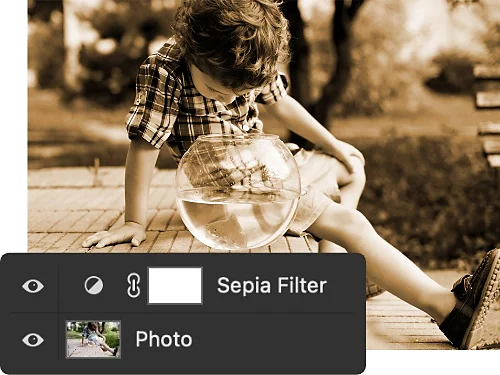
Add an artistic fade to a photo to give it an aged or vintage aesthetic that shows your compositions in a new light.
De-emphasis.
If there’s an element or area of your work that is too bold, harsh or distracting, soften it with a fade.
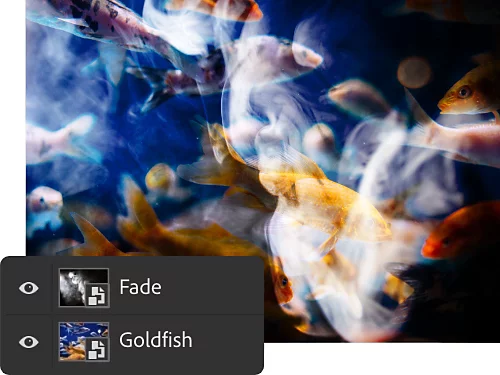
Mystery and spookiness.
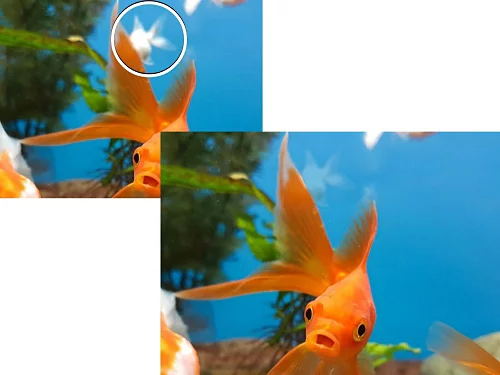
Fade different elements of your photos to give them a sense of otherworldly mystery, perfect for themed photographs and other fun project ideas.
Blending.
Just like a cross-fade in audio editing, use visual fading effects or Gaussian blur to blend two parts of an image together — or bring another image into the mix.
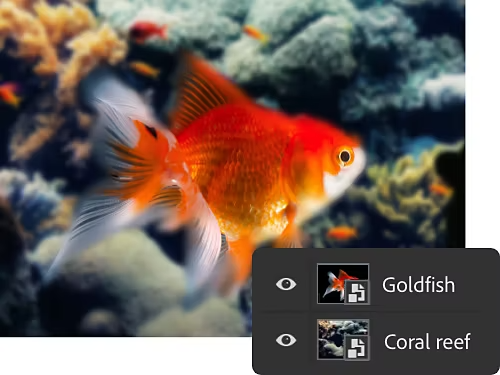
How to add a transparent gradient or gradual fade.
You can use layer masks and the gradient tool to fade part of an image into a solid background.
- Open it:
Open your photo in Photoshop. In the Layers panel, click the small lock icon to unlock your background layer. - Mask it:
With your image layer selected, click the Add Layer Mask icon to add a layer mask. The mask will show up as a white thumbnail next to the thumbnail of your image — any colour added to the layer mask will remove that part of the image. - Gradient it:
Select the Gradient tool in the toolbar. Click the gradient in the top menu and select the type of gradient you want in the dialogue box. - Draw it:
Using the Gradient tool, draw a line across your image mask layer. This will result in a gradual fade across the line you have drawn. - Expand it:
You can experiment further with the tool by adding another photo beneath your main image layer to fade two images together or try changing the colours for colour fade effects.
Go beyond the fade with Photoshop.
Develop your image editing and graphic design skills with these tutorials.
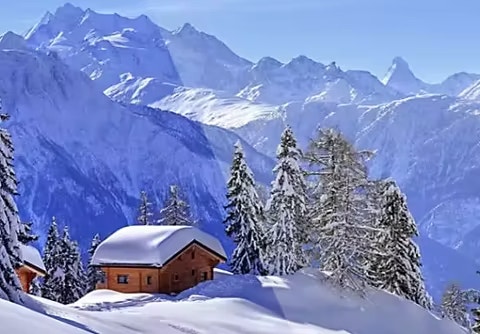
Learn to balance.
Apply white balance in-camera or after the fact in Photoshop to dramatically improve the quality of your images.
Learn how to adjust white balance | Learn how to adjust white balance
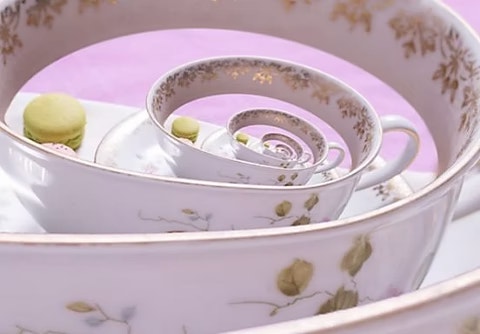
Images within images.
The Droste effect is a way of layering images within themselves to create interesting and surreal spiral. Learn how to do it and pick up several important Photoshop skills.
Learn how to create the Droste effect | Learn how to create the Droste effect
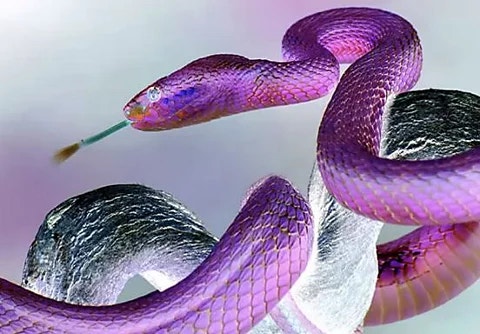
Flip it all around.
Invert colours to learn how to use colour correction tools to gain a new perspective on an image.
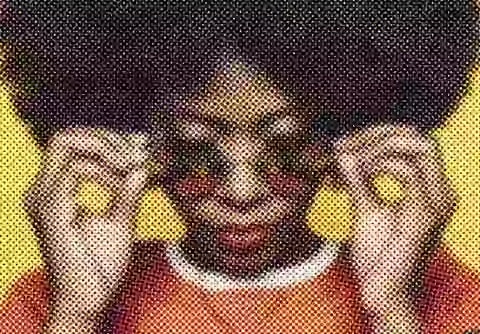
Go halfsies.
Want to go retro with an illustration? Halftone effects give your images a classic 1960s look and they’re easy to apply with the Pixelate filter.