Get your project off to a great start by configuring settings for print, web, or mobile.
Note: You’ll need the latest version ofAdobe InDesign to see these enhancements.
1
Create a brand-new document
After launching InDesign, you’ll see the Start Screen. Click Create New to open the New Document dialog box. Or press Command+N (MacOS) or Control+N (Windows).
2
Select a category
Select a category at the top such as Print, Web, or Mobile. These general categories start you off on the right foot by setting up some parameters for your project like the best color mode and units.
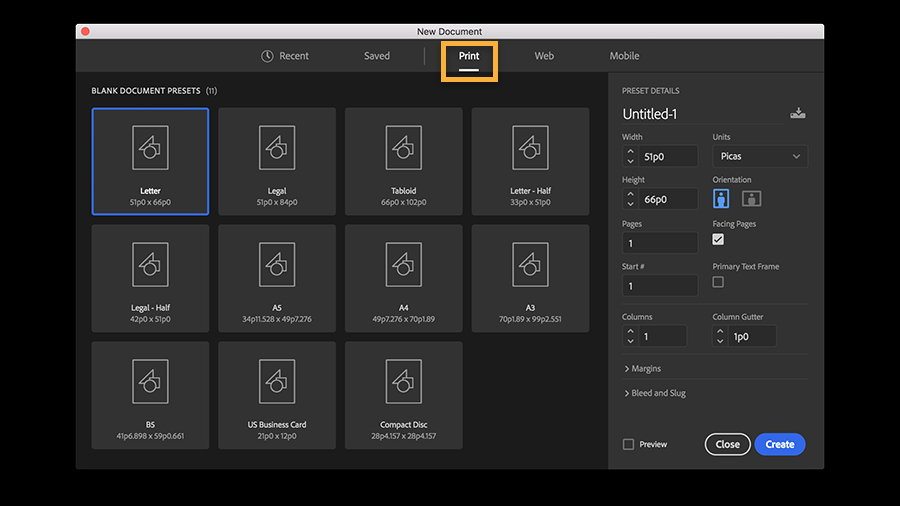
Consider your project before choosing a category. For example, choose Print if you’re designing a business card, poster, or booklet; choose Web if you’re creating a mockup of a webpage, or a PDF that will be read onscreen.
3
Select a preset
Once you select a category, you’ll find many presets for commonly-used document types. A preset is a handy starting point that creates a blank document using predefined dimensions and settings. For example, after selecting Print, you can click the Letter preset to quickly start your design at that size.
Tip: If you don’t see the entire set of presets shown here, click View All Presets to see more options.
4
Specify options
Whether or not you start with a preset, you can customize your document in many ways — by typing exact dimensions, changing the measurement units, changing page orientation, and much more. Don’t worry about getting it right at this stage; you can edit all the settings after the document is created.
Specify the number of pages and select Facing Pages to create a double-page spread layout used in magazines and books. Indicate the number of columns on your pages and the space between columns (Column Gutter).
5
Set margins, bleed, and slug
Open Margins. (You may need to scroll to see it.) Use any unit of measurement to set the margins. For example, you can type 0.5 in or 15 mm even if your document uses Picas or some other units. Set all margins the same, or click the chain icon to set different values for the top, bottom, inside, and outside margins.
You can also enter print bleed values in Bleed and Slug if you know them. Generally, you’ll get these values from your Print Provider at the end of the project. ViewSet a print bleed to learn how to set up printer’s marks and bleeds for printed documents.
Tip: Select Preview to view the page settings before you commit.
6
Start with a template
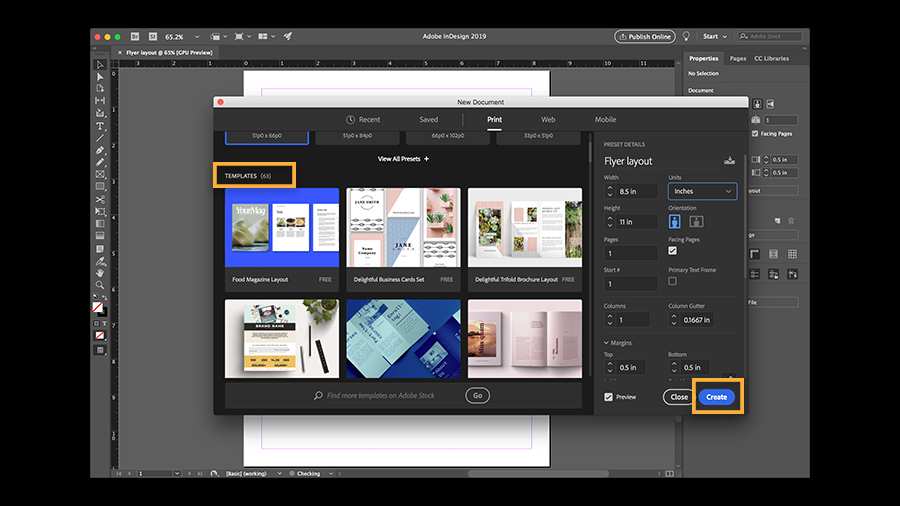
Alternatively, you can jumpstart your designs with a high-quality template. If you scroll in the main part of the New Document dialog box, you’ll find free templates with rich designs for a variety of projects, and you can download hundreds more from Adobe Stock.
When you’re done, click Create to open a document with these settings.
7
Change your document settings at any time
Great job setting up your first document. To change any document settings, go to File > Document Setup to change options like the document’s color mode (Intent), page size and orientation, number of pages, or add print bleed values from your print provider.
Don’t stop now — try these tutorials next
View these short tutorials and have fun creating some projects in InDesign.

You can control how Adobe websites use cookies and similar technologies by making choices below. But note that if you disable cookies and similar technologies entirely, Adobe websites may not function properly.
Cookies are small text files stored by your web browser when you use websites. There are also other technologies that can be used for similar purposes like HTML5 Local Storage and local shared objects, web beacons, and embedded scripts. These technologies help us do things like remembering you and your preferences when you return to our sites, measure how you use the website, conduct market research, and gather information about the ads you see and interact with.
You can make choices in the menu below about what cookies and other technologies you want us to use on Adobe sites when you visit them from this browser. You can always change those choices later by clicking on the Cookie Preferences link at the bottom of the page.
If enabled:
We can improve your experience by tailoring the site and the content to things we think might be of interest
We can better keep track of your preferences — like what language you prefer to use
We will better understand your likely interests so we can provide you more relevant Adobe ads and content on non-Adobe websites and in non-Adobe apps
It will help us improve the performance of our website and those of our partners who use the Adobe Experience Cloud
If disabled:
We won’t be able to remember you from session to session so the experience may not be tailored to your interests
You’ll still have access to the content of the site but certain features that depend on cookies may not function
You’ll still see ads, they just may not be as relevant to you
General information
You can control how Adobe websites use cookies and similar technologies by making choices below. But note that if you disable cookies and similar technologies entirely, Adobe websites may not function properly.
Cookies are small text files stored by your web browser when you use websites. There are also other technologies that can be used for similar purposes like HTML5 Local Storage, web beacons, and embedded scripts. These technologies help us do things like remembering you and your preferences when you return to our sites, measure how you use the website, conduct market research, and gather information about the ads you see and interact with.
You can make choices in the menu below about what cookies and other technologies you want us to use on Adobe sites when you visit them from this browser. You can always change those choices later by clicking on the Cookie Preferences link at the bottom of the page.
If enabled:
We can improve your experience by tailoring the site and the content to things we think might be of interest
We can better keep track of your preferences — like what language you prefer to use
We will better understand your likely interests so we can provide you more relevant Adobe ads and content on non-Adobe websites and in non-Adobe apps
It will help us improve the performance of our website and those of our partners who use the Adobe Experience Cloud
If disabled:
We won’t be able to remember you from session to session so the experience may not be tailored to your interests
We’ll still count your use of our site and services
You’ll still have access to the content of the site but certain features that depend on cookies may not function
You’ll still see ads, they just may not be as relevant to you
Operate the site and core servicesOperate site and measure engagement
Always active
These cookies are required, and they are used to enable the site and related services core functionality. Without them the site could not operate, so they cannot be disabled.
These cookies enable the site and related services’ core functionality and collect statistics about user engagement, such as counting active use to help us understand trends. These cookies cannot be disabled.
Measure performance
These cookies are used to analyze site usage to measure and improve performance. Without them Adobe cannot know what content is most valued and how often unique visitors return to the site, making it hard to improve information we offer to you.
These cookies are used to analyze site usage to measure and improve performance. Without them Adobe cannot know what content is most valued, making it hard to improve information we offer to you.
Extend functionality
These cookies are used to enhance the functionality of Adobe sites such as remembering your settings and preferences to deliver a personalized experience; for example, your username, your repeated visits, preferred language, your country, or any other saved preference.
Personalize advertising
These cookies are used to enable Adobe and our partners to serve ads more relevant to your interests. Without them you will still see ads, but they might not be as relevant to you.
Personalize advertising
These cookies are used to enable Adobe and our partners to serve ads more relevant to your interests. Without them you will still see ads, but they might not be as relevant to you.


