PDF-Dateien eignen sich hervorragend, um wichtige Dokumente zu speichern.
Wenn du jedoch jemals sensible personenbezogene Daten schützen musst, kann Acrobat dir auch dabei helfen.
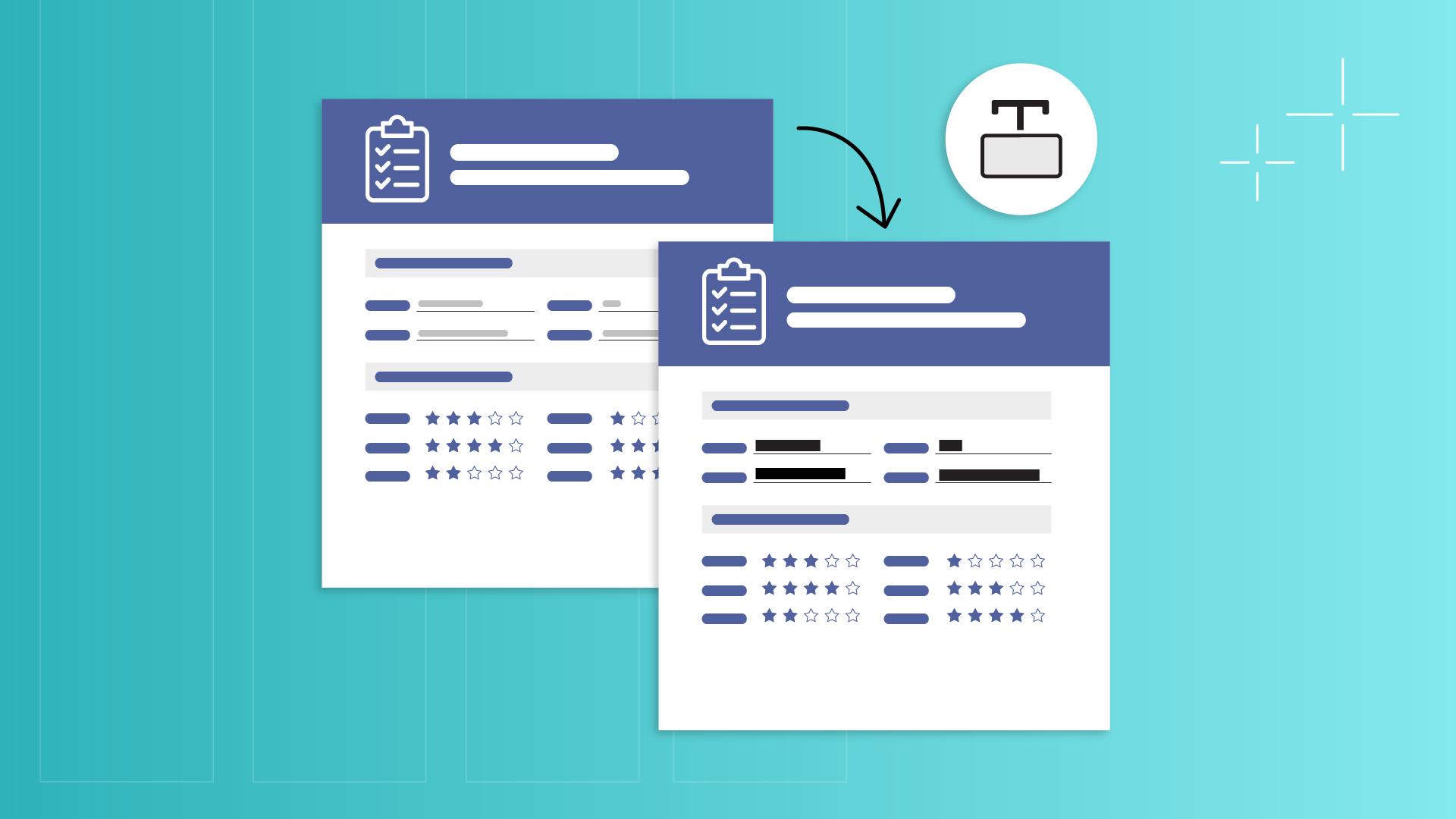
Ich bin Sarah und ich zeige dir, wie du mit Acrobat schnell und einfach Informationen in einem PDF-Dokument schwärzt.
Ich habe Acrobat bereits geöffnet.
Ich klicke auf „Alle Tools anzeigen“ (See all tools) und scrolle zu „Schützen“ (Protect).
Ich klicke auf das Werkzeug „PDF schwärzen“ (Redact a PDF).
Jetzt öffne ich meine PDF-Datei und klicke auf der Seitenleiste auf „Text und Bilder schwärzen“ (Redact text and images).
Wenn die Option aktiviert ist, markiere ich die Informationen, die ich verbergen will.
Wenn ich Bilder und Grafiken verbergen möchte, kann ich auch diese auswählen.
Mit dem Tool lässt sich jedes Text- oder Grafikelement in der Datei schwärzen.
Nachdem ich meine Auswahl getroffen habe, klicke ich unten auf „Übernehmen“ (Apply).
In einem Popup-Fenster werde ich gefragt, ob ich die Informationen wirklich entfernen möchte.
Das möchte ich.
Möglicherweise enthält das Dokument auch ausgeblendete Informationen, z.
B.
Metadaten, eingebettete Inhalte oder verborgene Ebenen.
Ich kann entscheiden, ob sie zusammen mit den geschwärzten Inhalten entfernt werden sollen.
Zuletzt klicke ich auf „Weiter“ (Continue), um die Schwärzung abzuschließen.
Acrobat erstellt eine neue Version des PDF-Dokuments und speichert sie mit der Endung „_geschwärzt“.
Die Originaldatei bleibt erhalten.
Das war’s schon.
Mit wenigen Klicks habe ich die vertraulichen Daten geschützt.
Danke fürs Zuschauen.