Das Buch-Cover aus den Beispieldateien umfasst drei Elemente auf unterschiedlichen Ebenen („Chair“, „Brick Wall“ und „Pattern“).
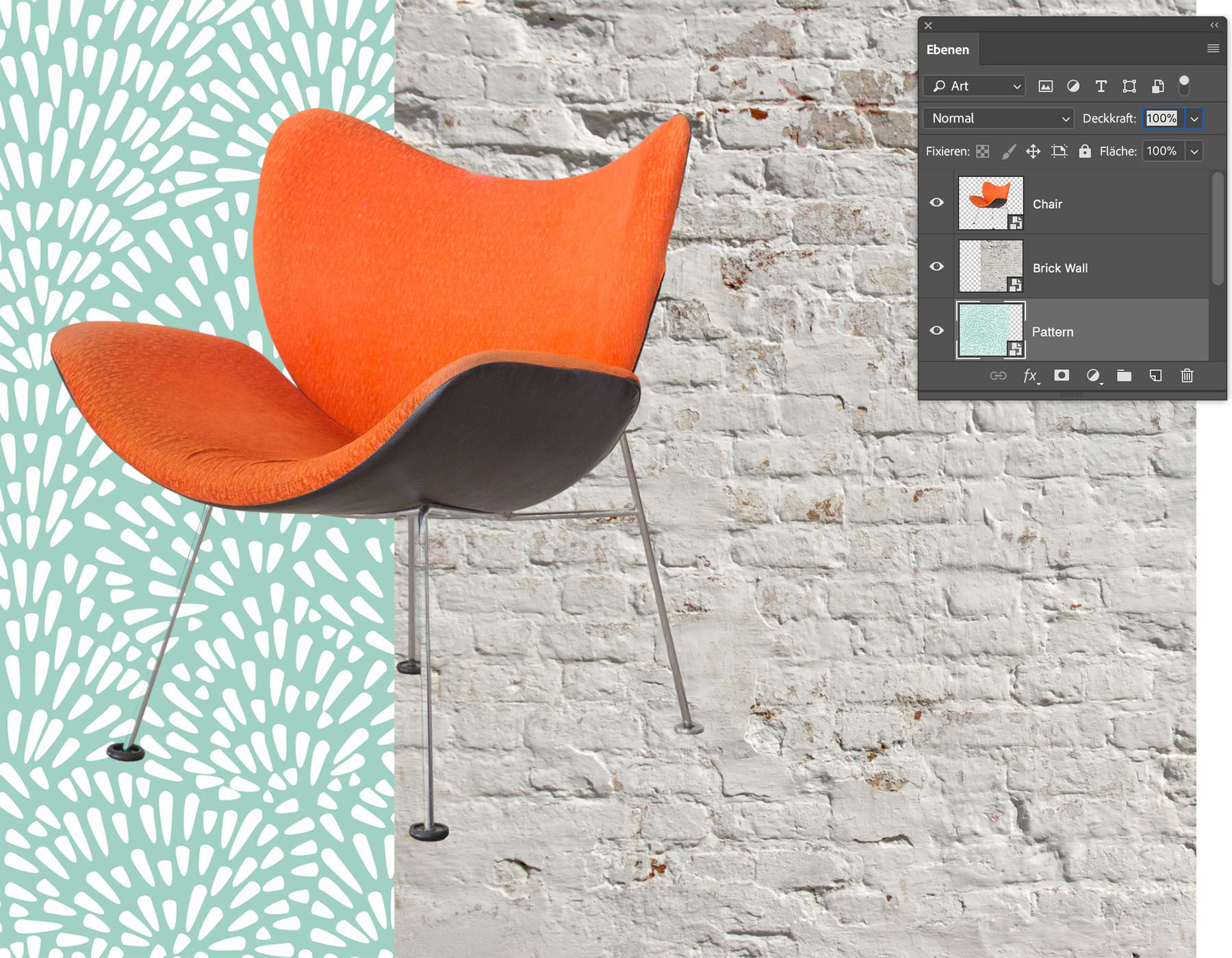
Mit Füllebenen experimentieren.
Füllebenen ermöglichen das verlustfreie Experimentieren mit Farbkombinationen, bevor der finale Stil festgelegt wird.
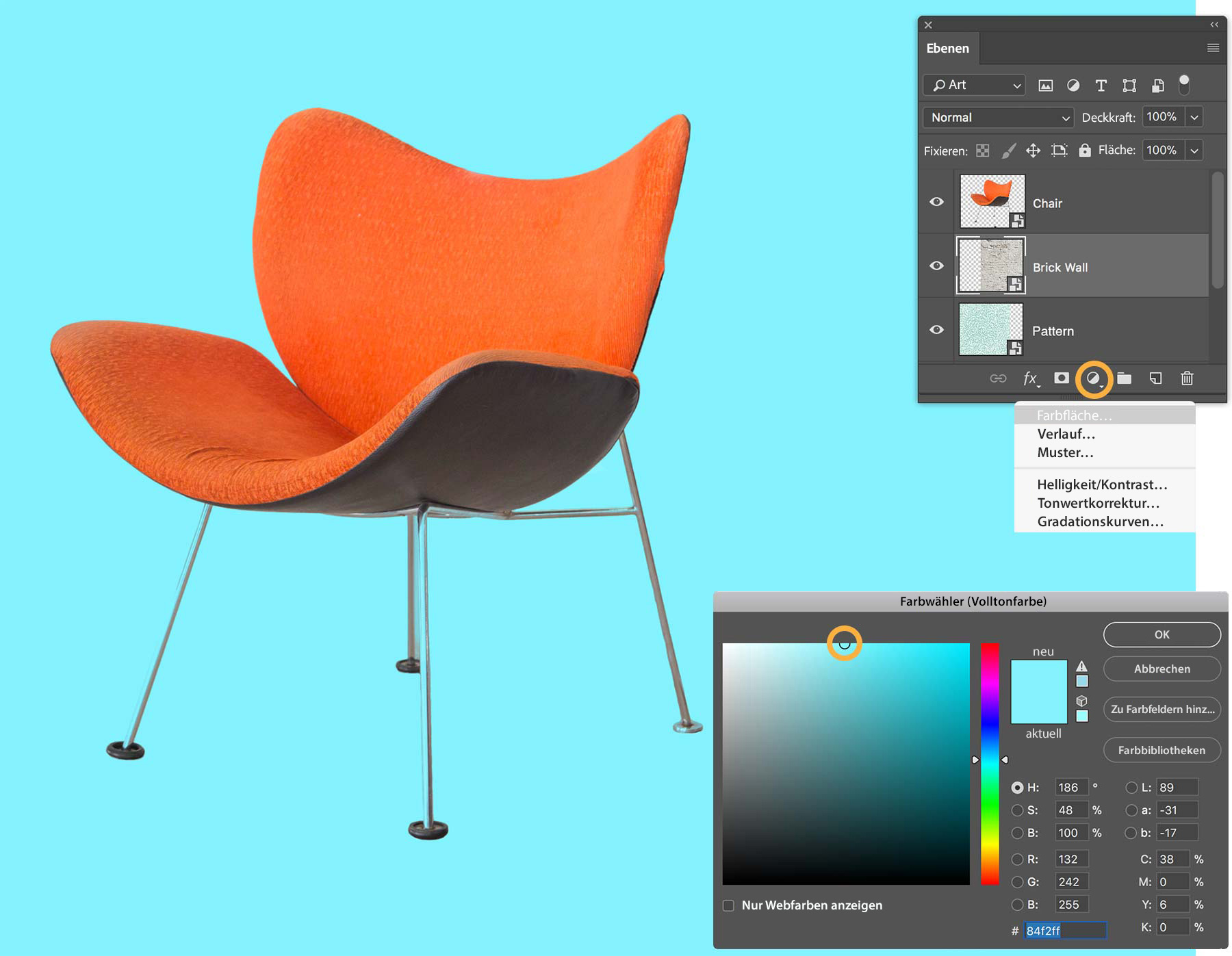
Wähle die Ebene „Brick Wall“ aus. Klicke am unteren Rand des Bedienfelds „Ebenen“ auf das Symbol für eine neue Misch- oder Einstellungsebene. Klicke auf „Farbfläche“. Im Farbwähler kannst du nun eine Farbe auswählen. Verschiebe den kreisförmigen Selektor im Farbfeld, um Helligkeit und Schwarzanteil zu ändern. Bestätige mit „OK“. Tipp: Verschiebe den Regler auf dem vertikalen Farbbalken, um einen anderen Farbbereich anzuzeigen. Klicke auf „OK“.
Die Ebene „Farbfüllung“ wirkt sich auf alle darunterliegenden Ebenen aus. Du kannst die Farbe jederzeit anpassen oder nur auf bestimmte Bereiche deines Designs anwenden. Auf diesen Schritt wird später genauer eingegangen.
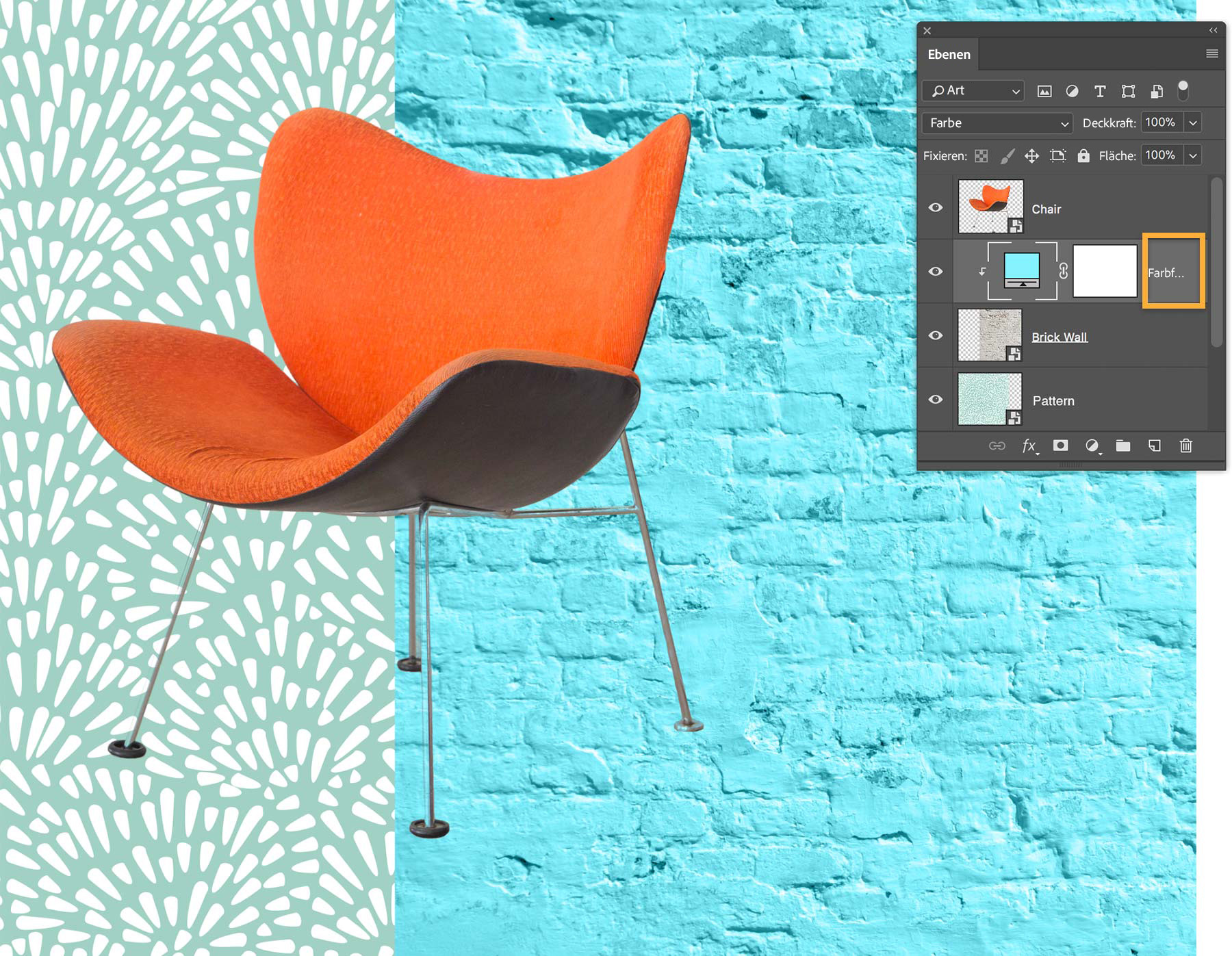
Ändere den Mischmodus der ausgewählten Farbfüllungsebene, um einen anderen Effekt zu erzielen. Wähle am oberen Rand des Bedienfelds „Ebenen“ den Mischmodus „Farbe“ aus. Dadurch wird die ausgewählte Farbe so auf die darunterliegende Ebene angewendet, dass die Textur sichtbar bleibt. Verschiebe den Regler für die Deckkraft in der rechten oberen Ecke des Bedienfelds „Ebenen“, um die Deckkraft der Farbfüllungsebene anzupassen.
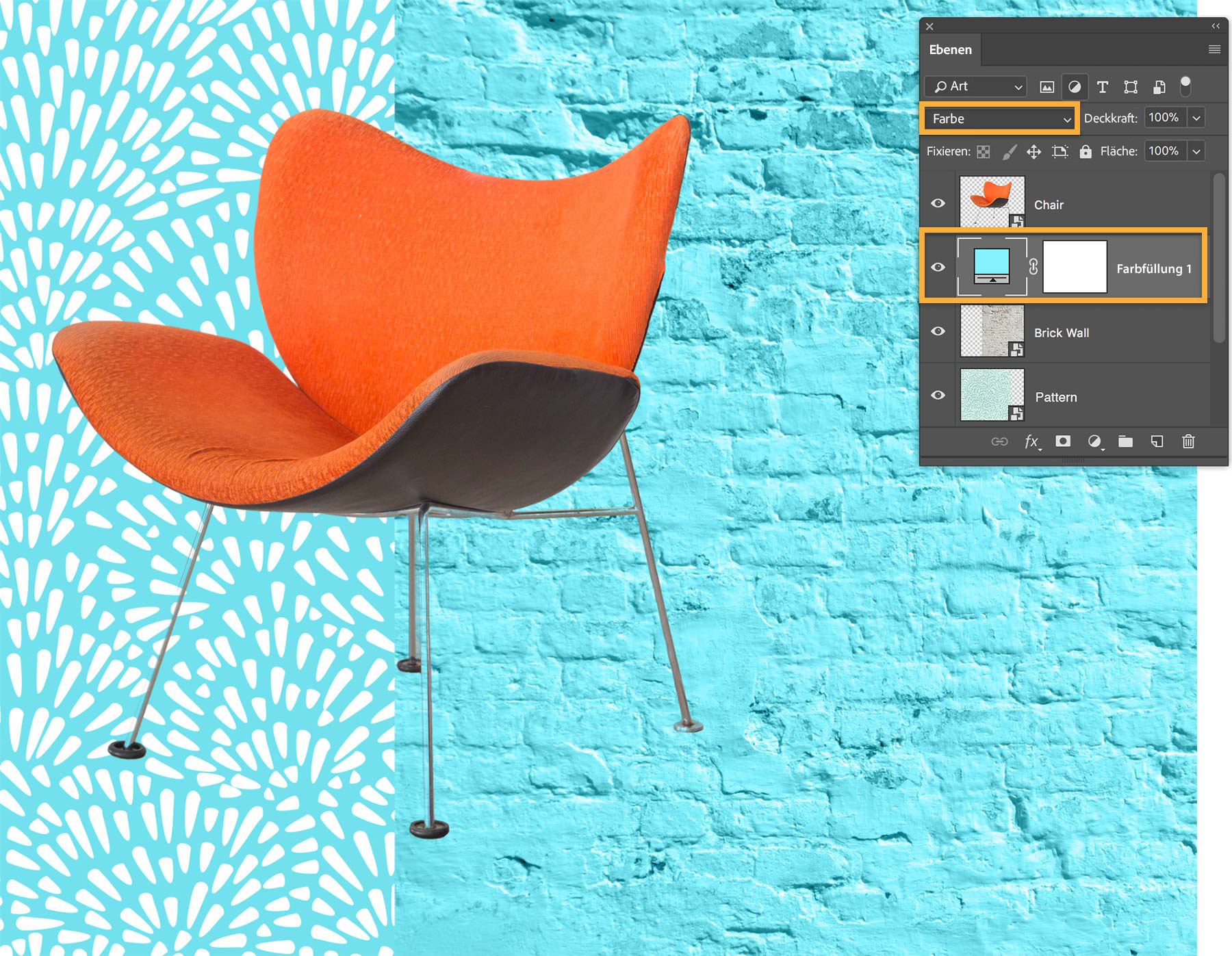
Tipp: Wenn du die ursprüngliche Farbe ändern möchtest, doppelklicke im Bedienfeld „Ebenen“ auf die Miniatur der Ebene „Farbfüllung“. Wähle im Farbwähler eine andere Farbe aus, und bestätige mit „OK“.
Die Ebene „Farbfüllung“ neu platzieren.
Nachdem du eine Farbe ausgewählt hast, kannst du mit der Ebenenreihenfolge experimentieren.
Wie du sehen wirst, führt das Verschieben der Ebene „Farbfüllung“ im Bedienfeld „Ebenen“ je nach Position zu anderen Ergebnissen.
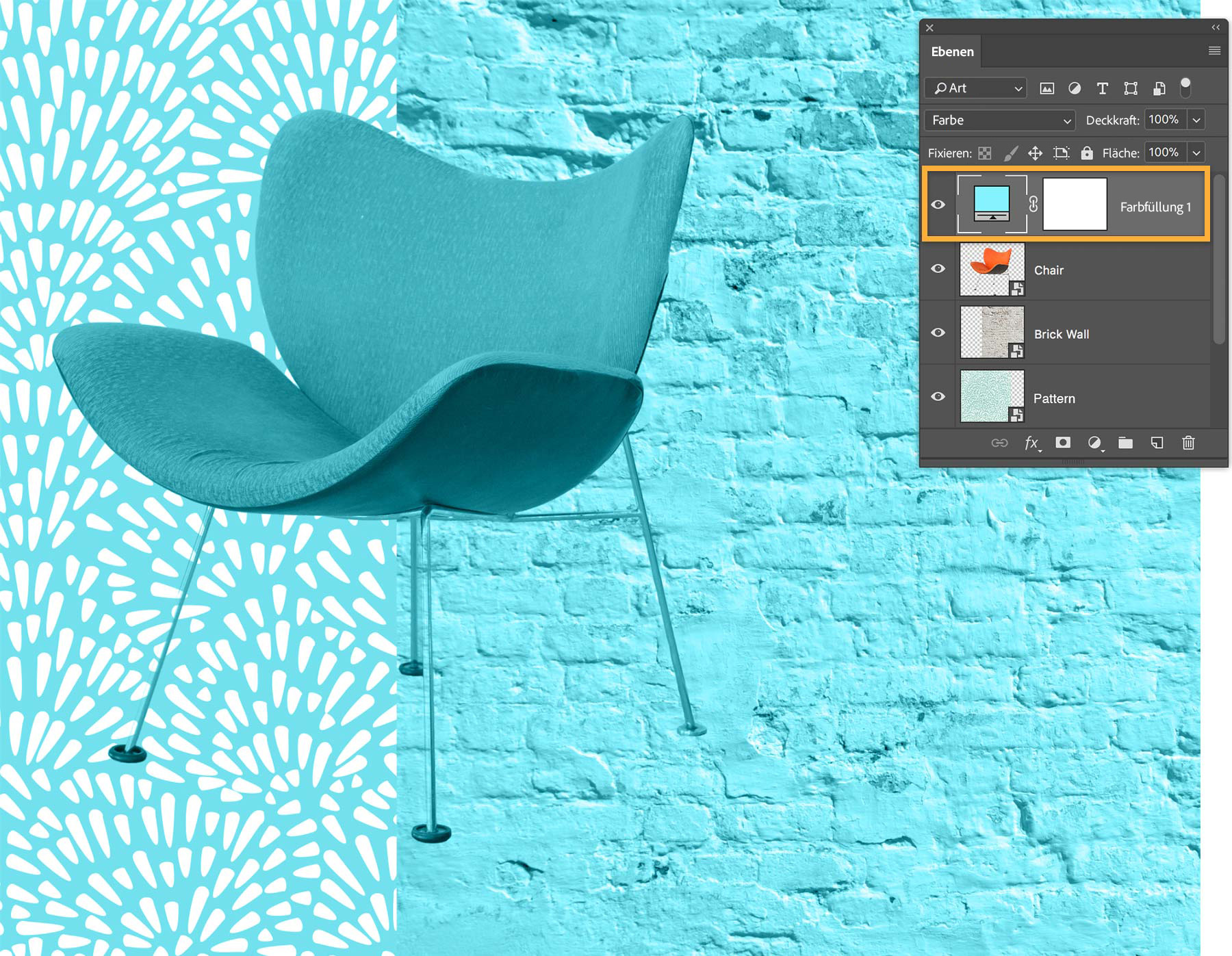
Einzelne Ebene einfärben.
Eine Farbfüllungsebene wirkt sich auf alle darunterliegenden Ebenen aus. Farbfüllungsebenen können sich aber auch auf nur eine einzelne Ebene auswirken, unabhängig von der Ebenenreihenfolge.
Wähle hierfür die Ebene „Farbfüllung“ aus. Klicke mit der rechten Maustaste (Windows) bzw. bei gedrückter Ctrl-Taste (macOS) auf den Ebenennamen rechts neben der Miniaturansicht der Ebene. Wähle im Kontextmenü „Schnittmaske erstellen“ aus.
Die Ebene „Farbfüllung“ erscheint jetzt im Bedienfeld „Ebenen“ eingerückt. Das weist darauf hin, dass sie sich nur auf die direkt darunterliegende Ebene auswirkt.
Weitere Arten von Füllebenen entdecken.
Du weißt jetzt, wie schnell und einfach sich Grafiken einfärben lassen. Experimentiere mit weiteren Möglichkeiten, Farbe und Textur auf deine Grafiken anzuwenden.
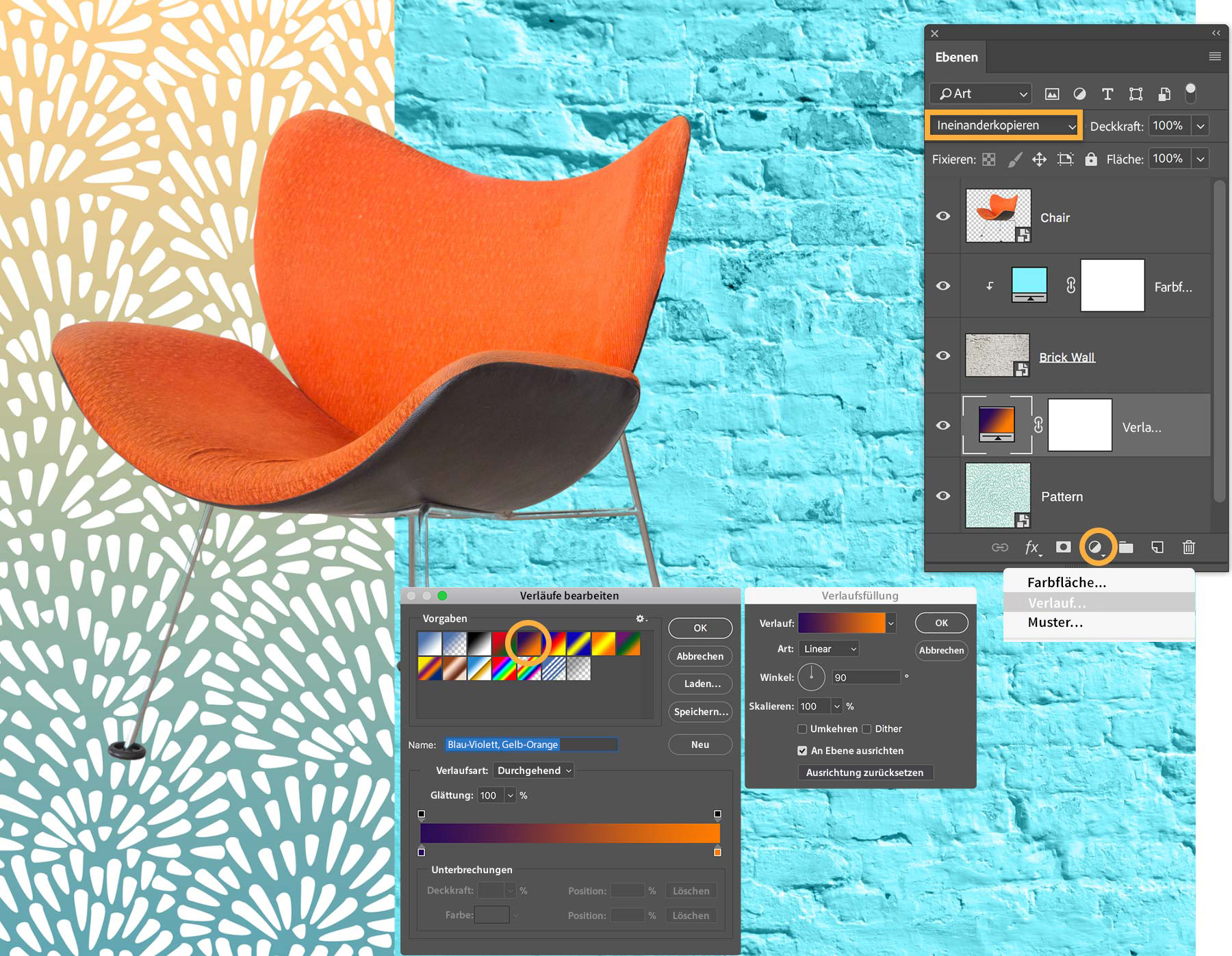
Wähle die Ebene „Pattern“ aus. Klicke auf das Symbol zum Erstellen einer neuen Misch- oder Einstellungsebene. Wähle „Verlauf“. Damit erstellst du eine Verlaufsfüllungsebene, die sich ähnlich verhält wie eine Farbfüllungsebene. Wähle im sich öffnenden Dialogfeld eine Verlaufsvorgabe aus. Wenn du möchtest, ändere auch den Verlaufswinkel. Bestätige mit „OK“. Setze zuletzt den Mischmodus für die Ebene „Verlaufsfüllung“ auf „Ineinanderkopieren“.
Farben nur auf bestimmte Bereiche anwenden.
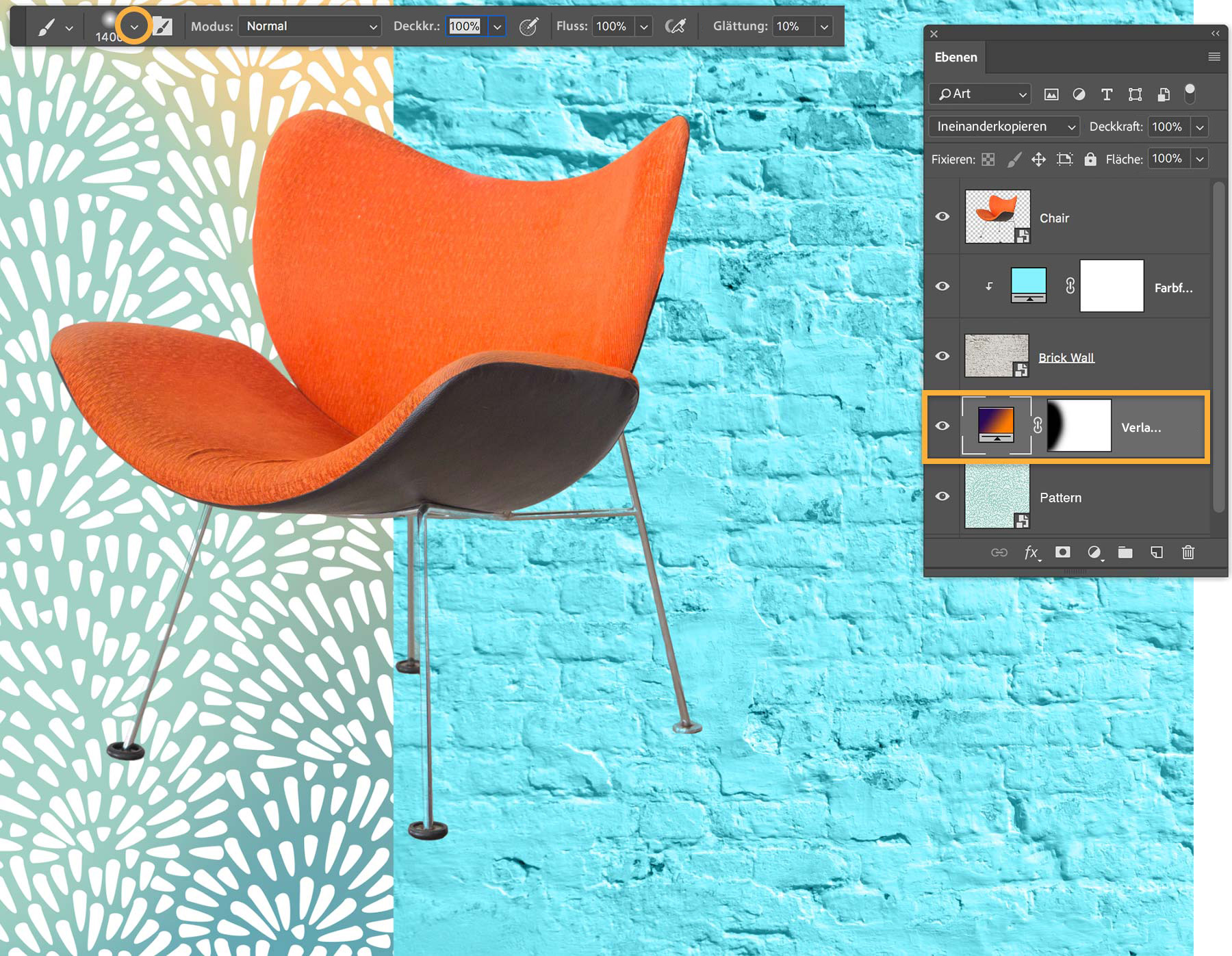
Jede Füllebene enthält eine Ebenenmaske. Wenn die Ebenenmaske komplett weiß ist, wird die Ebene auf die gesamte Grafik angewendet. Enthält die Ebenenmaske jedoch schwarze Bereiche, wird die Füllebene nur an den Stellen auf die Grafik angewendet, an denen die Ebenenmaske weiß ist.
Male für die Beispieldatei mit einem großen weichen Pinsel (1400) und einer Deckkraft von 100 % über einen Bereich der Ebenenmaske, um ihn schwarz zu machen.
Um die Erstellung des Buch-Covers abzuschließen, füge einen Titel und einen Untertitel hinzu. Damit der Untertitel präsenter wirkt, lege ein Rechteck unter die Ebene mit dem Untertitel. Weise dem Rechteck eine Schnittmaske mit blaugrauer Farbfüllung zu.

You can control how Adobe websites use cookies and similar technologies by making choices below. But note that if you disable cookies and similar technologies entirely, Adobe websites may not function properly.
Cookies are small text files stored by your web browser when you use websites. There are also other technologies that can be used for similar purposes like HTML5 Local Storage and local shared objects, web beacons, and embedded scripts. These technologies help us do things like remembering you and your preferences when you return to our sites, measure how you use the website, conduct market research, and gather information about the ads you see and interact with.
You can make choices in the menu below about what cookies and other technologies you want us to use on Adobe sites when you visit them from this browser. You can always change those choices later by clicking on the Cookie Preferences link at the bottom of the page.
If enabled:
We can improve your experience by tailoring the site and the content to things we think might be of interest
We can better keep track of your preferences — like what language you prefer to use
We will better understand your likely interests so we can provide you more relevant Adobe ads and content on non-Adobe websites and in non-Adobe apps
It will help us improve the performance of our website and those of our partners who use the Adobe Experience Cloud
If disabled:
We won’t be able to remember you from session to session so the experience may not be tailored to your interests
You’ll still have access to the content of the site but certain features that depend on cookies may not function
You’ll still see ads, they just may not be as relevant to you
General information
You can control how Adobe websites use cookies and similar technologies by making choices below. But note that if you disable cookies and similar technologies entirely, Adobe websites may not function properly.
Cookies are small text files stored by your web browser when you use websites. There are also other technologies that can be used for similar purposes like HTML5 Local Storage, web beacons, and embedded scripts. These technologies help us do things like remembering you and your preferences when you return to our sites, measure how you use the website, conduct market research, and gather information about the ads you see and interact with.
You can make choices in the menu below about what cookies and other technologies you want us to use on Adobe sites when you visit them from this browser. You can always change those choices later by clicking on the Cookie Preferences link at the bottom of the page.
If enabled:
We can improve your experience by tailoring the site and the content to things we think might be of interest
We can better keep track of your preferences — like what language you prefer to use
We will better understand your likely interests so we can provide you more relevant Adobe ads and content on non-Adobe websites and in non-Adobe apps
It will help us improve the performance of our website and those of our partners who use the Adobe Experience Cloud
If disabled:
We won’t be able to remember you from session to session so the experience may not be tailored to your interests
We’ll still count your use of our site and services
You’ll still have access to the content of the site but certain features that depend on cookies may not function
You’ll still see ads, they just may not be as relevant to you
Operate the site and core servicesOperate site and measure engagement
Always active
These cookies are required, and they are used to enable the site and related services core functionality. Without them the site could not operate, so they cannot be disabled.
These cookies enable the site and related services’ core functionality and collect statistics about user engagement, such as counting active use to help us understand trends. These cookies cannot be disabled.
Measure performance
These cookies are used to analyze site usage to measure and improve performance. Without them Adobe cannot know what content is most valued and how often unique visitors return to the site, making it hard to improve information we offer to you.
These cookies are used to analyze site usage to measure and improve performance. Without them Adobe cannot know what content is most valued, making it hard to improve information we offer to you.
Extend functionality
These cookies are used to enhance the functionality of Adobe sites such as remembering your settings and preferences to deliver a personalized experience; for example, your username, your repeated visits, preferred language, your country, or any other saved preference.
Personalize advertising
These cookies are used to enable Adobe and our partners to serve ads more relevant to your interests. Without them you will still see ads, but they might not be as relevant to you.
Personalize advertising
These cookies are used to enable Adobe and our partners to serve ads more relevant to your interests. Without them you will still see ads, but they might not be as relevant to you.