Arbeiten mit Texturen in Photoshop: Anzug aus Gras erstellen
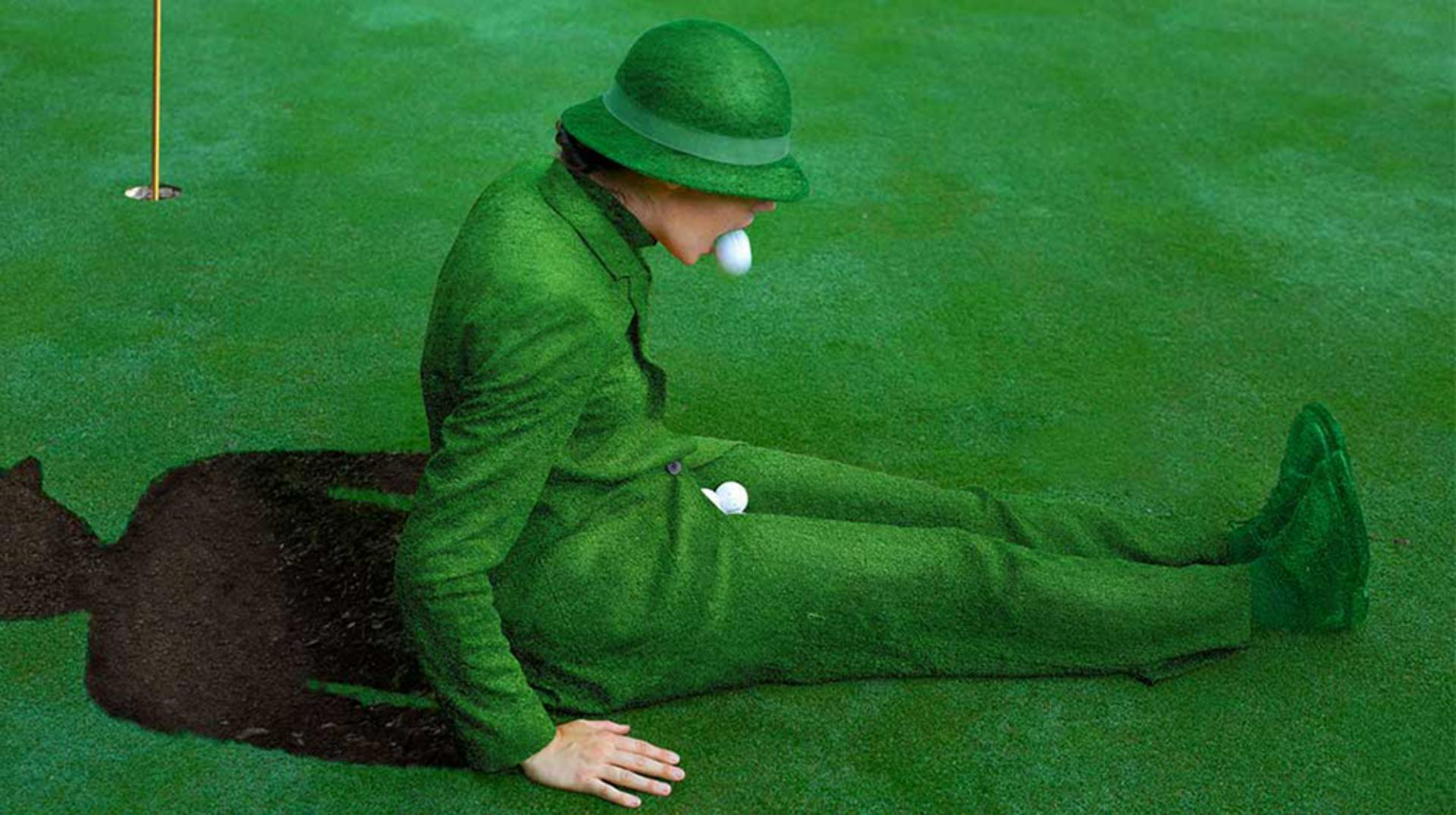
Verleihe deiner Kleidung einen kreativen Naturlook – mit Photoshop und einer Portion Vorstellungskraft. In diesem Tutorial zeigt dir Fotokünstlerin Amelie Satzger, wie sie mithilfe von Auswahlwerkzeugen, Gradationskurven und Mischmodi eine Grasstruktur auf Kleidung überträgt. Ideal für kreative Retusche, surreale Looks und Experimente mit Texturen.
Benötigte Materialien
In der Anwendung üben
Lass Gras drüber wachsen! Das Photoshop-Tutorial von Amelie Satzger
Erhalte einen ersten Eindruck vom fertigen Look und sieh dir an, wie Amelie Satzger das Grasmuster auf einen Anzug überträgt – visuell, kreativ und nachvollziehbar.
So funktioniert’s: Schritt für Schritt vom Anzug zum Gras-Look
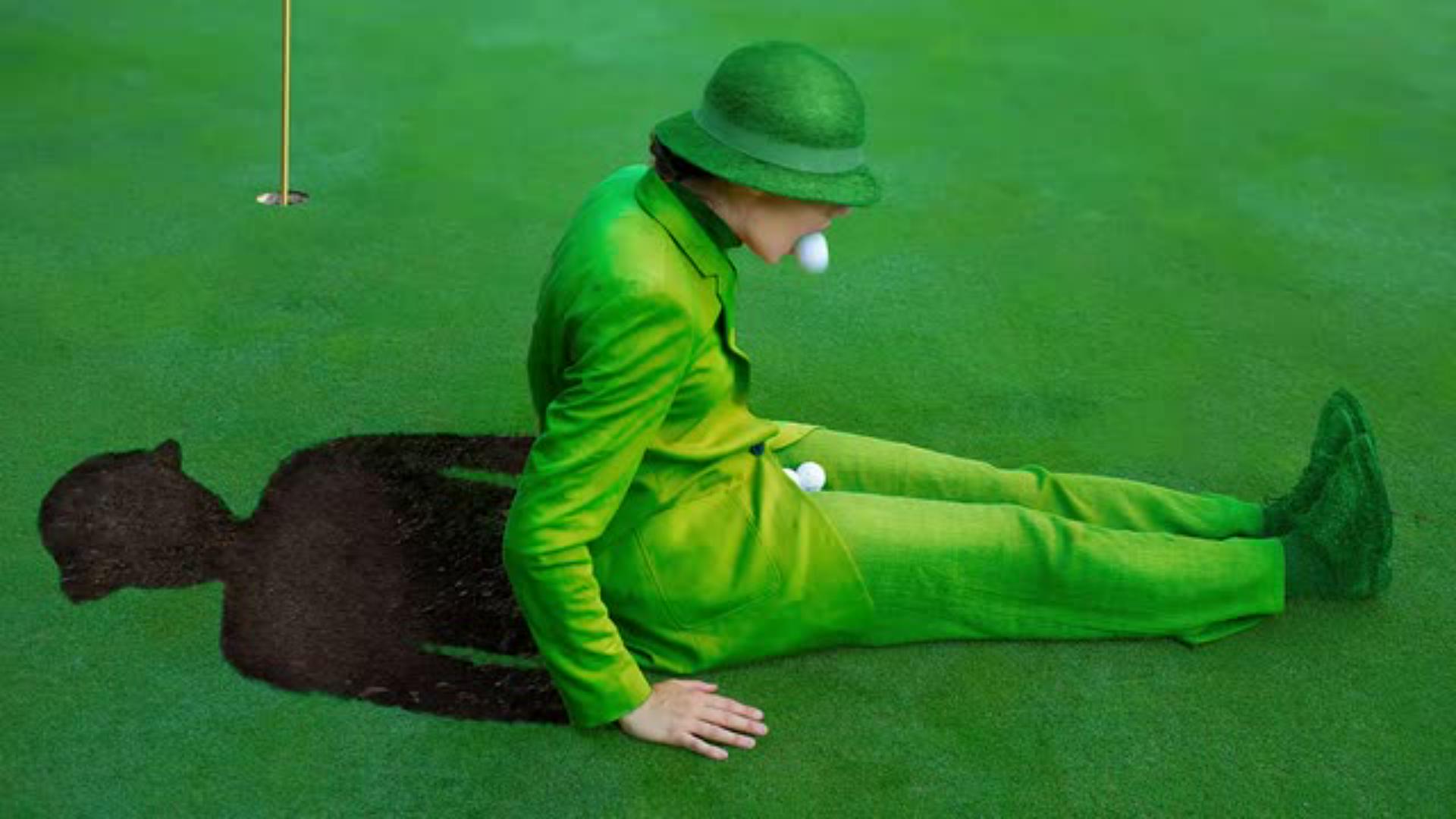
Zunächst startest du mit der Auswahl des Kleidungsstücks, das später von Gras überwachsen werden soll. Mit dem Schnellauswahl-Werkzeug kannst du ganz einfach die relevanten Bereiche markieren, indem du den gelben Anzug im Bild auswählst. Solltest du dabei versehentlich zu viel markieren, kannst du das Werkzeug mit gedrückter Alt-Taste nutzen, um unerwünschte Stellen, wie beispielsweise die Golfbälle im Schoß, wieder von der Auswahl zu entfernen. Sobald die Auswahl steht, erstellst du in der Ebenen-Palette eine neue Gruppe, der du eine Ebenenmaske hinzufügst – so kannst du später die Grasstruktur gezielt nur auf den ausgewählten Bereich anwenden.
Im nächsten Schritt verleihst du dem ausgewählten Bereich mithilfe einer Gradationskurve eine grüne Farbe, die den natürlichen Look des Grases vorbereitet. Dafür legst du eine neue Einstellungsebene für die Gradationskurven an. Durch das Verschieben von Punkten auf den Kanälen „RGB“, „Rot“ und „Grün“ kannst du die Farbwerte so anpassen, dass der Anzug eine passende grüne Tönung erhält, ohne dabei unnatürlich zu wirken.
Jetzt kommt der kreative Part: Die Grasstruktur wird auf den Anzug übertragen. Dazu ziehst du die Ebene mit der Gras-Textur in die zuvor erstellte Gruppe und aktivierst sie. Mit dem Ebenenstil „Lineares Licht“ kannst du die Textur mit dem Anzug verschmelzen lassen, sodass die Grasdetails lebendig wirken. Die Deckkraft der Gras-Ebene wird leicht reduziert, um einen harmonischen Übergang zu gewährleisten. Mit einer Dynamik-Einstellungsebene sorgst du dafür, dass die Farben weniger gesättigt und somit realistischer wirken. Abschließend passt du mit der selektiven Farbkorrektur die Grüntöne der Grasstruktur fein an, indem du Cyan und Magenta leicht verringerst.
Um den Look zu perfektionieren, nimmst du finale Anpassungen am Gesamtbild vor: Die gesamte Gruppe wird geschlossen, und eine weitere selektive Farbkorrektur hebt die Gelbtöne hervor, indem Cyan, Magenta und Schwarz angepasst werden. Abschließend sorgt eine Tonwertkorrektur für die richtige Helligkeit und Kontrastbalance, indem du den rechten Regler für die Helligkeit verschiebst. So entsteht ein lebendiger, natürlicher Gras-Look, der perfekt mit dem Anzug verschmilzt.
Probiers aus und erfahre im interaktiven Tutorial, wie du eine natürliche Struktur wie Gras realistisch auf Kleidung anwendest – ein kreativer Effekt, der sich perfekt für konzeptionelle Fotografie, Mode-Design oder surreale Bildlooks eignet.
Tipps zur Bildbearbeitung mit Texturen
Verwende hochwertige Texturen mit klaren Kontrasten.
Spiele mit Deckkraft und Mischmodi, um den Look natürlicher wirken zu lassen.
Arbeite mit Ebenenmasken, um Übergänge sauber zu gestalten.
Selektive Farbkorrektur hilft, die Textur perfekt an das Ausgangsbild anzupassen.
Über Amelie Satzger
Amelie Satzger
ist eine deutsche Fotokünstlerin, deren Werke visuelle Konzepte mit surrealen Elementen kombinieren. Für Adobe zeigt sie regelmäßig kreative Photoshop-Techniken, die auf Ästhetik, Wirkung und Emotionalität setzen. Ihre Arbeiten wurden bereits in Ausstellungen und internationalen Kampagnen gezeigt.

You can control how Adobe websites use cookies and similar technologies by making choices below. But note that if you disable cookies and similar technologies entirely, Adobe websites may not function properly.
Cookies are small text files stored by your web browser when you use websites. There are also other technologies that can be used for similar purposes like HTML5 Local Storage and local shared objects, web beacons, and embedded scripts. These technologies help us do things like remembering you and your preferences when you return to our sites, measure how you use the website, conduct market research, and gather information about the ads you see and interact with.
You can make choices in the menu below about what cookies and other technologies you want us to use on Adobe sites when you visit them from this browser. You can always change those choices later by clicking on the Cookie Preferences link at the bottom of the page.
If enabled:
We can improve your experience by tailoring the site and the content to things we think might be of interest
We can better keep track of your preferences — like what language you prefer to use
We will better understand your likely interests so we can provide you more relevant Adobe ads and content on non-Adobe websites and in non-Adobe apps
It will help us improve the performance of our website and those of our partners who use the Adobe Experience Cloud
If disabled:
We won’t be able to remember you from session to session so the experience may not be tailored to your interests
You’ll still have access to the content of the site but certain features that depend on cookies may not function
You’ll still see ads, they just may not be as relevant to you
General information
You can control how Adobe websites use cookies and similar technologies by making choices below. But note that if you disable cookies and similar technologies entirely, Adobe websites may not function properly.
Cookies are small text files stored by your web browser when you use websites. There are also other technologies that can be used for similar purposes like HTML5 Local Storage, web beacons, and embedded scripts. These technologies help us do things like remembering you and your preferences when you return to our sites, measure how you use the website, conduct market research, and gather information about the ads you see and interact with.
You can make choices in the menu below about what cookies and other technologies you want us to use on Adobe sites when you visit them from this browser. You can always change those choices later by clicking on the Cookie Preferences link at the bottom of the page.
If enabled:
We can improve your experience by tailoring the site and the content to things we think might be of interest
We can better keep track of your preferences — like what language you prefer to use
We will better understand your likely interests so we can provide you more relevant Adobe ads and content on non-Adobe websites and in non-Adobe apps
It will help us improve the performance of our website and those of our partners who use the Adobe Experience Cloud
If disabled:
We won’t be able to remember you from session to session so the experience may not be tailored to your interests
We’ll still count your use of our site and services
You’ll still have access to the content of the site but certain features that depend on cookies may not function
You’ll still see ads, they just may not be as relevant to you
Operate the site and core servicesOperate site and measure engagement
Always active
These cookies are required, and they are used to enable the site and related services core functionality. Without them the site could not operate, so they cannot be disabled.
These cookies enable the site and related services’ core functionality and collect statistics about user engagement, such as counting active use to help us understand trends. These cookies cannot be disabled.
Measure performance
These cookies are used to analyze site usage to measure and improve performance. Without them Adobe cannot know what content is most valued and how often unique visitors return to the site, making it hard to improve information we offer to you.
These cookies are used to analyze site usage to measure and improve performance. Without them Adobe cannot know what content is most valued, making it hard to improve information we offer to you.
Extend functionality
These cookies are used to enhance the functionality of Adobe sites such as remembering your settings and preferences to deliver a personalized experience; for example, your username, your repeated visits, preferred language, your country, or any other saved preference.
Personalize advertising
These cookies are used to enable Adobe and our partners to serve ads more relevant to your interests. Without them you will still see ads, but they might not be as relevant to you.
Personalize advertising
These cookies are used to enable Adobe and our partners to serve ads more relevant to your interests. Without them you will still see ads, but they might not be as relevant to you.