Introduction
Saving your work in Photoshop is really important, and knowing the different ways to save your documents can help protect your original images and make sharing easier.
My name is Rob de Winter, an Adobe Certified Instructor, author, and designer from the Netherlands.
And in this video, I'll guide you through the essential saving techniques in Photoshop.
Understanding the save command and overwriting files
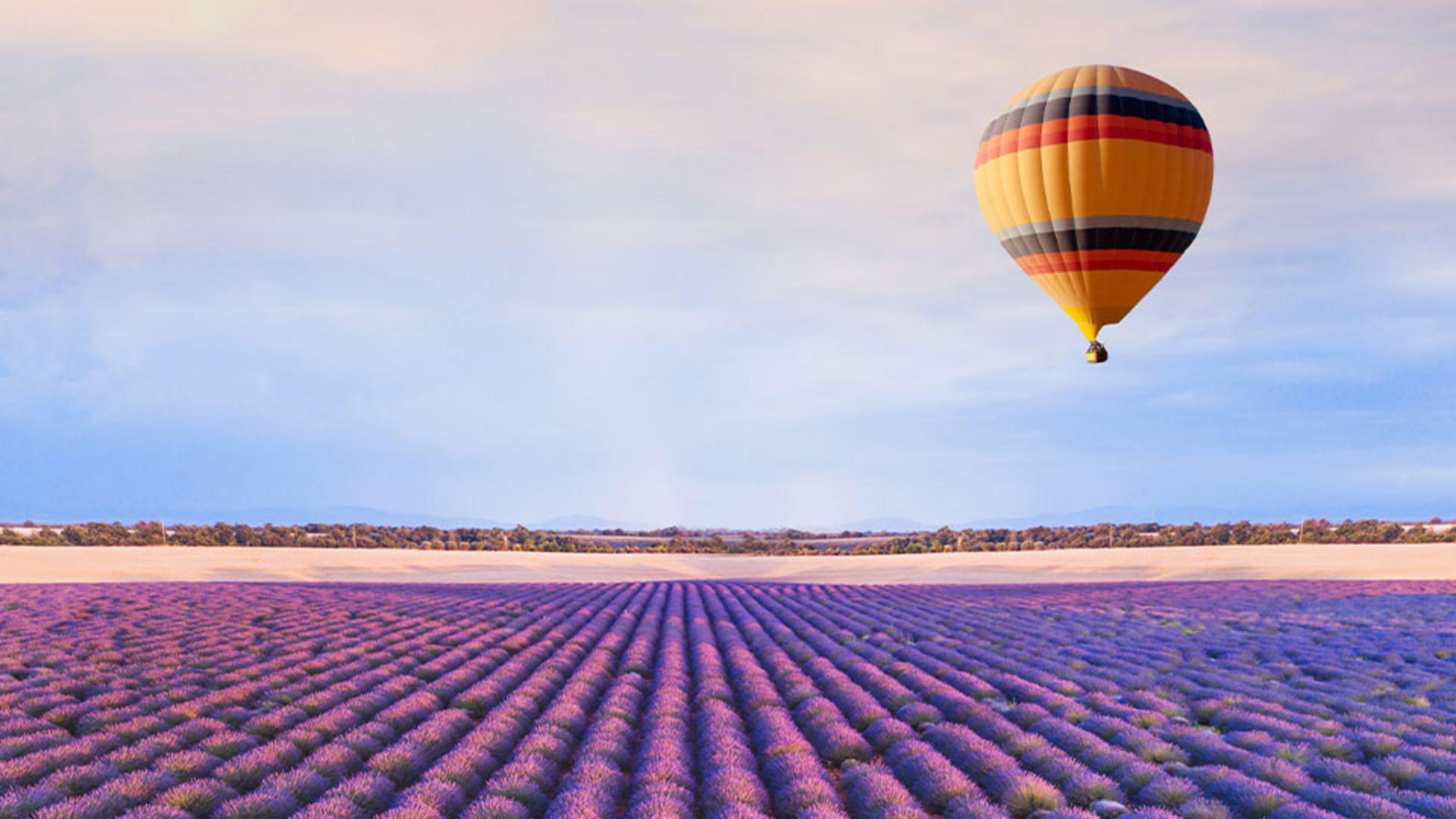
To start, let's make a simple change to this Photoshop file.
We're going to move the hot air balloon to another position in the image.
And to do that, select the Move Tool from the Toolbar and then click directly on the hot air balloon photo and drag it to a different spot.
Now that we've made a change to the image, let's see what happens if we use the Save command to save the image with this change.
Go to File, Save.
As you can see, Photoshop immediately saves over the original file, replacing the previous version.
This isn't always what you want, so let me show you a way to save without overwriting your original.
Let's make another change.
Saving new versions with Save As
Again, with your Move Tool selected, click on the hot air balloon and move it somewhere else in the image.
Now, instead of choosing Save, we're going to use File, Save As...
This opens to Save As dialog, where you can prevent overwriting the previous version by giving the file a new name or choosing a different location.
On Windows, the dialog may look slightly different, but the options are essentially the same.
To avoid saving over the previous version, I'll click the Save As field - that's the File Name field on Windows.
Now type -v2 after the existing file name just before the file extension.
Before clicking Save, let's take a look at another important option in this Save As dialog, the Format menu.
Choosing formats and preserving layers
It's a good idea to save your files in the native Photoshop format, which gives them a PSD extension.
And this will preserve all the layers, effects, and editable features.
The big advantage of saving a PSD is that you can come back and continue editing with all layers intact.
However, a PSD file cannot be viewed online.
And also, if you plan to share your PSD file with someone who doesn't have Photoshop, they might not be able to open it.
To address this, there are also other file formats you can choose from, including JPEG and PNG, which we'll cover in the next step.
First, let's click Save.
By doing this, I end up with two versions of the file, the original and the updated v2 version.
When you see this Photoshop Format Options dialog, just click OK.
If you ever want to share your projects or post it online,
Saving copies for sharing with JPEG and PNG
you can save another copy in the JPEG or PNG format.
But remember that JPEG and PNG files don't retain layers.
One way to save a JPEG is by going to File, Save a Copy...
Then select JPEG from the Format dropdown and give it a new name such as Project-web.jpg.
Saving a JPEG copy doesn't affect your original PSD, so you can always go back and edit it.
Now click Save.
When the JPEG Options dialog appears, feel free to use the default settings and then click OK to save.
Best practices for saving and protecting your work
And finally, here's one extra tip.
Make sure to save frequently to avoid losing any progress, especially if your project is complex or large.
Now that you've learned how to save and share your images, you should feel more confident about keeping your project safe while working in Photoshop.
Again, my name is Rob de Winter and thanks for watching.