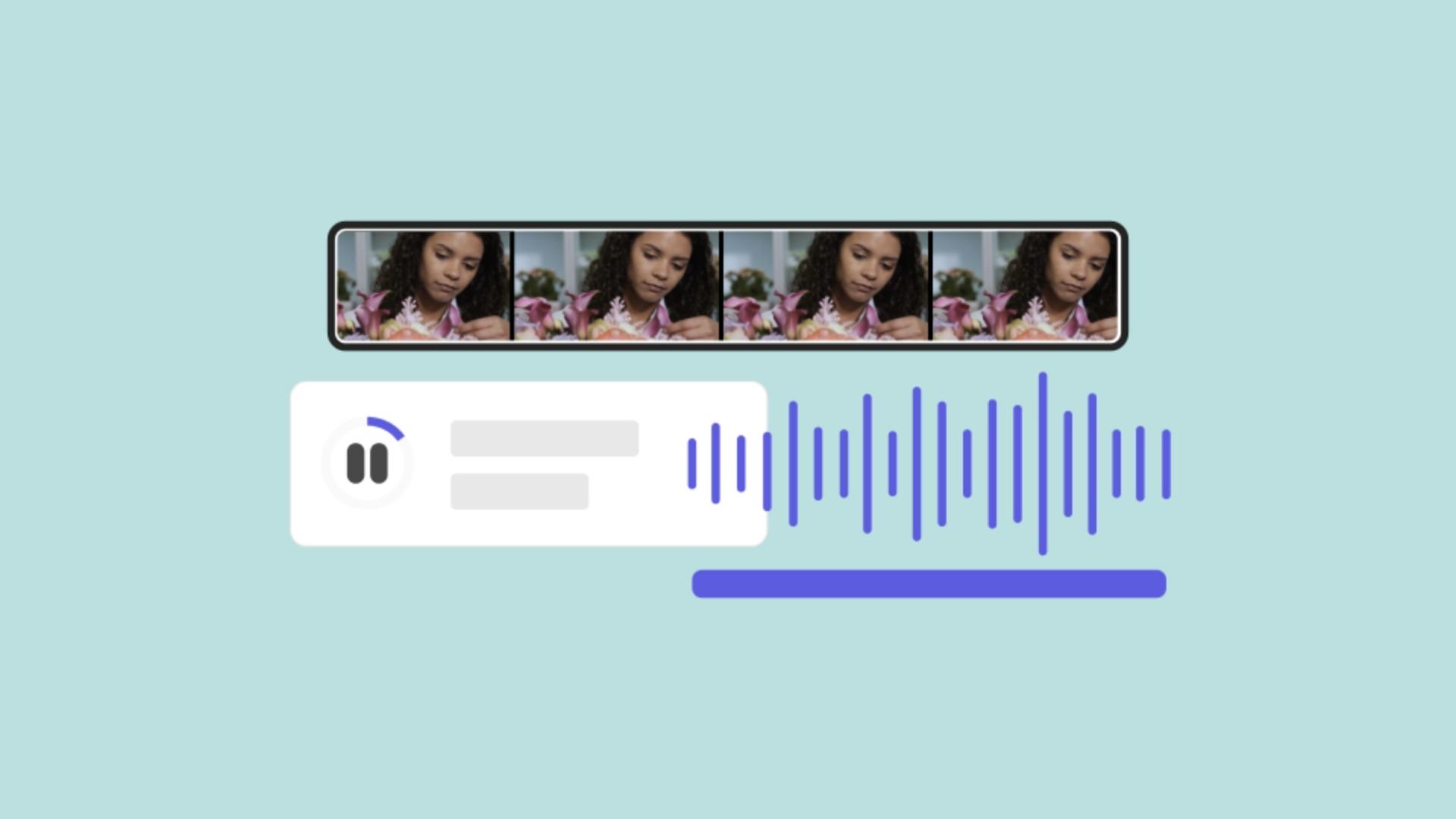
Audio can take your video to the next level. Make your voice heard. Give your video some life.
What you’ll need
Practice in the app
Introduction
How to add audio to a video.
Use an audio you already have by clicking Media,
Adding audio from uploaded files
select Audio and click Upload from device.
To record your own voiceover,
Recording voiceovers directly in the editor
click the Record voiceover button, activate your mic and click Start recording.
After the countdown, speak and then click Finish Recording.
You can also add an Adobe Stock audio file.
Using Adobe stock audio in your video
Search for the style of audio you need, preview the options and click the audio you want to add to your video.
Editing audio timing and adjusting volume
Now let's edit the audio to time it to your video.
Drag the edge of the audio Timeline to shorten or lengthen how long the audio plays.
Adjust the Volume with the sliding bar.
Adobe Express Keep creating.
Add audio to video
Adding audio to a video is a snap. Once you’ve loaded a video into the Editor, here are three simple ways you can make it happen.
Upload from device
To use audio you already have, click the Media icon on the left side of the screen, select the Audio tab, and click the “Upload from device” button.
Record a voiceover
If you want to create a verbal recording to add to your video, click the “Record voiceover” button, activate your mic, and go for it.
Use one of our tunes
You can always use an Adobe Stock audio file. Find something specific using the search bar, or click play on one of the options already visible to listen to a sample. Click the audio sample itself to automatically add it to the Editor.
Edit your audio file
Now that you’ve got video and audio in the Editor, sync them the way you want.
Click the audio timeline and drag the audio bar handles to adjust audio and video start and end times.
Use the sliding bar in the Volume menu to change the sound level of your audio.