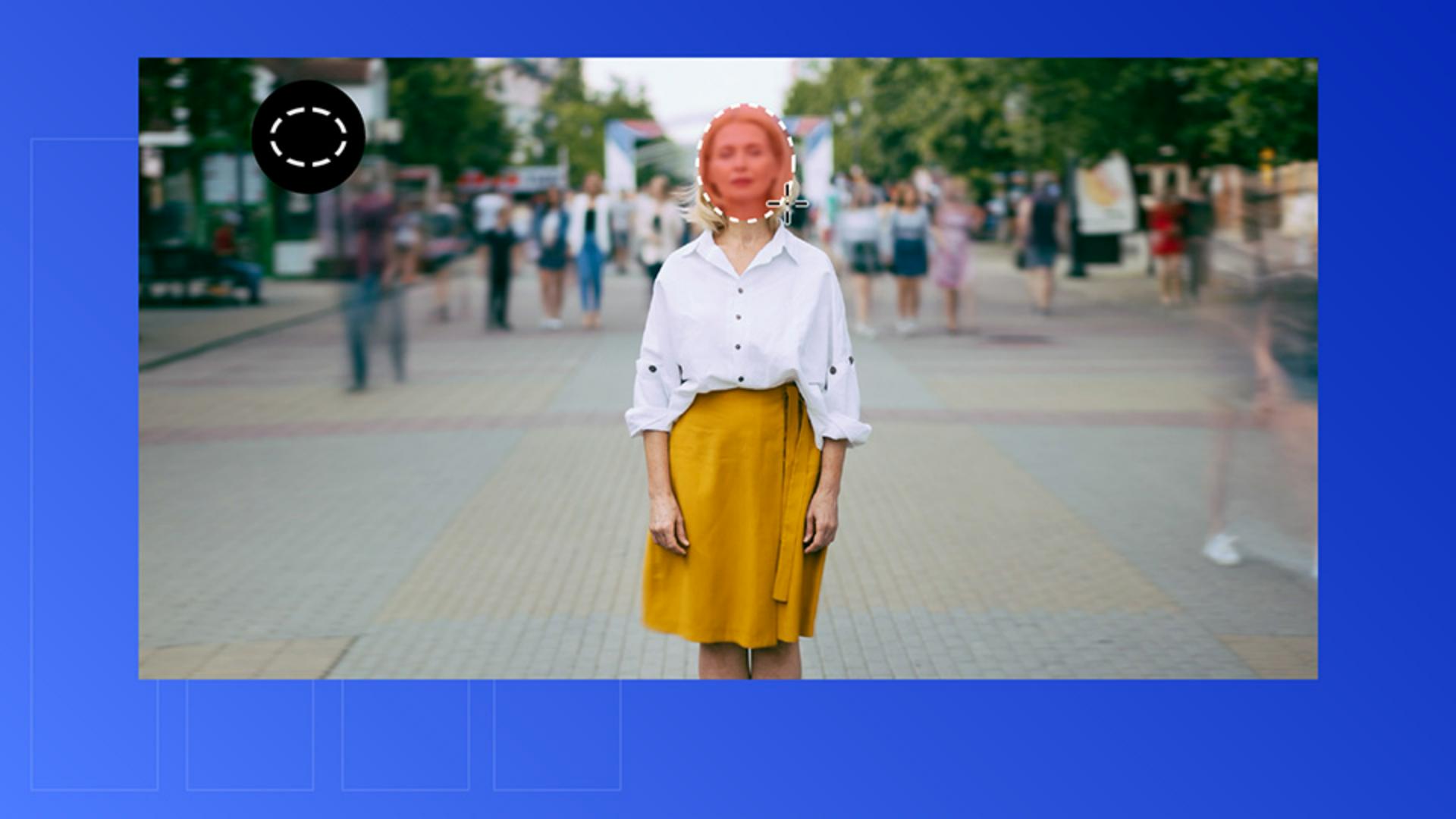
Lerne, wie du mit der KI-gestützten Maskierung in Premiere ein Motiv verfolgst und weichzeichnest – und dabei natürliche, präzise Ergebnisse erzielst.
Einführung
[Dave Ko]: Hallo, ich bin Dave Ko und arbeite als Motion-Designer.
Ich verwende Adobe Premiere seit über 30 Jahren, also quasi von Anfang an.
Premiere kann inzwischen deutlich mehr als reine Videobearbeitung.
Mit dem KI-gestützten Objektmasken-Werkzeug kannst du in Sekunden saubere Masken erstellen.
Kein Rotoscoping mehr, kein Wechsel zu After Effects.
Du kannst alles in Premiere erledigen.
Heute zeige ich dir, wie du ein unscharf dargestelltes Gesicht verfolgst: mit dem Objektmasken-Werkzeug.
Legen wir los.
Öffne die Projektdatei „Blur_Face“.
Ein Motiv maskieren
Im Projektfenster siehst du den Video-Clip für diese Übung.
Ziehe ihn in das Schnittfenster.
Beim Scrubbing im Schnittfenster siehst du eine Zeitraffer-Aufnahme einer Frau in einer Fußgängerzone.
Die Kamerabewegung ist subtil.
Unser Ziel ist es, ihr Gesicht zu verfolgen und einen Unschärfe-Effekt anzuwenden, der mit der Umgebung verschwimmt.
Klicke auf der Werkzeugleiste auf das Objektmasken-Werkzeug, um weitere Optionen anzuzeigen.
Wähle das Ellipsenmasken-Werkzeug.
Für das eher ovale Gesicht ist das eine gute Ausgangsbasis.
Klicke und ziehe eine Ellipse über ihr Gesicht.
Maskiere das Gesicht vollständig.
Klicke auf die Steuerung zum Weichzeichnen – den schwarzen Punkt über der Maske –, und ziehe sie nach außen, um die Kanten weicher zu machen.
Ziehe den Punkt bis zum Rand der Haare, sodass die weiche Kante harmonisch in die Umgebung übergeht.
Sobald ich mit der Maske zufrieden bin, kann ich sie verfolgen.
Wähle den Clip aus, wechsle zum Bedienfeld „Effekteinstellungen“,
Ein Motiv im Clip verfolgen
und finde die Ellipsenmaske.
Du siehst dort mehrere Optionen für das Tracking: Frame für Frame, nur vorwärts, nur rückwärts oder beide Richtungen.
Ich möchte den gesamten Clip verfolgen, also klicke ich auf den mittleren Button: „Ausgewählte Maske vorwärts und rückwärts verfolgen“.
Die KI von Premiere analysiert das Material in Sekunden und folgt dem Gesicht mit der Maske.
Beim Scrubbing im Schnittfenster lässt sich erkennen, wie präzise das Tracking ist.
Jetzt füge ich Unschärfe hinzu.
Einen Unschärfe-Effekt hinzufügen und anpassen
Wähle die Objektmaske aus und öffne das Bedienfeld „Effekte“.
Falls du es nicht findest, wähle „Fenster“, „Effekte“.
Suche nach „Gaußscher Weichzeichner“ und doppelklicke darauf.
Da die Maske ausgewählt ist, wird sie automatisch unter den Effekt platziert.
Ich erhöhe den Weichzeichnungsgrad auf 10,0.
Jetzt animiere ich die Einblendung des Gesichts.
Den Unschärfe-Effekt animieren
Bewege den Frame an die Stelle, wo die Unschärfe abnehmen soll.
Setze einen Keyframe für die Weichzeichnungsstärke.
Springe ein paar Sekunden vor.
Setze einen weiteren Keyframe und reduziere die Weichzeichnung auf 0,0.
Jetzt kann ich das Ganze abspielen.
Denke daran, die Auswahl der Maske aufzuheben.
Andernfalls wird der unscharfe Bereich rot.
Das Gesicht erscheint verschwommen und kommt dann zum Vorschein.
Die Maske wird automatisch per KI verfolgt.
So verfolgst du eine Maske, die mit Unschärfe animiert wurde.
Sauber, unkompliziert, und alles in Premiere.
Diese Technik eröffnet dir viele Möglichkeiten.
Du kannst nicht nur Gesichter verfolgen und unscharf machen, sondern z.
B. auch Kfz-Kennzeichen.
Oder mache Teile von Dokumenten oder sensible Informationen unkenntlich.
Ich hoffe, die Technik ist dir nützlich.
Bis zum nächsten Mal.
Hinweis: Die zur Verfügung gestellten Medien aus Adobe Stock dürfen nur zu Übungszwecken verwendet werden. Bedingungen beachten
Zusammenfassung.
Ein Motiv maskieren.
Maskiere mit dem Ellipsenmasken-Werkzeug das Motiv, das unscharf gemacht werden soll. Passe die Form und weiche Kante der Maske an, um sie in die Umgebung zu integrieren.
Ein Motiv im Clip verfolgen.
Verwende die Tracking-Steuerungen, um das Motiv vorwärts und rückwärts durch den Clip zu verfolgen. Dabei bleibt die Maske automatisch in Position.
Einen Unschärfe-Effekt hinzufügen und anpassen.
Wende einen Unschärfe-Effekt auf den maskierten Bereich an, und passe die Intensität an. Justiere den Weichzeichnungsgrad, damit sich die Maske perfekt in die Szene einfügt.
Den Unschärfe-Effekt animieren.
Verwende Keyframes, um die Unschärfe im Zeitverlauf zu reduzieren bzw. verschwinden zu lassen. Auf diese Weise bringst du dein Motiv in einem weichen, kontrollierten Übergang zum Vorschein.
You can control how Adobe websites use cookies and similar technologies by making choices below. But note that if you disable cookies and similar technologies entirely, Adobe websites may not function properly.
Cookies are small text files stored by your web browser when you use websites. There are also other technologies that can be used for similar purposes like HTML5 Local Storage and local shared objects, web beacons, and embedded scripts. These technologies help us do things like remembering you and your preferences when you return to our sites, measure how you use the website, conduct market research, and gather information about the ads you see and interact with.
You can make choices in the menu below about what cookies and other technologies you want us to use on Adobe sites when you visit them from this browser. You can always change those choices later by clicking on the Cookie Preferences link at the bottom of the page.
If enabled:
We can improve your experience by tailoring the site and the content to things we think might be of interest
We can better keep track of your preferences — like what language you prefer to use
We will better understand your likely interests so we can provide you more relevant Adobe ads and content on non-Adobe websites and in non-Adobe apps
It will help us improve the performance of our website and those of our partners who use the Adobe Experience Cloud
If disabled:
We won’t be able to remember you from session to session so the experience may not be tailored to your interests
You’ll still have access to the content of the site but certain features that depend on cookies may not function
You’ll still see ads, they just may not be as relevant to you
General information
You can control how Adobe websites use cookies and similar technologies by making choices below. But note that if you disable cookies and similar technologies entirely, Adobe websites may not function properly.
Cookies are small text files stored by your web browser when you use websites. There are also other technologies that can be used for similar purposes like HTML5 Local Storage, web beacons, and embedded scripts. These technologies help us do things like remembering you and your preferences when you return to our sites, measure how you use the website, conduct market research, and gather information about the ads you see and interact with.
You can make choices in the menu below about what cookies and other technologies you want us to use on Adobe sites when you visit them from this browser. You can always change those choices later by clicking on the Cookie Preferences link at the bottom of the page.
If enabled:
We can improve your experience by tailoring the site and the content to things we think might be of interest
We can better keep track of your preferences — like what language you prefer to use
We will better understand your likely interests so we can provide you more relevant Adobe ads and content on non-Adobe websites and in non-Adobe apps
It will help us improve the performance of our website and those of our partners who use the Adobe Experience Cloud
If disabled:
We won’t be able to remember you from session to session so the experience may not be tailored to your interests
We’ll still count your use of our site and services
You’ll still have access to the content of the site but certain features that depend on cookies may not function
You’ll still see ads, they just may not be as relevant to you
Operate the site and core servicesOperate site and measure engagement
Always active
These cookies are required, and they are used to enable the site and related services core functionality. Without them the site could not operate, so they cannot be disabled.
These cookies enable the site and related services’ core functionality and collect statistics about user engagement, such as counting active use to help us understand trends. These cookies cannot be disabled.
Measure performance
These cookies are used to analyze site usage to measure and improve performance. Without them Adobe cannot know what content is most valued and how often unique visitors return to the site, making it hard to improve information we offer to you.
These cookies are used to analyze site usage to measure and improve performance. Without them Adobe cannot know what content is most valued, making it hard to improve information we offer to you.
Extend functionality
These cookies are used to enhance the functionality of Adobe sites such as remembering your settings and preferences to deliver a personalized experience; for example, your username, your repeated visits, preferred language, your country, or any other saved preference.
Personalize advertising
These cookies are used to enable Adobe and our partners to serve ads more relevant to your interests. Without them you will still see ads, but they might not be as relevant to you.
Personalize advertising
These cookies are used to enable Adobe and our partners to serve ads more relevant to your interests. Without them you will still see ads, but they might not be as relevant to you.