Upload and Export Scans
Adobe Scan offers a rich set of features for uploading and sharing scans. You can share a link to a file stored in Adobe Document Cloud, share a copy of the file with other apps on your device, email the file, and more.
Share your scans
To share your scans:
From the Recent scans view, tap
 in the file thumbnail.
Alternatively, from the All scans view, tap
 and then tap
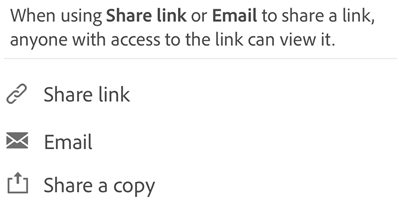
 Select one of the following sharing options:
Share a link
Share via Email
Share a copy
Complete the corresponding workflow to share your file.
Share scans via link
To share your scan as a link:
From the Recent scans view, tap
next to the file that you want to share.Tap Share link. Scan creates a link and open the list of available apps.
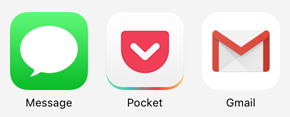
Choose a sharing app from the list and complete the workflow.
Share scans via email
You can easily email your scans as links directly from the app. To do so:
From the Recent scans view, tap
Share for any file.Alternatively, from the All scans view, tap
> Share for any file.Tap
 Email.
Choose an email app on your device, and complete the workflow.
The scan link that you share via email goes directly to the Scan app on the Play store, in case the app is not already installed.
Share multiple files
You can share multiple files at a time. To do so:
From the Home view, tap
Tap Select
Tap the files to share.
Tap
Choose one of the ways to share and complete the workflow.
Edit and share scans via Acrobat Reader
If you have Acrobat Reader installed, you can open a scan in Acrobat to add comments, edit the file, share, and more.
To open a file in Acrobat, use any one of the following ways:
From the Recent scans view, tap
 for any file.
From the All scans view, tap
> for any file.Open a scan and tap Comment.
You can then edit, comment, or markup the file in Acrobat and tap Done. The shared file with comments is automatically saved in Adobe Scan.
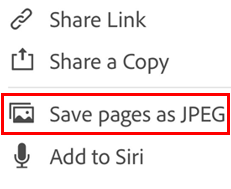
Save pages as JPEG
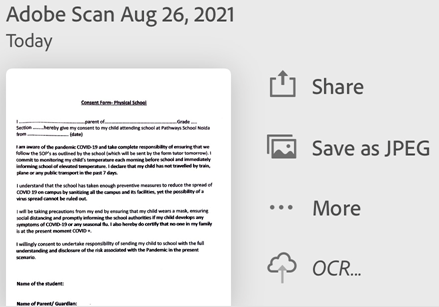
While files automatically save as PDF, you can also save individual pages as JPEG files to your gallery.
From the list of All scans, open a file and tap
. Or, tap next to a file from the list of Recent scans.Tap Save as JPEG.
Every page of your scan automatically saves to your gallery in JPEG format.
Create Fill & Sign forms
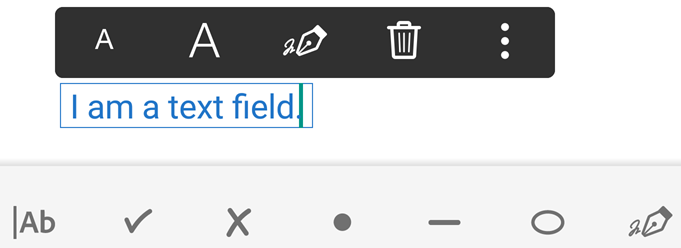
Fill & Sign forms are PDF forms you can create on any platform, including mobile devices. Fill & Sign form fields are similar to annotations: you can select a form element from the form tool bar and tap anywhere on the PDF to place it.
If you’ve installed Acrobat Reader, you can create a form from a scan:
Open a file in Acrobat.
Tap
 .
.Edit the file as needed. You can then add form fields such as text fields and check boxes. You can fill out the fields, or you can send the file to others for fill in.
Print files
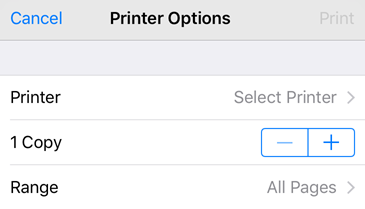
You can print your scans using your device’s printing capabilities. You can set up a printer ahead of time or at the time of printing.
Open a PDF.
Tap
and then 
In the Printer Options dialog, select a printer.
Use the + and - buttons to set the number of copies to print.
Tap Print.
Note
The printer must be AirDrop enabled. For details, refer to Apple Support.