Manage Subscriptions
Adobe Scan is a free app that can be used as a powerful portable scanner to scan different types of documents. However, you need to purchase subscription services to be able to use the following Premium features:
Subscribe to services
If a feature you’re trying to use is not available or asks you to subscribe, you need to check your current subscriptions.
To view your subscriptions and/or add new ones:
Tap

Tap Subscriptions.
To add a subscription, tap Subscribe Now or Try Now.
Once you’ve subscribed, the subscription tab lists your current subscriptions.
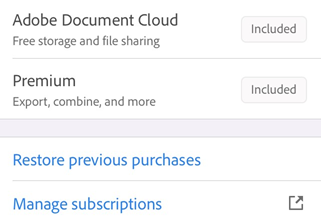
..note:: Files changed through the use of subscription services are always saved. On iOS, such files are always saved to Document Cloud irrespective of their original location.
Upgrade existing subscriptions
The subscription workflow does not block you from upgrading to a package that includes services to which you are already subscribed, but it does tell you to cancel those existing subscriptions. For example, if you subscribe to Scan Pro DC, you should cancel all other subscriptions.
Cancel a subscription
You need to cancel a subscription from the store where it was purchased.
To initiate cancellation from Adobe Scan app:
Open the Settings app on your device.
Tap your name.
Tap Subscriptions.
Tap the subscription that you want to cancel.
Tap Manage Subscriptions and proceed to cancel the selected subscription.
You should receive a cancellation email.
Cancellation fee and refunds
A refund depends on when you cancel and the type of subscription you purchased. For most plans, you get a full refund if you cancel within 14 days of your initial purchase. Learn if you get a refund when you cancel.
Adobe does not issue refunds for purchases made directly through app stores. For refund or billing requests, refer to Refunds from Apple for App Store or iTunes Store.
Need more help with refunds? Use the Contact Us chat bot at the bottom of Scan mobile FAQ page.
Activate a subscription
You subscription should automatically activate. If you have an issue, you can reactive or restore your purchase as follows:
Launch Scan.
Tap
Open the Subscriptions tab.
Tap Restore previous purchase.
After a dialogue appears stating your purchase is restored, relaunch the app and try using your paid services.
Note
See also the FAQs below for special cases.
Update Your App
You need to regularly update the app or enable auto-update to be able to access the latest features of Adobe Scan. To do so, follow the Apple Store instructions.
You can also enable auto-update to ensure that you always have access to the latest features.
Note
If you have not updated to the latest app version, you may see the legacy user interface which lists individual subscriptions.
Subscription FAQs
How do I restore purchases after updating from a store other than the one which provided the original download?
See Restore purchases.
Why was I automatically charged after the free trial ended?
The free trial automatically converts to a paid subscription at the end of the trial period.
If I cancel my subscription, does Adobe send a confirmation?
Cancelling via the app store: Check your app store cancellation confirmation policies.
Cancelling via Adobe: Adobe sends you a confirmation email.
How do I know my trial is ending and I’ll be charged?
Check the settings in the Adobe app to learn when payment will be charged. Tap Settings > Subscriptions > Manage subscriptions to view the next scheduled payment.
What do I do if I accidentally subscribe twice?
You cannot subscribe twice with one log in ID. If you log in as a different user, you should manage your subscriptions separately under each login.
I want to evaluate whether I should buy or cancel. Where can I get a complete list of features I’m getting on all platforms?
The app stores list the available in-app purchases and subscription features.
Subscription features
Export PDF to other formats
With subscription to Adobe Scan Premium or Adobe Acrobat Pro DC, you can export unshared PDF files to other formats, including Word, Excel, PowerPoint, and rich text. This online service requires an internet connection.
During the export workflow, you may choose to convert scanned text into actual text via optical character recognition. Scan supports several export languages.
To export a PDF:
Log in to Document Cloud and open an unshared file.
Tap
 > Export PDF. Alternatively, from the list of All scans or Recent scans, tap next to any unshared file and then tap Export PDF.
From the list of formats, select the desired format.
To change the export language, tap on the selected language and select the desired language from the list. By default, the export language is the same as your installed app.
Once done, tap Export.
You get a notification once the file is exported and saved to Document Cloud.
Combine files
With subscription to Adobe Scan Premium (or Adobe Scan Pro DC), you can combine up to 20 files into a single PDF. You can also combine files from any integrated file location such as Dropbox and Drive. This online service requires an internet connection.
To combine files:
Log in to Adobe Scan.
From the list of All scans or Recent scans, tap
next to an unshared file. Alternatively, open an unshared file from the list and then tap Tap Combine files.
Tap Add files and select one or more files.
Note
Alternatively, you can invoke the combine files workflow from the top menu of Recent scans or All scans view. Tap > Select multiple files. Select the files that you want to combine and tap  Next, follow the steps below.
Tap Next.
To reorder files, long press a file and drag it up or down. To rename the combined file, enter a new name in the File name field.
Once done, tap Combine.
A combined file is automatically sent to Adobe’s Combine service and saved to Document Cloud.
Password protect your scans
Adobe Scan Premium subscribers can password protect PDFs by setting a password to open the document.
To set a password for your scan:
Open a scan and tap
Tap Set password.
In the Set password dialog that opens, enter a password and then confirm it.
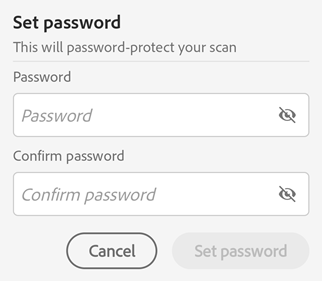
Tap Set password.
The scan is saved as a protected file with a lock badge. To open a password-protected file, you need to enter the password when prompted.
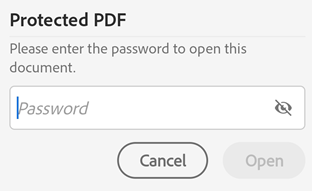
To remove the password from a protected file:
Tap the file to open it.
In the password dialog, enter the password.
Tap
> Remove password. It prompts you to enter the password again.Enter the password again and tap Remove password.
You get a password removal notification.
Increased OCR limit
Subscription to Adobe Scan Premium increases OCR from 25 to 100 pages.