



Free GIF to video maker.
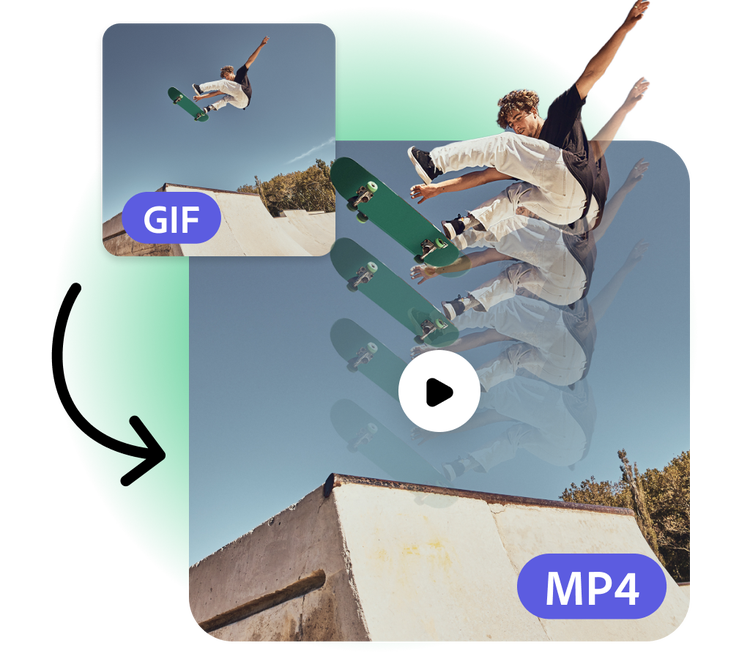
Go beyond the limits of your witty 10-second GIF by converting it to a video. In the Adobe Express GIF to video maker, you can easily edit, enhance, and share your one-of-a-kind clip with all your followers. Adobe Express makes it easy to turn a short GIF into an unforgettable video.
1. Upload.
Drag and drop your GIF into the GIF to video maker.

2. Customize.
In the Adobe Express editor, you can customize endlessly. Add text captions, animations, audio effects, or any other design elements that fit your vision.
3. Share.
When you’re done editing, save and download your file as a video MP4 file. Share directly across your social media channels or save to your device to access later.
Extend your creative vision.
When you have more that you want to say, like highlighting all the features on your new app design, it’s helpful to have more than 10 seconds to show off. Converting your GIFs into a video gives you more leeway for your message. Plus, MP4 files load faster, which is ideal for embedding on a website or into an email newsletter.


Put your creativity on display.
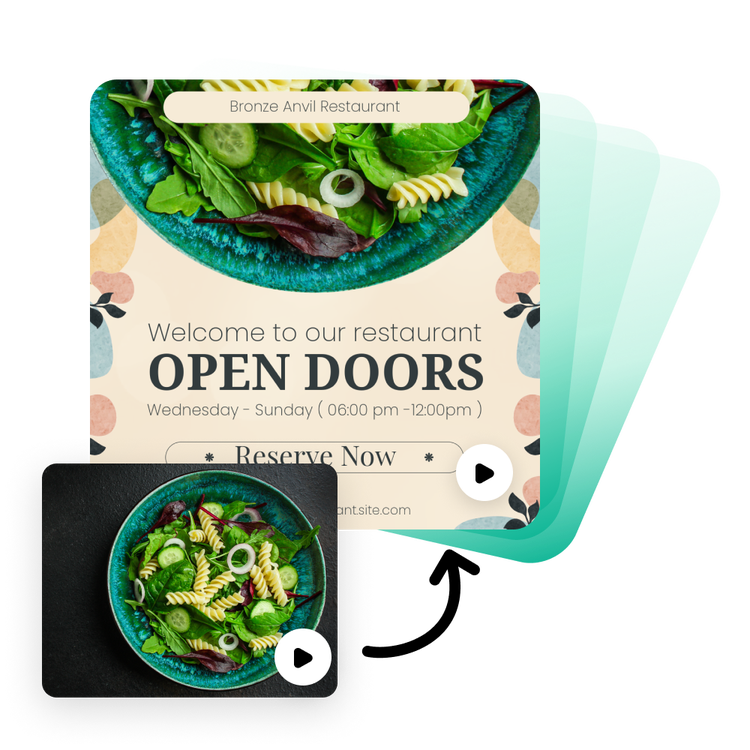
After uploading your GIF to the GIF to video maker, you’ll have the opportunity to use all the editing tools available in Adobe Express. Swap out a standard font for something more eye-catching or add in animated icons to give the video more movement. While converting your GIF to a video, you’ll have the chance to customize with Adobe Stock videos and images, design elements, and unbelievable AI tools.
Showcase your work with a stunning video.
Elevate your business promotions when you convert your GIF to a versatile video in Adobe Express. MP4 files are easily shareable and eye-catching, especially on social media. Whether you’re highlighting the workout routine of the week at your gym or promoting the progress on your home renovation, turning a short GIF into a dynamic custom video is sure to appeal to your audience.
Combine multiple GIFs in one video.
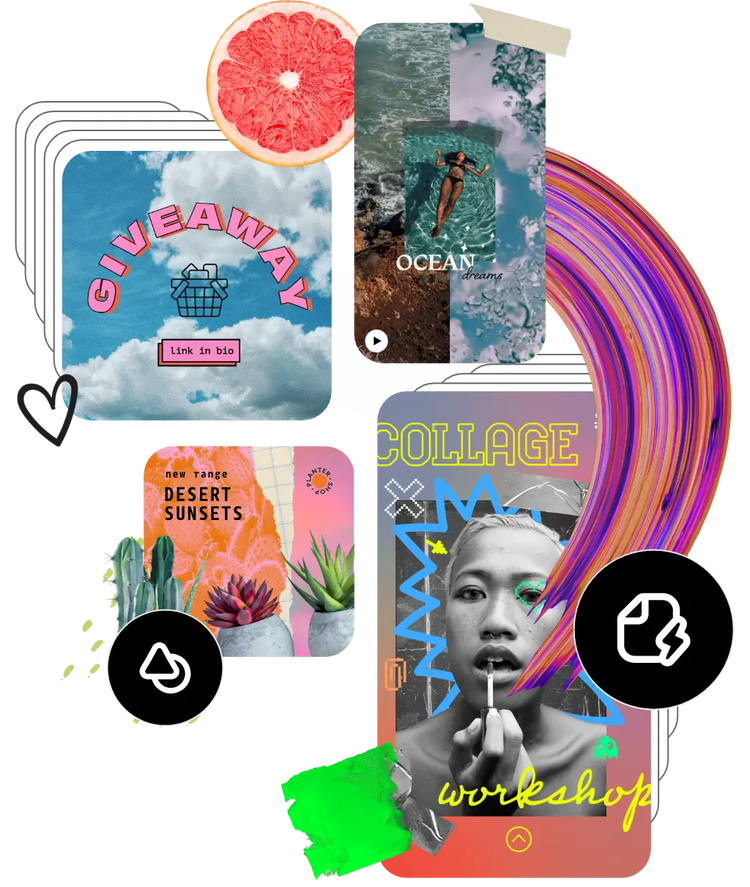
Stitch together multiple GIFs to create a new and unforgettable video. Whether it’s the best pop-culture references you don’t want to forget or that collection of GIFs you created to show off different product features, they work great when turned into a seamless MP4 video. Adobe Express makes it easy to string clips together, add transitions, and customize with precision.
Frequently asked questions.
Can I edit my GIFs before converting them into a video?
You can edit them before or after or both. Adobe Express offers a range of editing tools, including filters, text overlays, and cropping options, allowing you to perfect your clip before and/or after turning them into a short video.
What file format will my GIF be converted to?
When converting a GIF to a video in Adobe Express, your video will be exported as an easy-to-share MP4 file.
Will the quality of my GIF be preserved in the video?
Yes, Adobe Express is designed to maintain the high quality of your animation during the conversion process. Your MP4 file will retain clarity and detail, ensuring it looks professional and captivating.
How quickly can I create a short video using the Adobe Express GIF to video maker?
Converting your GIF to a video is incredibly fast. Once you've uploaded your GIF you can save it instantly as an MP4. Additionally, you can take some extra time completing any editing and customizing you’d like in Adobe Express before finally converting the file to a video. Either way, the GIF to MP4 maker is a time efficient tool for creators of all skill levels.
Can I get Adobe Express for free? If so, what’s included?
Yes, we have a free plan available for anyone. Enjoy everything you need to stand out, including thousands of templates, hundreds of Adobe Stock images, photo editing and effects, and much more. Visit our plans and pricing for details.

