Compress a WebP image online for free.
Quickly compress WebP images with the HARMAN Image Compressor add-on in Adobe Express. Save time and streamline your workflow.
How to compress a WebP image.

1. Launch Adobe Express.
Open Adobe Express for free on your desktop. Select the add-ons panel in the left menu and install the HARMAN Image Compressor add-on.

2. Compress.
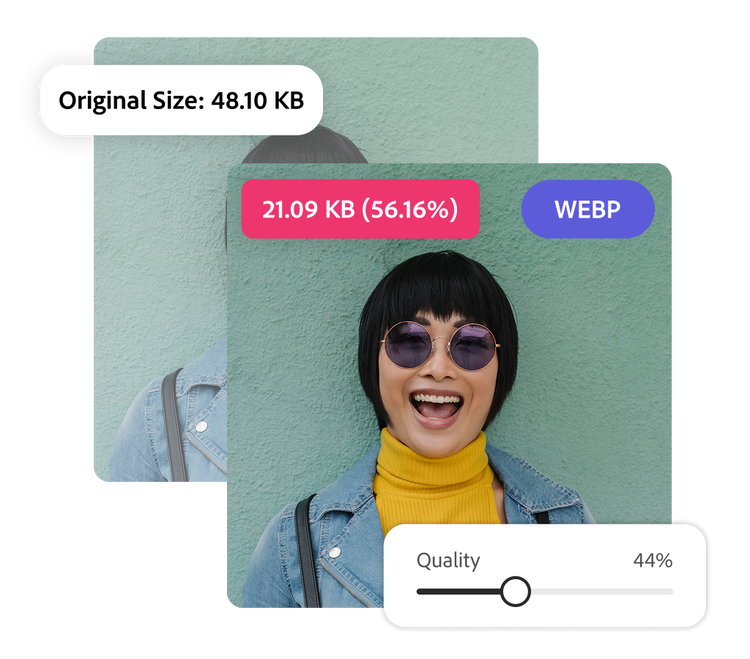
Either upload a WebP image from your desktop or access an image in Adobe Express. Use the slider to compress the WebP image down from 100 percent to 0 percent. The add-on will reflect the size of the compressed image in real time.

3. Continue editing.
Click Add to Page or Download when you’ve got a file size that works for your project. (Note: the Image Compressor add-on converts compressed WebPs to JPEG.) Keep editing your image in Adobe Express by applying filters, cropping, and more.

Compress an image quickly.
The HARMAN Image Compressor add-on in Adobe Express works fast. Just upload your WebP into the add-on then use the slider tool to land on the ideal size. Your image will be converted to a JPEG and will be ready to use quickly, in newsletters, or anywhere else you want to improve user experience while still displaying your images.
Fine-tune your file size.
Since WebP images are smaller in file size, they can help webpages load faster and improve overall site performance. Additional compression can further optimize this balance between image quality and speed, and the slider gives you full control over the settings. Compress a little to maintain image quality or a lot to save the most digital space. (Note: the Image Compressor add-on will convert the compressed WebP image to a JPEG.)

Create and share faster.
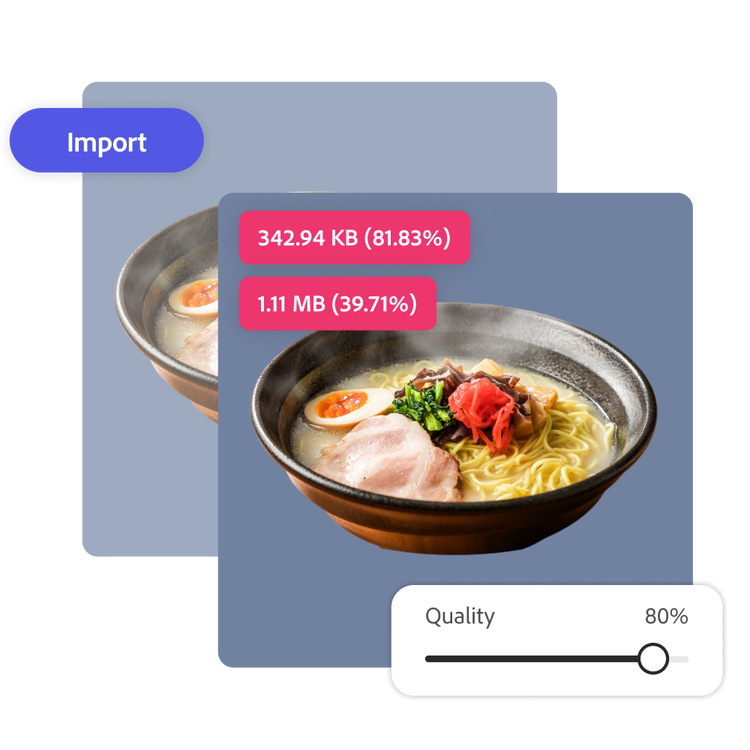
With the HARMAN Image Compressor add-on, you can compress your WebP in one place without switching between programs. Upload a WebP file from your desktop or use your Adobe Express canvas directly. Then click Add to Page to keep editing your compressed image or download as a JPEG.
Customize your WebP image online with tools, templates, and more.
Adobe Express makes editing images easy. Take time to explore tools, templates, and Adobe Stock assets to develop your style. With Adobe Express on your side, all you need to do is open the app to create unique and standout designs that will captivate your audience.