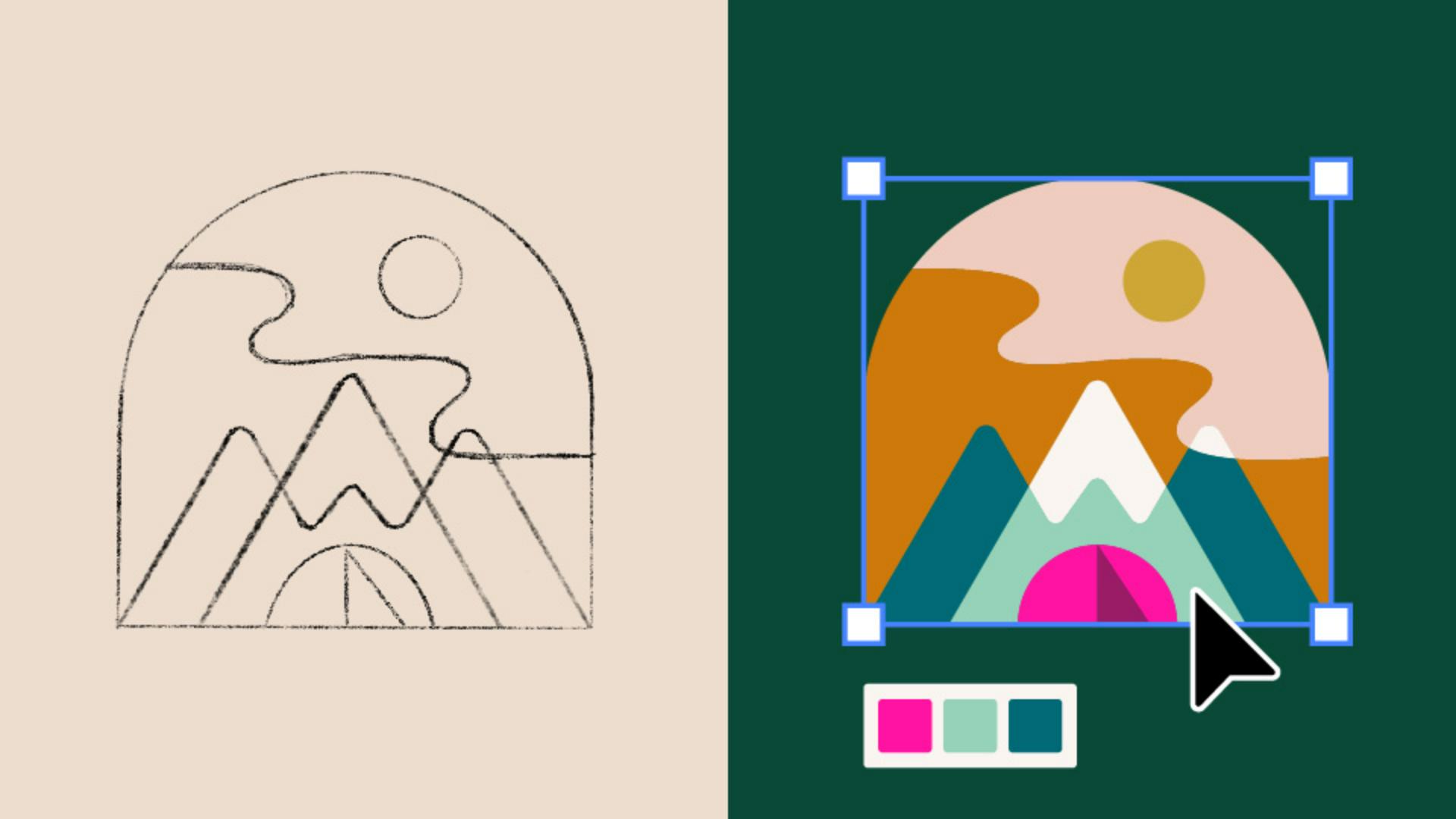
Curious how to turn a rough sketch into a colorful logo badge with just a few tools?
My name is Sydney Michuda, Creative Director of Super Creative, and in the next couple minutes, I'll show you how to transform your sketches into polished vectors with simple shapes, the Pen Tool and Pathfinder window.
Place your paper or iPad sketch into Illustrator, reduce the Opacity and lock it in place.
Grab the Rectangle Tool to create the outer shape and using the Direct Selection Tool, highlight the corners and drag them inward to form the arch.
Then use the Circle Tool to form the sun.
To make sure our shapes are centered at a vertical line guide and align the center point of the arch to the guide.
Now using the Pen Tool, add three points to create your center triangle and close it.
Duplicate this shape and drag and scale it into place.
With the Pen Tool add a new anchor point and then delete the lower right point.
Extend a line from your new point to the center.
Duplicate this shape and with the Reflect Tool, hold Shift, flip horizontally and drag into place.
Now delete one of the center points and with the Pen Tool join the two paths in the center and down below.
Grab the Circle Tool to form your tent and with the Pen Tool, add three points for the tent shadow triangle.
To round the corners, use the Direct Selection Tool.
Select the mountain peak corner dots and drag in the corners.
Repeat this for the center peaks as well.
Now to add the sky.
With the Pen Tool, start outside of your outermost shape and add anchor points along the way.
Once your path is done, refine with the Direct Selection Tool.
With all of our shapes built, open Pathfinder either in the Window menu or in the Properties panel.
Select the objects you'd like to separate and click Divide.
Ungroup your design and now we can adjust each shape individually.
Using the brand's color palette, select the Eyedropper Tool and easily apply all the colors to each shape in your badge.
Now you can turn your simple sketches into colorful logo badge creations in Illustrator.
Use these sample files to try the process on your own.
Again, my name is Sydney Michuda of Super Creative.
Thanks for watching.